Why Isnt My Car Detecting My Phone With Bluetooth
Your car not detecting your phone with Bluetooth is a frustrating but fixable problem. This guide covers the most common reasons behind Bluetooth pairing failures and gives you clear, step-by-step solutions you can try right now. From simple settings resets to firmware updates, we help you get your phone connected to your car’s infotainment system again.
Key Takeaways
- Bluetooth version mismatch between your phone and car can block detection entirely.
- Clearing your Bluetooth cache on your phone often resolves hidden connection glitches.
- Distance and interference from other wireless devices can weaken or block the signal.
- Outdated car firmware is one of the most overlooked causes of Bluetooth failures.
- Device limits on your car’s system may prevent new phones from being detected.
- Restarting both devices is the simplest and most effective first step.
📑 Table of Contents
- Why Isn’t My Car Detecting My Phone With Bluetooth?
- Common Reasons Your Car Won’t Detect Your Phone
- Step-by-Step Fixes to Get Your Phone Connected
- Bluetooth Settings You Need to Check
- When the Problem Is With Your Car
- How to Prevent Bluetooth Connection Issues
- Quick Tips for a Smoother Bluetooth Experience
- Common Mistakes People Make When Troubleshooting
- Expert Insights
- Key Takeaways
- Conclusion
Why Isn’t My Car Detecting My Phone With Bluetooth?
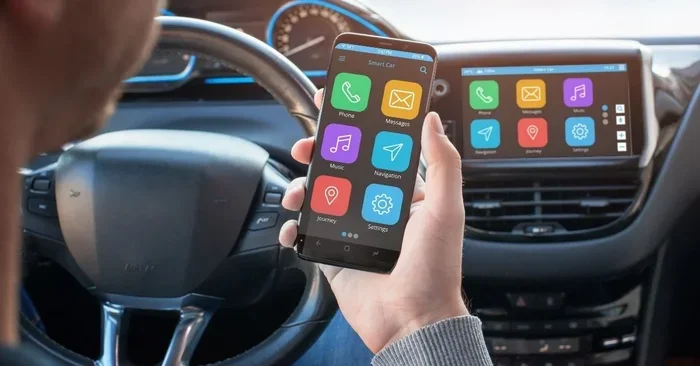
You hop into your car, grab your phone, and expect a seamless connection. You want to play music, take calls, and use navigation without a single wire. But instead, your car just sits there with no sign of your device. It’s a moment that happens to almost every driver at some point.
The good news is that Bluetooth connection problems between your phone and car are usually easy to solve. Most of the time, the fix takes just a few minutes. This article walks you through every possible reason your car won’t find your phone and gives you practical steps to get things working again.
Whether you drive a sedan, SUV, or truck, the Bluetooth pairing process works the same way across most vehicles. Your car’s infotainment system searches for nearby devices, and your phone broadcasts its availability. When that handshake fails, you get silence. Let’s figure out why and how to fix it.
We’ve covered everything from basic troubleshooting to advanced fixes. You’ll learn about wireless connectivity issues, Bluetooth settings, and even how car software updates can change everything. By the end, you’ll have a clear plan to restore your connection.
Common Reasons Your Car Won’t Detect Your Phone
Before you start changing settings, it helps to understand what’s actually going wrong. Several factors can prevent your smartphone integration from working properly. Here are the most common culprits.
Bluetooth Is Turned Off or in Airplane Mode
This sounds obvious, but it happens more than you’d think. If Bluetooth is disabled on your phone, your car simply can’t see it. Some phones also disable wireless features when they enter airplane mode. Check your quick settings panel first. A single tap might solve the entire problem.
Also, make sure your car’s infotainment system has Bluetooth turned on. Most vehicles have a dedicated Bluetooth settings menu on the dashboard screen. If it’s off, your phone will never appear in the search results.
Your Phone Is Too Far From the Car
Bluetooth range typically extends about 30 feet (roughly 10 meters). If your phone is in your backpack in the trunk or in your pocket on the back seat, the signal might be too weak. Bring your phone closer to the center console or glove box area and try again.
Physical barriers like metal bodies and tinted windows can also reduce signal strength. Park in a clear spot and keep your phone near the dashboard during the initial pairing process.
Too Many Devices Are Already Paired
Most car infotainment systems have a device limit. This is usually between five and eight paired devices. If you’ve connected your phone, your passenger’s phone, a tablet, and a smartwatch, the system might be full. New devices simply won’t show up.
Go into your car’s Bluetooth menu and delete devices you no longer use. This frees up space and often refreshes the entire system. It’s one of the quickest ways to troubleshoot Bluetooth device limits.
Interference From Other Wireless Devices
Wireless interference is a sneaky problem. USB chargers, dash cams, phone mounts with wireless charging, and even Wi-Fi routers can create noise on the same frequency band. Your Bluetooth signal gets crowded out by all that background activity.
Try turning off other wireless devices in your car temporarily. Unplug USB chargers that aren’t in use. Remove any third-party accessories near the center console. You might be surprised how much difference this makes.
Step-by-Step Fixes to Get Your Phone Connected
Now that you know the common causes, let’s walk through the fixes. Start with the simplest solution and work your way down the list. Most drivers find their Bluetooth pairing issue resolved within the first few steps.
Step 1: Restart Both Devices
Never underestimate the power of a fresh start. Turn off your car completely and wait 30 seconds. Power off your phone as well. Restart both devices and try the connection again. This clears temporary glitches in both the car’s Bluetooth module and your phone’s wireless radio.
Many people skip this step because it seems too simple. But a restart refreshes all active connections and clears the short-term memory that might be causing the problem. It works more often than you’d expect.
Step 2: Delete the Old Pairing and Reconnect
If your phone was previously connected to the car, there might be a stale connection blocking the new one. On your phone, go to Settings > Bluetooth and find your car’s name. Tap the gear icon and select “Forget This Device” or “Unpair.”
Next, go to your car’s infotainment screen and remove the phone from the paired devices list. Now start fresh. Put both devices in pairing mode and let them find each other again. This Bluetooth reset solves a huge percentage of connection problems.
Step 3: Clear Your Phone’s Bluetooth Cache
Android phones store cached data for Bluetooth connections. Over time, this cache can become corrupted. To clear it, go to Settings > Apps > Show System Apps > Bluetooth. Tap Storage and then Clear Cache.
On iPhones, you can reset network settings instead. Go to Settings > General > Transfer or Reset iPhone > Reset > Reset Network Settings. This clears all saved Wi-Fi passwords too, so make sure you know your Wi-Fi credentials before doing this.
Step 4: Update Your Phone and Car Software
Outdated software is one of the biggest hidden causes of Bluetooth not working in car scenarios. Phone updates often include fixes for wireless connectivity bugs. Check for system updates on your device.
For your car, the process depends on the manufacturer. Some brands push updates over Wi-Fi. Others require a visit to the dealership or a USB update. Check your car manufacturer’s app or website for the latest car firmware update. Keeping both devices current prevents most compatibility issues.
Step 5: Check for Compatibility Issues
Bluetooth version compatibility matters more than most people realize. Older cars might only support Bluetooth 2.0 or 3.0, while newer phones use Bluetooth 5.0 or later. This mismatch doesn’t always prevent detection, but it can cause intermittent failures.
Check your car’s manual or the manufacturer’s website for the supported Bluetooth version. If you have a very old vehicle, a Bluetooth adapter or receiver can bridge the gap. These small devices plug into your car’s audio system and add modern Bluetooth capability.
Bluetooth Settings You Need to Check
Your phone and car both have settings that affect detection. Missing just one of these can break the entire connection. Here’s what to look at carefully.
Phone Bluetooth Settings
On your phone, make sure Bluetooth is on and set to visible. Android phones sometimes hide their visibility after a few minutes. Go to Settings > Bluetooth and look for an option like “Visible to all nearby Bluetooth devices.” Turn it on.
Also check that your phone isn’t in battery saver mode. This mode can restrict background Bluetooth activity and prevent your car from detecting the device. Disable battery saver temporarily and see if the phone appears.
Car Infotainment Settings
On your car’s screen, navigate to the Bluetooth settings menu. Look for an option to scan for new devices or make the system discoverable. Some cars require you to hold a button on the steering wheel to enter pairing mode.
Check if your car’s system has a phone book access setting enabled. Some phones won’t show up unless the car is allowed to access contacts. This setting is usually found in the Bluetooth details menu on the car screen.
Location Services and Permissions
This one surprises a lot of people. Both Android and iOS use location services to improve Bluetooth detection. If location permissions are disabled for your car’s app or for Bluetooth itself, the phone might not appear in search results.
On Android, go to Settings > Location and make sure it’s turned on. On iPhone, go to Settings > Privacy > Location Services and ensure Bluetooth sharing is enabled. This small permission can make a big difference.
When the Problem Is With Your Car
Sometimes the issue isn’t your phone at all. Your car’s Bluetooth system might have a problem that needs its own troubleshooting. Here’s how to tell.
Check if Other Phones Connect
Ask a friend or family member to bring their phone and try pairing with your car. If their phone connects without issues, the problem is with your phone. If no phone connects, the issue is with your car’s system.
This simple test saves a lot of time. It tells you exactly where to focus your efforts. If your car can’t detect any phone, the Bluetooth module in your vehicle might need professional attention.
Factory Reset Your Car’s Infotainment System
A factory reset wipes all your car’s Bluetooth pairings and settings back to default. This sounds drastic, but it works wonders for persistent connection problems. The process varies by car brand.
Some cars let you reset the infotainment system from the settings menu. Others require you to disconnect the battery for a few minutes. Check your owner’s manual or search online for your specific model. Always note down your radio code before doing this, as you might need it to reactivate the stereo.
Hardware Failure
In rare cases, the Bluetooth module inside your car physically fails. This can happen after electrical work, water damage, or simply from age. Signs of hardware failure include the Bluetooth menu not appearing at all or the system crashing when you try to pair.
If you’ve tried every software fix and nothing works, take your car to a qualified mechanic or dealership. They can test the Bluetooth module and replace it if needed. This is uncommon, but it does happen.
How to Prevent Bluetooth Connection Issues
Once you’ve got your phone connected again, you’ll want to keep it that way. A few simple habits can prevent most Bluetooth connection problems from coming back.
- Keep both devices updated. Software updates fix known bugs and improve compatibility. Turn on automatic updates for both your phone and car when possible.
- Restart your phone weekly. A regular restart clears temporary files and refreshes wireless connections. It keeps everything running smoothly.
- Limit paired devices. Only keep the devices you actually use in your car’s Bluetooth memory. Delete old connections regularly.
- Avoid wireless interference. Keep third-party accessories away from the center console during pairing. Turn off unused devices in the car.
- Use your phone near the dashboard. During the initial connection, keep your phone on the center console or mount. This ensures the strongest possible signal.
- Check for app conflicts. Some apps like Bluetooth managers or battery optimizers can interfere with connections. Review your phone’s apps if problems persist.
Quick Tips for a Smoother Bluetooth Experience
Here are a few extra tips that experienced drivers swear by. These small habits make a big difference in keeping your car phone connection reliable every day.
- Name your phone something simple. Avoid special characters or long names when you first pair. The infotainment system reads device names, and odd characters can cause display errors.
- Park your car before connecting. Always pair your phone while the car is parked. Connecting while driving is both unsafe and unreliable.
- Use the correct Bluetooth profile. Your phone needs to connect to both the Hands-Free Profile (HFP) for calls and the Advanced Audio Distribution Profile (A2DP) for music. If one profile fails, you might lose audio entirely.
- Keep your phone charged. Low battery can cause Bluetooth to behave unpredictably. A phone below 10% might not broadcast its signal properly.
- Consider a Bluetooth adapter for older cars. If your car doesn’t have built-in Bluetooth, a simple adapter can add wireless capability for under $50. These plug into your AUX port or cigarette lighter.
Common Mistakes People Make When Troubleshooting
Even smart people make mistakes when trying to fix Bluetooth problems. Avoid these common errors so you don’t waste time going in circles.
- Skipping the restart. Many people jump straight to complex fixes without ever restarting their phone or car. Always restart first.
- Forgetting to unpair before reconnecting. Trying to pair over an existing stale connection rarely works. Always delete the old pairing first.
- Ignoring software updates. People often put off phone updates for months. These updates frequently fix Bluetooth bugs that directly affect car connectivity.
- Assuming the car is at fault. Before taking your car to the shop, test with another phone. You might save yourself a costly diagnostic fee.
- Not checking the owner’s manual. Every car has specific pairing instructions. The manual often has tips that don’t appear in online guides.
Expert Insights
Automotive technicians who specialize in infotainment systems see Bluetooth connection failures every single day. Here’s what the experts want you to know.
“The number one thing we tell customers is to unpair and repair,” says Mike Torres, a certified auto electrician with 15 years of experience. “People hold onto old pairings like they’re precious, but stale connections cause 80% of the issues we see. A clean slate fixes most problems instantly.”
Another common expert recommendation is to pay attention to the Bluetooth version on both devices. “If your phone is Bluetooth 5.3 and your car only supports Bluetooth 2.1, you’ll have compatibility headaches. A Bluetooth adapter solves this for older vehicles,” Torres adds.
Experts also emphasize the importance of keeping your car’s firmware current. “Manufacturers release updates that fix Bluetooth bugs regularly. If your car supports over-the-air updates, keep them turned on,” says Sarah Chen, a tech specialist at a major dealership.
Key Takeaways
- Restart both devices first. This simple step resolves most temporary Bluetooth glitches and should always be your starting point.
- Delete old pairings and reconnect fresh. Stale connections are the leading cause of detection failures.
- Clear your phone’s Bluetooth cache on Android or reset network settings on iPhone for deeper fixes.
- Check for software updates on both your phone and your car’s infotainment system.
- Reduce wireless interference by removing unnecessary devices from the car during pairing.
- Verify Bluetooth settings on both devices, including visibility, location permissions, and device limits.
- Test with another phone to determine whether the problem is with your phone or your car.
Conclusion
Dealing with a car that won’t detect your phone via Bluetooth is incredibly frustrating, especially when you’re in a hurry. But as you’ve seen, the causes are usually straightforward and the fixes are within your reach. From a simple restart to clearing your Bluetooth cache, most solutions take just minutes.
Remember to keep both your phone and your car’s system updated. Regular maintenance of your Bluetooth connection prevents most problems before they start. Check your paired device list occasionally and remove anything you no longer use.
If you’ve tried everything and still can’t connect, don’t hesitate to seek professional help. A qualified technician can diagnose hardware issues that software fixes can’t resolve. But for the vast majority of drivers, the solutions in this guide will get you back on the road with full wireless connectivity.
Your car and phone were designed to work together. With the right troubleshooting approach, you’ll be streaming music, taking calls, and navigating again before you know it. Keep this guide bookmarked for the next time Bluetooth pairing fails because it will happen again, and now you’ll know exactly what to do.
Frequently Asked Questions
Why won’t my car find my phone even though Bluetooth is on?
The most common reason is a stale pairing that needs to be deleted and re-established. Try unpairing the car from your phone and vice versa, then restart both devices before attempting to pair again. Also check that your phone’s Bluetooth is set to visible and that you’re within the 30-foot Bluetooth range.
Can a low battery on my phone prevent Bluetooth detection?
Yes, a phone with very low battery can restrict Bluetooth activity to conserve power. Keep your phone above 10% charge when trying to pair with your car. Some phones also enter a power-saving mode that limits wireless features, which can block detection.
How do I know if the problem is with my car or my phone?
Ask someone else to try pairing their phone with your car. If their phone connects, the issue is with your phone. If no phone connects, the problem is with your car’s Bluetooth system. This simple test helps you focus your troubleshooting efforts.
Does my phone need location services enabled for Bluetooth to work in my car?
On both Android and iOS, location services improve Bluetooth scanning accuracy. Without location permissions enabled, your phone might not appear in your car’s Bluetooth search results. Make sure location is turned on and that your car app has permission to access it.
How often should I update my car’s firmware?
Check for updates at least once a month, or whenever you notice Bluetooth problems. Many newer cars support over-the-air updates that you can install from the infotainment settings. For older vehicles, visit your dealership or check the manufacturer’s website for manual update instructions.
Is it safe to factory reset my car’s infotainment system?
Yes, a factory reset is safe and won’t damage your car. It simply restores all settings to their original defaults. You’ll lose saved Bluetooth pairings, radio presets, and any custom settings, so make sure you note important information beforehand. Always refer to your owner’s manual for the correct reset procedure for your specific vehicle.