How to Set Radio Stations in an Audi A4 Step by Step
Setting radio stations in your Audi A4 is simple once you understand the infotainment system. This guide walks you through every step, from basic FM tuning to saving your favorite presets. Whether you drive a newer or older Audi A4 model, you will find clear instructions to get your radio working perfectly.
Your Audi A4 comes with a capable audio system that lets you enjoy your favorite music and talk shows while on the road. But if you have never set up the radio before, the dashboard controls can feel a bit confusing at first glance. The good news is that learning how to set radio stations in an Audi A4 does not require any special skills or technical knowledge.
In this guide, we walk you through every step of the process. You will learn how to tune into FM and AM frequencies, save your favorite stations as presets, connect your phone for a richer audio experience, and troubleshoot common issues. By the end, you will feel confident using your Audi A4 radio every single day.
The Audi A4 has been a popular sedan and wagon for decades. Each generation brings updates to the infotainment system, but the core radio functions remain similar across models. Whether you own a first-generation B5 or the latest B9, this guide covers the essentials you need. Let us dive right in.
Key Takeaways
- Know Your System: Understanding your Audi A4’s infotainment interface makes radio setup effortless.
- Tune with Ease: You can scan, manually tune, and save stations in just a few taps.
- Presets Save Time: Saving favorite stations means instant access every time you start the car.
- Bluetooth Adds Options: Connecting your phone opens up streaming and hands-free radio control.
- Troubleshooting Helps: A few quick fixes resolve most common radio issues on the Audi A4.
📑 Table of Contents
Understanding Your Audi A4 Infotainment System
What Models Support What Features
The Audi A4 has used different infotainment systems over the years. Older models from the early 2000s relied on a simpler radio interface with physical knobs and buttons. Newer models from 2017 onward feature the MIB3 system, which includes a larger touchscreen and more connectivity options.
Understanding which system your car uses helps you navigate the radio setup process more smoothly. Here are the key systems you might encounter:
- MMI Radio (older models): Uses a rotary dial and a small screen. Radio controls are straightforward with preset buttons.
- MMI Radio Plus: Adds a larger display and supports more station presets. It also includes better sound tuning options.
- MMI Navigation Plus (newer models): Offers a full touchscreen interface with streaming capabilities and smartphone integration.
- MMI Touch (latest B9 models): Features a high-resolution display with gesture controls and voice commands for radio tuning.
No matter which system you have, the basic process of setting radio stations follows a similar pattern. The main difference lies in how you interact with the controls. Once you know where the radio button is, you are already halfway there.
Navigating the MMI Interface
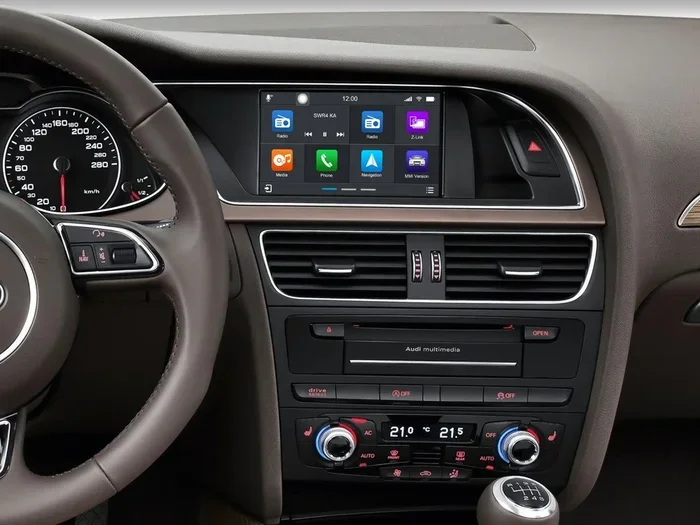
The MMI (Multi Media Interface) is the brain behind your Audi A4 audio experience. When you press the radio button on the dashboard or the MMI knob, the screen switches to the radio view. From there, you can see the current frequency, the station name (if RDS is available), and the band type (FM or AM).
Take a moment to explore the layout. The dial or touchscreen lets you scroll through frequencies. The menu button gives you access to settings like preset management, sound equalizer adjustments, and scanning options. Getting comfortable with the MMI interface before you start tuning makes the whole process much faster.
If your Audi A4 has a virtual cockpit, you can also view radio information on the driver’s display behind the steering wheel. This is a handy feature when you want to keep your eyes on the road while checking the current station.
How to Tune FM and AM Radio Stations
Step-by-Step FM Tuning
FM radio is the most common way to listen to music and talk shows in the car. Here is how to tune FM stations on your Audi A4:
- Press the Radio button on the MMI controller or touchscreen to enter the radio mode.
- Select FM by tapping the FM icon or turning the tuning knob to the FM band.
- Use the seek function by pressing the seek arrow on the dashboard. This automatically scans for the next available station.
- Tune manually by rotating the tuning knob slowly. This lets you zero in on a specific frequency with precision.
- Check the display for the station name and frequency. If RDS is active, you will see the call letters and program type.
FM radio offers clear sound quality within a range of about 30 to 40 miles from the broadcast tower. If you live in a rural area, you may notice fewer stations compared to someone in a city. That is perfectly normal and depends on your proximity to local FM towers.
Switching Between FM and AM
AM radio is still alive and well, especially for news, sports, and talk radio. Switching to AM on your Audi A4 is just as easy:
- Press the AM button on the MMI interface or rotate the band selector to AM.
- Use the seek or tune function to find your desired frequency.
- AM signals can travel much farther than FM, especially at night, so you may pick up stations from distant cities.
Keep in mind that AM radio is more susceptible to interference and static. If you hear a lot of noise, try adjusting the antenna or moving to a different location. The Audi A4 antenna is built into the rear window or roof, so keeping those areas clean helps maintain signal quality.
Some Audi A4 models also support HD Radio, which provides digital-quality sound on FM and AM frequencies. Check your owner’s manual to see if your specific model includes this feature. HD Radio gives you sharper sound and extra sub-channels that regular FM cannot match.
Saving Radio Stations as Presets
How to Save Your Favorite Stations
One of the best features of the Audi A4 radio is the ability to save your favorite stations. This means you never have to scroll through frequencies again to find your go-to station. Here is how to do it:
- Tune to the station you want to save. Make sure it is playing clearly before you proceed.
- Press and hold the preset button corresponding to the memory slot you want to use. Preset buttons are usually numbered 1 through 6 on the dashboard or MMI interface.
- Release the button when you hear a confirmation tone or see the station name appear on the display.
- Repeat for additional stations. Each preset button can hold one station per band (FM1, FM2, AM).
Saving radio station presets is a game-changer for daily commutes. You can set your morning talk show on FM1, your favorite music station on FM2, and a sports station on AM. With one tap, you jump straight to what you love.
Organizing Your Preset List
Over time, you might want to reorganize your saved stations. Maybe you found a better music station or a new talk show host you enjoy. Here is how to update your presets:
- Tune to the new station you want to save.
- Press and hold the preset button you want to overwrite.
- The new station replaces the old one in that memory slot.
- You can also delete a preset by holding the button for a few seconds until the display shows a clear or delete confirmation.
Keeping your presets organized saves you time and frustration. It is worth taking a few minutes to set them up properly after you purchase your Audi A4 or whenever you discover a new favorite station.
Using Bluetooth and Smartphone Integration
Connecting Your Phone for Radio Control
Modern Audi A4 models let you connect your smartphone to the car’s audio system. This opens up a world of possibilities beyond traditional radio tuning. You can stream music, access online radio apps, and even control the radio through voice commands.
To connect your phone via Bluetooth, follow these steps:
- Go to the Settings menu on the MMI system and select Bluetooth.
- Make your phone visible for pairing by turning on Bluetooth in your phone’s settings.
- Select your Audi A4 from the list of available devices on your phone.
- Enter the PIN if prompted. The default PIN is usually 0000 or 1234.
- Confirm the connection and test audio playback.
Once connected, you can use the MMI interface to control your phone’s audio apps. Some Audi A4 models also support wireless Apple CarPlay and Android Auto, which gives you even more flexibility. If you are curious about how Android Auto works through Bluetooth, you can check our guide on using Android Auto through Bluetooth in Toyota vehicles for a broader understanding of this technology.
Streaming Music Through the Car Radio
With your phone connected, you can stream music from apps like Spotify, Pandora, or Apple Music through your Audi A4 speakers. The audio quality is excellent, especially if your car has the Bang Olufsen sound system or the upgraded Audi sound package.
Here are some tips for the best streaming experience:
- Use a strong Wi-Fi or cellular data connection for uninterrupted streaming.
- Set the audio quality to high in your streaming app settings.
- Use the MMI touchscreen or voice commands to skip tracks and adjust volume.
- Download playlists for offline listening when you are in areas with poor cell coverage.
Streaming radio apps like iHeartRadio and TuneIn let you access thousands of stations from around the world. This is perfect for when you want to hear a specific genre or a station from a different city. The combination of traditional FM/AM tuning and modern streaming gives you the best of both worlds in your Audi A4.
If you are also interested in how different car brands handle smartphone integration, our article on whether you need Subaru Starlink for Apple CarPlay provides useful insights into how infotainment systems compare across brands.
Common Radio Issues and How to Fix Them
No Signal or Static Problems
Static or a weak signal is one of the most common radio issues drivers face. Before you assume something is broken, try these simple fixes:
- Check your antenna connection. The antenna cable runs from the back of the radio to the antenna mast on the roof or rear window. A loose connection can cause poor reception.
- Move to a different location. Buildings, tunnels, and even your garage can block radio signals. Step outside or drive to a more open area to test reception.
- Switch between FM and AM. Sometimes one band performs better than the other in certain areas. AM can actually deliver clearer sound at night due to how radio waves travel.
- Reset the radio system. Turn the car off, wait 30 seconds, and restart. This clears temporary glitches in the MMI system.
If you still experience static after trying these steps, the antenna itself may need replacement. Antenna replacements are relatively inexpensive and easy to install. You can find compatible antennas for the Audi A4 at most auto parts stores or online retailers.
Resetting the Radio System
Sometimes the MMI system freezes or the radio stops responding to button presses. A soft reset usually fixes this. Here is how:
- Press and hold the power button on the MMI system for about 10 seconds.
- Wait for the screen to go black and then turn back on.
- Re-enter your radio settings if needed, such as your preferred band and volume level.
If a soft reset does not work, you can try a hard reset by disconnecting the car battery for a few minutes. However, be aware that this will also reset other settings in your car, such as the clock and personalized preferences. Always consult your Audi owner’s manual before performing a hard reset.
When the Radio Display Goes Blank
A blank radio display does not always mean the radio is broken. In many cases, the display backlight simply needs to be refreshed. Try turning the radio off and back on, or switch to a different audio source and then switch back to radio.
If the display remains blank but you can still hear audio, the screen itself may be failing. This is a common issue in older Audi A4 models with the MMI Radio system. A dealership or qualified technician can replace the display unit fairly quickly and at a reasonable cost.
Maintaining Your Audi A4 Audio System
Regular Maintenance Tips
Keeping your Audi A4 radio and audio system in top shape is easier than you might think. A little regular maintenance goes a long way toward ensuring clear sound and reliable performance. Here are some simple tips to follow:
- Keep the antenna clean. Dirt and debris on the antenna mast can weaken your signal. Wipe it down with a soft cloth during regular car washes.
- Update your MMI software. Audi occasionally releases software updates that improve radio performance and add new features. Check with your dealer to see if an update is available for your model.
- Use quality audio files. When streaming or playing files from a USB drive, use high-quality formats like FLAC or MP3 at 320 kbps for the best sound.
- Protect the system from moisture. Avoid leaving water bottles or wet items near the MMI unit. Moisture can damage sensitive electronics over time.
Regular car maintenance also plays a role in your audio system’s performance. When you take your Audi A4 in for an oil change, ask the technician to check all electrical connections, including those related to the audio system. A well-maintained car simply sounds better. If you are looking for a quick service option, you can learn more about what to expect at Jiffy Lube for an oil change and whether they can handle basic electrical checks.
When to Seek Professional Help
Most radio issues in the Audi A4 are minor and can be fixed at home. However, some problems require professional attention. If you notice any of the following signs, it is time to visit a qualified technician:
- Distorted sound at all volumes: This could indicate a problem with the amplifier or speakers.
- Intermittent signal loss: If the radio cuts out randomly, the antenna or wiring may be damaged.
- No power to the radio: A blown fuse or wiring issue could be the culprit.
- Error messages on the display: These often point to a software or hardware fault that needs diagnostic equipment to resolve.
Audi dealerships have specialized tools and trained technicians who can diagnose and fix radio issues quickly. Independent shops that specialize in German cars are also a great option and often charge less for labor. Regular checkups during your scheduled service appointments help catch small problems before they become expensive repairs.
During routine maintenance visits, it is also a good idea to ask the mechanic to check the transmission fluid during an oil change and inspect all electrical systems. This holistic approach keeps your entire Audi A4 running smoothly, including the audio system.
Enhancing Your Audi A4 Radio Experience
Upgrading Your Sound System
If you find the stock radio system in your Audi A4 does not quite meet your expectations, there are plenty of upgrade options available. Aftermarket speakers, subwoofers, and amplifiers can dramatically improve sound quality. Before making any upgrades, check whether your car still has a valid warranty, as aftermarket modifications can sometimes void coverage.
Popular upgrade choices for the Audi A4 include:
- Component speaker systems: These separate tweeters and woofers for cleaner, more detailed sound.
- Sound deadening materials: Adding insulation to the doors and trunk reduces road noise and lets your speakers perform better.
- Digital signal processors: These fine-tune the audio output to match your car’s interior acoustics.
Exploring Online Radio and Podcasts
With your Audi A4 connected to the internet via your phone’s hotspot or built-in Wi-Fi, you can access online radio stations and podcasts. Services like TuneIn, SiriusXM, and Spotify offer thousands of stations and shows on demand. This is especially useful for long road trips when you want variety beyond what local FM stations provide.
Set up your favorite apps before you hit the road. Create playlists and bookmark your preferred stations so you can jump right in with minimal distraction. The Audi A4 MMI system makes it easy to switch between traditional radio and online streaming, giving you full control over your listening experience.
Final Thoughts
Learning how to set radio stations in your Audi A4 is a straightforward process that enhances your daily driving experience. From tuning FM and AM frequencies to saving presets, connecting your phone via Bluetooth, and troubleshooting common issues, you now have all the tools you need. The Audi A4 radio system is designed to be intuitive, and with a little practice, you will be switching stations and exploring new music without even thinking about it.
Take a few minutes today to set up your presets and connect your phone. These small steps make a big difference in how much you enjoy your time behind the wheel. A well-configured radio system turns every commute into a more pleasant experience.
Remember to maintain your audio system regularly and seek professional help when needed. Your Audi A4 is a premium vehicle, and its audio system deserves the same care and attention you give to the engine and other components. With the right setup and a little maintenance, your Audi A4 radio will serve you well for miles to come.
Frequently Asked Questions
Can I set radio stations in my Audi A4 without using the touchscreen?
Yes, you can. Most Audi A4 models come with a rotary MMI knob or buttons on the steering wheel that let you tune radio stations without touching the screen. Simply press the radio button, use the seek arrows to scan stations, and save your favorites using the preset buttons on the dashboard.
Why does my Audi A4 radio lose signal at night?
AM radio signals travel farther at night due to changes in the ionosphere. However, this can also cause interference from distant stations, which may sound like signal loss. FM signals are less affected by time of day. If you experience consistent signal loss, check your antenna connection and physical condition.
How many radio presets can I save in an Audi A4?
Most Audi A4 models allow you to save up to 30 radio presets across FM1, FM2, and AM bands. Each preset button can hold multiple stations depending on the band. Check your owner’s manual for the exact number supported by your specific model year.
Can I listen to internet radio in my Audi A4 without a phone?
Some newer Audi A4 models with the MMI Navigation Plus system have built-in Wi-Fi and can access internet radio directly. If your car does not have this feature, you can use a mobile hotspot or connect your phone via Bluetooth to stream online radio through the car’s speakers.
What should I do if my Audi A4 radio display goes completely blank?
First, try turning the radio off and back on. If the display remains blank but you can still hear audio, the backlight may be failing. Try a system reset by holding the power button for 10 seconds. If the problem persists, visit an Audi dealer or qualified technician for diagnosis.
Is it safe to install aftermarket speakers in my Audi A4?
Yes, it is generally safe, but there are a few things to consider. Aftermarket speakers can improve sound quality, but they may void your warranty if your car is still covered. Always have a professional install aftermarket components to avoid damaging the wiring or MMI system. Choose speakers that are compatible with your Audi A4’s audio system specifications.
=== CONCLUSION ===
Setting up and enjoying your Audi A4 radio is easier than you think. With the step-by-step instructions in this guide, you can tune into FM and AM stations, save your favorites as presets, connect your smartphone for streaming, and handle common issues like a pro. The key is to take a few minutes to explore your MMI system and set it up the way you like it.
Regular maintenance keeps your audio system performing at its best. Simple habits like keeping the antenna clean, updating software, and checking connections during routine service visits make a big difference. And when problems do arise, most have straightforward solutions that you can handle yourself.
Your Audi A4 is more than just a car. It is a driving experience, and the radio plays a big part in that. Take the time to set it up right, explore new stations, and enjoy every mile. You will wonder how you ever drove without a properly configured radio system.