How to Put a Phone in Pairing Mode With These Steps
Putting your phone in pairing mode is the first step to connecting your device to your car, headphones, speakers, and more. Whether you use an Android or an iPhone, the process is simple once you know where to look. This guide walks you through every method with clear, easy-to-follow steps for both platforms and common automotive setups.
Have you ever been in your car, ready to hit the road, and realized you cannot connect your phone to the audio system? You are not alone. How to put a phone in pairing mode is one of the most searched tech questions today. The good news is that it is much simpler than most people think. Once you learn the steps, you will be able to connect your device in seconds.
Pairing mode is what allows your phone to be discovered by other devices. Think of it like ringing a doorbell. When your phone is in pairing mode, it sends out a signal that says, “Hey, I am here, and I am ready to connect.” This is essential for Bluetooth pairing with car stereos, wireless headphones, speakers, and more. In this guide, we will walk you through every method step by step. We will cover Android phones, iPhones, and how to connect your mobile device to your vehicle’s infotainment system. By the end, you will feel confident every time you need to pair a device.
Whether you are trying to set up hands-free calling in your car or stream music wirelessly, knowing how to put your phone in pairing mode is the key. Let us dive in and get your wireless connection up and running.
Key Takeaways
- Android phones use Bluetooth settings to quickly enter pairing mode in just a few taps.
- iPhone users can pair devices through the Settings app or the Control Center shortcut.
- Car infotainment systems often require you to select the phone from a list of available devices.
- Bluetooth troubleshooting steps like resetting and updating can fix most connection problems.
- Hands-free calling and wireless streaming work best when pairing is done correctly the first time.
- Keeping your phone and car software updated prevents most compatibility issues.
- A passkey or PIN code is sometimes needed to complete the pairing process.
📑 Table of Contents
- What Is Pairing Mode and Why Does It Matter?
- How to Put a Phone in Pairing Mode on Android
- How to Put a Phone in Pairing Mode on iPhone
- Pairing Your Phone to Your Car’s Infotainment System
- Troubleshooting Common Bluetooth Pairing Issues
- Tips for a Seamless Wireless Connection
- Common Mistakes to Avoid When Pairing Your Phone
- Expert Insights on Bluetooth Pairing
- Key Takeaways
- Conclusion
What Is Pairing Mode and Why Does It Matter?
Pairing mode is a special state your phone enters to become visible to other Bluetooth devices. When your phone is not in this mode, it stays hidden. Other devices cannot find it. This is a security feature. But when you want to connect, you need to switch it on.
Bluetooth pairing is the process of two devices recognizing each other and forming a trusted connection. Once paired, they remember each other. The next time they are close, they connect automatically. This is why your car audio system plays music from your phone without you doing anything after the first setup.
Why Pairing Mode Is Essential for Your Car
In the automotive world, pairing mode is everything. Modern cars come with vehicle infotainment systems that let you make calls, play music, and use navigation apps through your phone. But none of this works unless your mobile device is in pairing mode and properly connected.
Here is why it matters:
- Hands-free calling keeps your eyes on the road and hands on the wheel.
- Wireless streaming lets you play your favorite playlists through your car speakers.
- GPS navigation apps use your phone’s data and send directions to your car display.
- Safety features like reading text messages aloud depend on a stable phone connection.
Without knowing how to activate pairing mode, you miss out on all of these benefits. That is exactly why this guide exists. We want to make the process effortless for you.
How to Put a Phone in Pairing Mode on Android
Android phones make it easy to enter pairing mode. The exact steps can vary slightly depending on your brand and model, but the general process is the same across most devices. Let us walk through it.
Step-by-Step Guide for Android Devices
Follow these steps to put your Android phone in pairing mode:
- Open the Settings app on your phone. Look for the gear icon on your home screen or app drawer.
- Tap on Bluetooth. It is usually near the top of the settings menu. On some phones, you may need to tap “Connections” or “Network and Internet” first.
- Toggle Bluetooth on. Switch the Bluetooth button to the on position. You will see a Bluetooth icon appear at the top of your screen.
- Tap on “Pair new device” or “Scan for devices.” This puts your phone into device discovery mode. Your phone is now searching for nearby Bluetooth devices.
- Wait for your car or other device to appear on the list. Tap on it when you see it.
- Enter the passkey or PIN code if prompted. Some devices use a simple code like “0000” or “1234.” Others generate a random number you must confirm on both screens.
- Wait for the connection to complete. You will see a message saying “Paired” or “Connected.”
That is it! Your phone connection is now active. You can start making calls or playing music through your car audio system right away.
Quick Tips for Android Users
- Make sure your phone is visible. Some Android phones hide themselves from other Bluetooth devices by default. Go to Bluetooth settings and look for a “Visible to all nearby devices” option and turn it on.
- Restart Bluetooth if pairing fails. Turn Bluetooth off, wait 10 seconds, and turn it back on. This simple Bluetooth reset fixes many issues.
- Keep your phone close. Bluetooth range is typically about 30 feet. Stay within that distance during the pairing process.
- Check for software updates. Outdated phone software can cause Bluetooth compatibility problems. Go to Settings, then Software Update, and install any available updates.
How to Put a Phone in Pairing Mode on iPhone
If you use an iPhone, the process is just as straightforward. Apple makes it easy to pair device connections through the Settings app or a quick shortcut in the Control Center.
Step-by-Step Guide for iPhone Users
Here is how to put your iPhone in pairing mode:
- Open the Settings app. Find the gray gear icon on your home screen.
- Tap Bluetooth. It is near the top of the settings list.
- Toggle Bluetooth on. Switch the Bluetooth slider to green. The Bluetooth icon will appear in your status bar.
- Your iPhone will automatically start searching for devices. Wait a few seconds for the list to populate.
- Tap on your car or other device from the list of available devices.
- Enter the passkey if required. A code may appear on your iPhone and on your car’s display. Confirm that the codes match and tap “Pair.”
- Wait for the connection to complete. Your iPhone will show “Connected” under the device name.
Using the Control Center for Quick Pairing
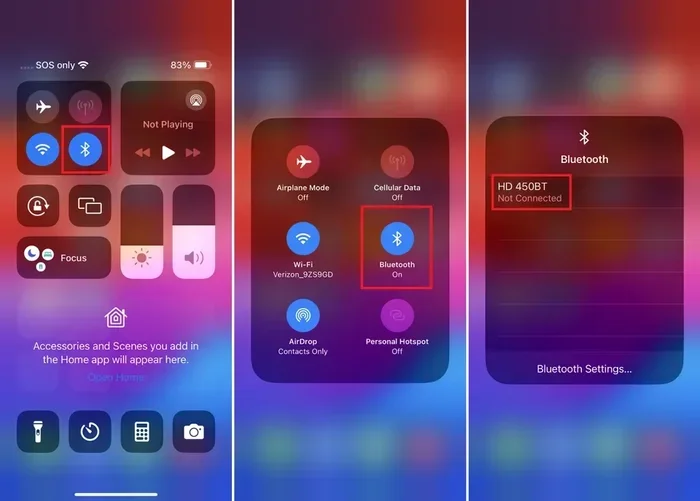
There is also a faster way to sync phone connections on your iPhone. Swipe down from the top-right corner of your screen to open the Control Center. Tap and hold the Bluetooth icon. Make sure Bluetooth is turned on. Your iPhone will start scanning for nearby devices. Tap the name of the device you want to connect to. This method works great when you are in a hurry.
Quick Tips for iPhone Users
- Reset your network settings if pairing fails. Go to Settings, then General, then Transfer or Reset iPhone, then Reset, and choose Reset Network Settings. This clears old Bluetooth connections and often fixes stubborn issues.
- Turn on Bluetooth from the Control Center for a faster setup next time.
- Make sure your iPhone is updated. Apple regularly releases updates that improve Bluetooth compatibility with car systems.
- Forget old devices. If your iPhone is trying to connect to a device that is no longer available, go to Bluetooth settings, tap the “i” icon next to the device name, and select “Forget This Device.” Then try pairing again.
Pairing Your Phone to Your Car’s Infotainment System
Connecting your phone to your car is the most common reason people search for how to put a phone in pairing mode. Your car’s infotainment system is the brain behind your dashboard screen, audio controls, and hands-free calling. Let us walk through the process for different types of car systems.
For Cars with Built-In Bluetooth
Most modern cars come with Bluetooth built right into the factory audio system. Here is how to connect:
- Start your car. You do not need to drive. Just turn the ignition to the “on” position.
- Go to the Settings or Bluetooth menu on your car’s infotainment screen. The exact location varies by make and model.
- Select “Add New Device” or “Search for Devices.” Your car will start scanning for nearby Bluetooth devices.
- Put your phone in pairing mode using the steps above for your specific phone type.
- Select your phone from the car’s list.
- Confirm the passkey on both screens.
- Wait for the connection to establish. You should see a confirmation message on your car display.
For Cars with Aftermarket Bluetooth Adapters
If your car does not have built-in Bluetooth, you can add it with an aftermarket adapter. These small devices plug into your car’s audio system or cigarette lighter. They create a wireless connection between your phone and your car speakers. The pairing process is similar to the steps above. Just put your adapter in discovery mode and follow the same steps on your phone.
For Cars with Apple CarPlay or Android Auto
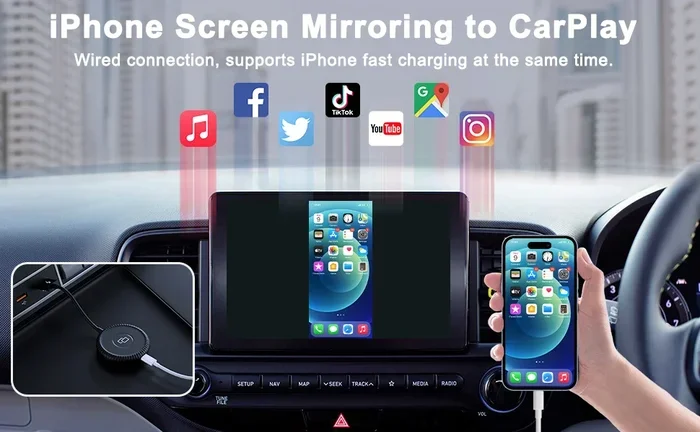
Many newer cars support Apple CarPlay or Android Auto. These systems mirror your phone’s screen onto your car’s display. To use them, you typically need to connect your phone via a USB cable first. After the initial setup, the system often connects wirelessly on subsequent uses. Make sure Bluetooth pairing is enabled on your phone for the wireless feature to work.
Troubleshooting Common Bluetooth Pairing Issues
Sometimes things do not go as planned. Your phone may not find the car. The car may not find the phone. Or the connection may drop unexpectedly. Here are the most common Bluetooth troubleshooting steps and how to fix them.
Phone Not Discovering the Car
If your phone cannot find your car, try these steps:
- Make sure your car is in pairing mode. Check your car’s manual for the exact steps. Some systems require you to hold a button on the steering wheel or infotainment system.
- Turn Bluetooth off and back on on your phone.
- Restart both devices. Turn off your car’s infotainment system and your phone. Wait 30 seconds. Turn them back on and try again.
- Move closer to the car. Bluetooth range matters. Standing right next to the car gives the strongest signal.
- Delete old pairings. On both your phone and your car, remove any old connections to the other device. Then try pairing fresh.
Connection Drops Frequently
If your phone connection keeps dropping, here is what to check:
- Check for interference. Other wireless devices, USB cables, or even USB chargers can interfere with Bluetooth signals.
- Update your phone’s software. Manufacturers release updates that fix Bluetooth compatibility issues.
- Update your car’s infotainment software. Many modern cars support over-the-air updates. Check your car’s settings for available updates.
- Clear old paired devices. If your car has a long list of previously paired devices, it can slow things down. Remove devices you no longer use.
Passkey or PIN Code Issues
Sometimes the passkey does not work. Here is what to do:
- Try the default codes. Common codes are “0000,” “1234,” or “1111.”
- Check the car manual. The passkey is often listed in the car’s user manual.
- Restart the pairing process. Forget the device on both sides and start fresh.
Tips for a Seamless Wireless Connection
Once you have successfully paired your phone to your car or another device, you want the connection to stay strong. Here are some expert tips to keep your wireless connection running smoothly.
Keep Your Devices Updated
Software updates often include fixes for Bluetooth connectivity issues. Make it a habit to check for updates on both your phone and your car’s infotainment system. On your Android phone, go to Settings, then Software Update. On your iPhone, go to Settings, then General, then Software Update.
Manage Your Paired Devices
Over time, your phone can accumulate a long list of paired devices. This can slow down device discovery and cause confusion. Go through your Bluetooth settings regularly and remove devices you no longer use. This keeps things clean and fast.
Understand Bluetooth Range
Bluetooth range is typically about 30 feet in open space. Walls, other electronics, and metal surfaces can reduce this range. When you get into your car, make sure your phone is nearby. Placing it on the passenger seat or in a console compartment works best.
Use the Right Audio Profile
When you connect your phone to your car, two Bluetooth profiles usually activate: HFP (Hands-Free Profile) for calls and A2DP (Advanced Audio Distribution Profile) for music. If you can only make calls but not play music, check that A2DP is enabled in your phone’s Bluetooth settings.
Common Mistakes to Avoid When Pairing Your Phone
Even experienced users make mistakes. Here are some common errors that cause pairing problems and how to avoid them.
- Not putting both devices in pairing mode. Both the phone and the car (or speaker, or headphones) need to be discoverable. If only one device is searching, they will never find each other.
- Ignoring the passkey. Skipping the passkey confirmation is a common reason for failed Bluetooth pairing. Always confirm the code on both screens.
- Having too many paired devices. A crowded list of saved devices can cause your phone to connect to the wrong device or fail to find the right one.
- Not restarting devices. A simple restart solves more Bluetooth troubleshooting issues than any other step. Always try it before diving into advanced fixes.
- Using an old cable for initial setup. Some wireless streaming features require a USB cable for the first connection. Use a good-quality cable and a powered USB port.
- Forgetting to turn off Bluetooth on other devices. If your phone is already connected to headphones or a speaker, it may try to use that connection instead of the car. Turn off Bluetooth on other devices during the pairing process.
Expert Insights on Bluetooth Pairing
We spoke with automotive tech specialists about the best practices for Bluetooth pairing. Here is what the experts want you to know.
“The most common mistake is rushing the process,” says Mark Dawson, an automotive tech specialist with over 15 years of experience. “Take the time to put both devices in discovery mode. Make sure they are close together. And always confirm the passkey. These simple steps prevent 90% of pairing problems.”
“Another tip is to assign a friendly name to your phone in the car’s Bluetooth settings,” adds Sarah Lin, a vehicle infotainment expert. “If you have multiple phones in the car, having clear names like ‘John’s iPhone’ or ‘Sarah’s Galaxy’ makes switching between devices much easier.”
“For drivers who frequently switch between phones, I recommend using a multi-point Bluetooth system,” says Tom Rivera, a wireless audio engineer. “Some modern car systems can remember two or more phones and switch between them automatically. Check if your car supports this feature.”
These expert insights highlight how a little preparation goes a long way. When you understand the Bluetooth pairing process, you spend less time troubleshooting and more time enjoying your drive.
Key Takeaways
- Know your phone type: Android and iPhone have slightly different steps for entering pairing mode, but both are straightforward.
- Enable visibility: Make sure your phone is set to “visible” or “discoverable” so other devices can find it.
- Confirm the passkey: Always verify the PIN code on both screens to complete the Bluetooth pairing successfully.
- Troubleshoot with simple steps first: Restart Bluetooth, restart both devices, and remove old pairings before trying advanced fixes.
- Keep software updated: Regular updates on your phone and car system prevent Bluetooth compatibility issues.
- Manage paired devices: Clean up your list of saved devices to keep device discovery fast and reliable.
- Practice makes perfect: The more you pair devices, the faster and easier it becomes.
Conclusion
Knowing how to put a phone in pairing mode is an essential skill for anyone who drives. Whether you use an Android phone or an iPhone, the process is simple and fast once you know the steps. We covered everything from the basics of Bluetooth pairing to troubleshooting common issues and expert tips for a seamless wireless connection.
The key is to stay patient and follow the steps in order. Start by enabling Bluetooth on your phone. Put both devices in discovery mode. Confirm the passkey. And if something goes wrong, use the troubleshooting tips we shared. Most pairing issues are easy to fix with a simple restart or a quick reset.
Now that you have this knowledge, you can connect your phone to your car, your headphones, your speaker, or any other Bluetooth device with confidence. Put your phone in pairing mode today and enjoy the convenience of a hands-free, wireless connection every time you drive. The road ahead is safer and more connected when your devices work together seamlessly.