How Do I Reset My Toyota Media Player Quickly and Easily
Resetting your Toyota media player is a simple process that can solve freezing screens, audio glitches, and connectivity problems. Whether you own a Camry, RAV4, or Highlander, this guide walks you through every method to get your Toyota media player running smoothly again. You will learn soft resets, hard resets, and troubleshooting tips that save time and money.
Key Takeaways
- A soft reset is the fastest way to restart your Toyota media player without losing any settings.
- A hard reset clears deeper glitches and can fix unresponsive touchscreens.
- Keeping your system updated prevents most common media player issues.
- Simple habits like restarting the system monthly keep everything running smoothly.
- Knowing when to seek help saves you from unnecessary DIY frustration.
📑 Table of Contents
- How Do I Reset My Toyota Media Player Quickly and Easily
- Why Does Your Toyota Media Player Need a Reset?
- How to Perform a Soft Reset on Your Toyota Media Player
- How to Perform a Hard Reset on Your Toyota Media Player
- Common Toyota Media Player Issues and How to Fix Them
- How to Prevent Future Media Player Problems
- When to Seek Professional Help for Your Toyota Media Player
- Final Thoughts on Resetting Your Toyota Media Player
How Do I Reset My Toyota Media Player Quickly and Easily
Your Toyota media player is the heart of your car’s entertainment system. It plays your favorite music, guides you with navigation, and connects your phone seamlessly. But sometimes, it freezes, glitches, or stops responding altogether. When that happens, knowing how to reset your Toyota media player quickly can save you from a frustrating commute.
This guide covers every method you need. Whether you are dealing with a frozen touchscreen, audio dropouts, or a system that simply will not turn on, we have you covered. The steps are simple, and you do not need to be a mechanic to follow them. Resetting your Toyota media player takes just a few minutes, and most methods work across Toyota models.
We will walk you through soft resets, hard resets, and common troubleshooting steps. You will also learn how to prevent issues before they start. By the end of this guide, you will feel confident handling any media player hiccup on your own.
Let us get started. Your Toyota infotainment system will thank you.
Why Does Your Toyota Media Player Need a Reset?
Your Toyota media player handles a lot of tasks every day. It streams audio, runs navigation apps, connects to your phone via Bluetooth, and displays backup camera feeds. Over time, all this activity can cause the system to slow down or glitch. A reset clears out temporary data and refreshes the system.
Here are the most common reasons you might need to reset your Toyota media player:
- The touchscreen becomes unresponsive and taps do not register.
- Audio cuts out randomly or the sound quality drops suddenly.
- The system freezes on a blank screen or gets stuck on a loading logo.
- Bluetooth connections fail even after re-pairing your phone.
- Navigation apps crash or display incorrect information.
- The media player will not turn on after starting the car.
Most of these issues are temporary and do not mean your system is broken. A simple reset often fixes them completely. Think of it like restarting your phone when it acts up. The Toyota audio system just needs a fresh start sometimes.
If you have ever noticed your Toyota touchscreen lagging or behaving strangely, you are not alone. This is one of the most common Toyota owner experiences, and it is almost always fixable with a reset.
How to Perform a Soft Reset on Your Toyota Media Player
A soft reset is the easiest and safest method. It restarts the system without deleting any of your settings, saved stations, or paired devices. Think of it as a quick refresh for your Toyota infotainment system. You should always try this first before moving to more advanced steps.
Step-by-Step Soft Reset Instructions
Follow these steps to perform a soft reset on most Toyota models:
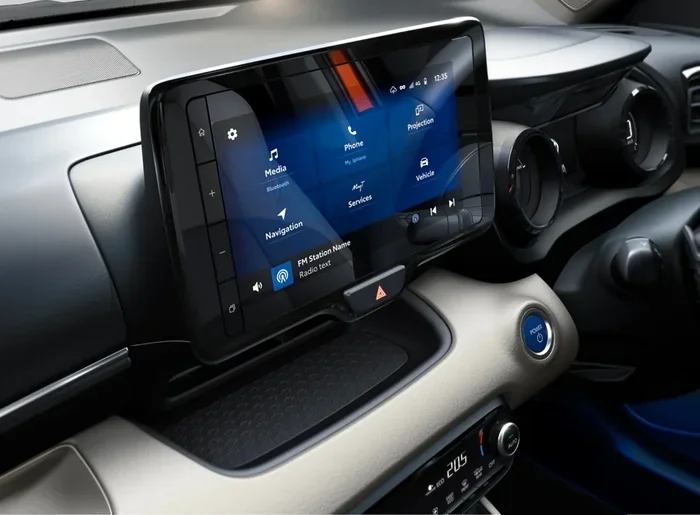
- Press and hold the power button on your media player. This button is usually located on the center console or the head unit itself.
- Wait for the screen to turn off completely. Do not let go too early. Hold it for about 10 to 15 seconds.
- Release the button and wait 30 seconds. This gives the system time to fully power down.
- Press the power button again to turn the system back on.
- Check if the issue is resolved. Test your audio, navigation, and Bluetooth connections.
This method works on most Toyota models including the Camry, RAV4, Corolla, and Highlander. If your screen is frozen and you cannot access the power button, try holding the button for a full 20 seconds. The system will eventually shut down and restart.
Quick Tip: If holding the power button does not work, you can also turn off your car, remove the key, and wait two minutes. This cuts power to the entire system and acts as a soft reset. When you restart the car, the Toyota media player will boot up fresh.
When to Use a Soft Reset
Use a soft reset for minor issues like slight lag, audio stuttering, or minor connectivity hiccups. It is safe to do as often as you need. Many Toyota owners find that doing a soft reset once a month keeps their system running smoothly.
If you also use features like the backup camera or Toyota Connect, a soft reset can help refresh those connections too. For more on Toyota Connect, check out Can I Use Toyota Connect Without A Subscription to learn about keeping your connectivity features active.
How to Perform a Hard Reset on Your Toyota Media Player
A hard reset goes deeper than a soft reset. It clears cached data and can fix more stubborn issues like persistent freezing, error messages, or system crashes. Use a hard reset when a soft reset does not solve the problem.
Method 1: The Fuse Reset
This method involves removing the fuse that powers the media player. It fully cuts power to the unit and forces a complete restart.
- Turn off your car and remove the key from the ignition.
- Open the fuse box under the dashboard on the driver’s side.
- Locate the fuse labeled “Audio” or “Infotainment.” Refer to your owner’s manual if you are unsure which one it is.
- Use a fuse puller or small pliers to carefully remove the fuse.
- Wait at least 60 seconds. This ensures all residual power drains from the system.
- Reinsert the fuse firmly into its slot.
- Start your car and check if the media player boots up normally.
This method is safe and will not damage your Toyota media player. However, you may need to re-pair Bluetooth devices and adjust your audio settings after the reset.
Method 2: The Battery Disconnect
If the fuse method does not work, you can disconnect the car battery for a few minutes. This resets every electronic system in your Toyota, including the media player.
- Turn off the engine and all accessories.
- Open the hood and locate the negative battery terminal.
- Use a wrench to loosen the negative cable and remove it from the terminal.
- Wait 3 to 5 minutes. This gives all systems time to fully discharge.
- Reconnect the negative cable and tighten it securely.
- Start the car and test the media player.
Be careful when working with the battery. Always remove the negative cable first and reconnect it last. If you are not comfortable doing this, a soft reset or a visit to a Toyota service center is a better option. You can also visit any Toyota dealer for assistance, just as you can take your Toyota to any dealer for service.
Common Toyota Media Player Issues and How to Fix Them
Not all media player problems require a reset. Some issues have simple fixes that you can do in under a minute. Here are the most common problems Toyota owners face and how to solve them.
Frozen or Unresponsive Touchscreen
A frozen screen is the most common complaint. Usually, it happens when the system has too many apps running or after a software update. A soft reset almost always fixes this. If the screen remains frozen after a soft reset, try a hard reset using the fuse method.
No Sound or Distorted Audio
If your Toyota audio system produces no sound, first check the volume level and make sure the mute button is not active. If the volume is fine but you still hear nothing, try a soft reset. Distorted audio often comes from a loose connection or corrupted audio cache, which a reset can clear.
Bluetooth Pairing Failures
Bluetooth issues can be frustrating, especially when you are trying to play music or take calls. Start by deleting the paired device from both your phone and the Toyota system, then re-pair them. If that does not work, a soft reset refreshes the Bluetooth module. For a deeper fix, a hard reset clears all Bluetooth pairings and forces a fresh connection setup.
Navigation App Errors
Navigation apps on the Toyota media player sometimes show outdated maps or crash during use. A soft reset refreshes the app. If the maps are outdated, you may need to update them through the Toyota app or visit a dealer. Keeping your Toyota navigation system updated prevents most map-related issues.
How to Prevent Future Media Player Problems
Prevention is always better than fixing. A few simple habits can keep your Toyota media player running smoothly for years. Here is what every Toyota owner should do.
- Restart your system monthly. A quick soft reset once a month clears temporary files and keeps things running fast.
- Keep your software updated. Toyota releases updates that fix bugs and improve performance. Check for updates through the system settings or the Toyota app.
- Do not overload the system. Avoid running too many apps at once. Close apps you are not using to free up memory.
- Use quality audio files. Low-quality or corrupted audio files can cause playback issues. Stick to standard formats like MP3 and AAC.
- Keep your phone clean. Delete old paired devices from both your phone and the Toyota system to prevent connection conflicts.
- Protect the system from overheating. Do not leave your phone plugged in and charging while using navigation for long periods. Heat can affect the media player’s performance.
These small steps go a long way. Think of your Toyota infotainment system like any other electronic device. A little care and regular maintenance keeps it working at its best.
When to Seek Professional Help for Your Toyota Media Player
Most media player issues resolve with a soft or hard reset. But sometimes, the problem goes deeper than a simple reset can fix. Knowing when to call for help saves you time and prevents further damage.
You should consider professional help if:
- The screen remains completely blank after multiple reset attempts.
- You hear clicking or grinding noises coming from the audio system.
- The system crashes repeatedly even after a hard reset.
- You see error codes on the display that do not go away.
- Physical damage like cracks or water damage affects the unit.
In these cases, the issue may be hardware-related. A technician at a Toyota service center can diagnose the problem and replace any faulty components. You can also visit any Toyota dealership for expert assistance, just as you can take your Toyota to any dealer for service without worrying about voiding your warranty.
Before visiting a service center, try one final step. Disconnect your phone, remove any USB drives, and turn off all accessories. Then attempt a soft reset again. Sometimes external devices interfere with the media player and cause persistent issues.
For other Toyota tech features, understanding how to manage your car’s systems helps. For example, learning how to turn on the backup camera can help you make the most of your Toyota’s safety and entertainment features.
Final Thoughts on Resetting Your Toyota Media Player
Resetting your Toyota media player is one of the simplest and most effective ways to keep your car’s entertainment system running at its best. A soft reset takes under a minute and solves most common issues. A hard reset tackles deeper problems that a soft reset cannot fix. Both methods are safe, easy, and do not require any special tools.
Remember to restart your system regularly, keep your software updated, and avoid overloading the system with too many apps. These habits prevent most problems before they start. And when a reset does not work, do not hesitate to reach out to a professional. Toyota service teams are trained to handle all types of media player issues.
Your Toyota media player is designed to make every drive more enjoyable. With the right knowledge, you can keep it running smoothly and get back to your music, podcasts, and navigation without delay. You now have everything you need to handle any media player issue that comes your way.
Take a few minutes today to try a soft reset if you have not done so recently. Your system will feel faster, cleaner, and more responsive. A little maintenance goes a long way in keeping your Toyota experience enjoyable every time you hit the road.
Frequently Asked Questions
How long does it take to reset a Toyota media player?
A soft reset takes about one to two minutes. A hard reset using the fuse method takes around five minutes once you locate the fuse. The battery disconnect method takes the longest at about ten minutes, including wait time. Most owners find that the soft reset is all they ever need.
Will resetting my Toyota media player delete my saved settings?
A soft reset keeps all your settings intact, including saved radio stations, Bluetooth pairings, and navigation preferences. A hard reset may clear Bluetooth pairings and some custom settings, but your saved data is usually stored in the cloud or your phone and can be restored easily.
How often should I reset my Toyota media player?
You do not need to reset it regularly. A soft reset once a month is a good habit if you use your media player heavily. Otherwise, only reset when you notice issues like freezing, audio problems, or connectivity failures. Over-resetting can actually cause more issues than it solves.
Can I reset my Toyota media player while driving?
No, you should never reset your media player while driving. Pull over to a safe location before attempting any reset. A frozen screen can be distracting, but it is safer to stop and restart the system properly. Your safety always comes first.
Why does my Toyota media player keep freezing after a reset?
If your media player keeps freezing even after a reset, the issue may be software-related. Check for available updates through the Toyota app or visit a dealer for a software flash. Hardware problems like a failing motherboard or damaged screen can also cause repeated freezing, which requires professional diagnosis.
Is it safe to disconnect the battery to reset the Toyota media player?
Yes, it is safe as long as you follow the proper steps. Always remove the negative cable first and wait at least three minutes before reconnecting. Be aware that disconnecting the battery may also reset other systems like your clock, radio presets, and power window settings. These usually reconfigure automatically after a short driving period.