How Do I Put My Toyota Sienna in Bluetooth Pairing Mode
Putting your Toyota Sienna in Bluetooth pairing mode is simple and takes just a few minutes. Whether you have a 2021, 2022, or 2024 model, you can connect your phone for hands-free calling and audio streaming. This guide walks you through every step with clear instructions and helpful tips.
Have you just grabbed your Toyota Sienna and want to connect your phone to the sound system? Maybe you are trying to stream music, take hands-free calls, or use navigation apps while keeping your eyes on the road. Whatever your reason, knowing how to put your Toyota Sienna in Bluetooth pairing mode is an essential skill every driver should have.
The good news is that the process is straightforward. Toyota designed the Sienna’s infotainment system to be user-friendly, and once you learn the steps, you will be able to pair your phone in under five minutes. In this guide, we will walk you through everything from the first steps to troubleshooting common problems.
Whether you drive a 2020 model or the latest 2024 Toyota Sienna, the pairing process is very similar. We will cover all the details so you can get connected quickly and safely. Let us dive right in.
Key Takeaways
- Easy Access: You can enter Bluetooth pairing mode through the Toyota Sienna infotainment screen in just a few taps.
- Multiple Methods: There are different ways to pair depending on your model year and whether you use Android Auto or Apple CarPlay.
- Troubleshooting Works: Most Bluetooth issues can be fixed by resetting the system, updating software, or clearing old paired devices.
- Hands-Free Safety: Pairing your phone lets you make calls and stream music without taking your hands off the wheel.
- Multiple Devices: The Toyota Sienna can store several paired phones, making it great for families.
- Android Auto Option: You can also use Android Auto through Bluetooth in Toyota for even more features.
📑 Table of Contents
- What Is Bluetooth Pairing Mode on the Toyota Sienna?
- Step-by-Step Guide to Putting Your Toyota Sienna in Pairing Mode
- How to Pair Your Phone with the Toyota Sienna
- Troubleshooting Common Bluetooth Pairing Issues
- Tips for Better Bluetooth Performance in Your Toyota Sienna
- Toyota Sienna Bluetooth Features You Should Know About
- Common Mistakes to Avoid When Pairing Bluetooth
- How to Remove a Paired Device from Your Toyota Sienna
- Toyota Sienna Model Year Differences
- Final Thoughts
What Is Bluetooth Pairing Mode on the Toyota Sienna?
Bluetooth pairing mode is a special state where your Toyota Sienna’s infotainment system becomes visible to other devices. When the system is in pairing mode, it is actively searching for phones or devices nearby that want to connect. Think of it like opening a door so your phone can walk through and shake hands with the car’s audio system.
Once paired, your phone and the Sienna create a wireless connection. This connection lets you do several things without touching your phone. You can make and receive calls, stream music, and even access certain apps through the car’s display screen.
Why Pairing Mode Matters
Your Toyota Sienna does not stay in pairing mode all the time. It only turns on this mode when you need to connect a new device or reconnect an old one. This design keeps the system secure and prevents unwanted connections from random devices nearby.
Here are a few situations where you need to enter pairing mode:
- You bought a new phone and want to connect it to your Sienna.
- You are selling or giving away your Sienna and need to remove old connections.
- A family member wants to connect their phone to the car.
- The Bluetooth connection dropped and you need to re-establish it.
- You cleared the system’s memory and need to set everything up again.
Knowing when and how to enter pairing mode saves you a lot of frustration. It also helps you understand why your phone sometimes fails to connect, which we will cover later in this guide.
Step-by-Step Guide to Putting Your Toyota Sienna in Pairing Mode
Now let us get into the actual steps. The process is slightly different depending on your model year, but the general approach works for most Toyota Sienna vehicles. Follow along and you will be connected in no time.
Step 1: Start Your Toyota Sienna
First, start your Sienna and make sure the engine is running. You do not need to drive anywhere. Just let the car idle so the infotainment system powers up fully. The screen should light up and show the home menu.
If your Sienna has a push-button start, press the brake pedal and hit the start button. If you have a key fob, insert the key and turn it to the “On” position. Wait for the screen to fully load before moving to the next step.
Step 2: Open the Bluetooth Settings
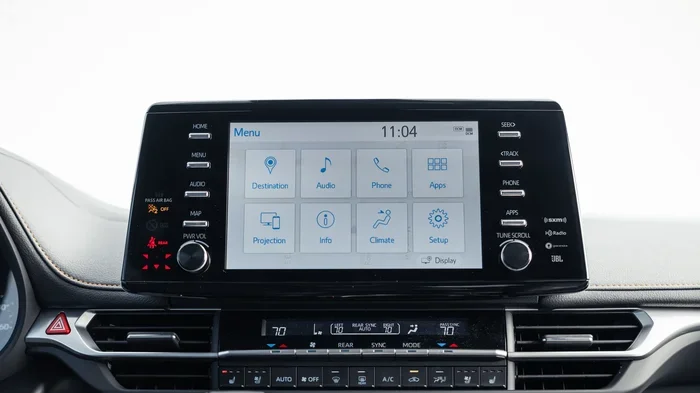
On the home screen of your infotainment system, look for the “Settings” icon. It usually looks like a gear or a cog wheel. Tap on it to open the settings menu.
From the settings menu, find and select “Bluetooth.” Some model years may show this as “Bluetooth Settings” or “Device Connection.” Tap on it to enter the Bluetooth management screen.
Step 3: Turn On Bluetooth and Enter Pairing Mode
On the Bluetooth screen, you will see a toggle or switch to turn Bluetooth on. If it is already off, tap it to turn it on. Then look for an option that says “Pair New Device,” “Add Device,” or “Search for Devices.”
Tap that option. Your Toyota Sienna is now in pairing mode. The screen should display a message saying it is searching for nearby devices or show a list of devices found. This is exactly the moment you need on your phone.
If you are having trouble finding the right menu, try putting your phone in pairing mode first. This ensures both sides of the connection are ready to link up.
Step 4: Find Your Toyota Sienna on Your Phone
Now go to your phone. Open the Bluetooth settings. On an iPhone, go to Settings and tap Bluetooth. On an Android phone, swipe down from the top of the screen and tap the Bluetooth icon, or go to Settings and then Bluetooth.
Make sure Bluetooth is turned on. Your phone will start scanning for nearby devices. After a few seconds, you should see your Toyota Sienna appear in the list. It might show as “Toyota Sienna,” “TMC,” or simply the model name.
Tap on the Sienna’s name. Both devices should now connect. You may see a confirmation code on the car’s screen. Check that the code on your phone matches, then tap “Pair” or “Connect” on both devices.
Step 5: Test the Connection
Once paired, play some music on your phone. It should come through the Sienna’s speakers. Try making a call using the car’s hands-free system. If both work, congratulations. You are successfully connected.
If the music does not play or calls do not connect, do not worry. We will cover troubleshooting in the next section.
How to Pair Your Phone with the Toyota Sienna
Pairing is the process of linking your phone to the car’s Bluetooth system. Each phone and each car need to agree to connect. This is done through a secure handshake that creates a trusted connection between the two devices.
The Toyota Sienna can store multiple paired devices. This is great for families. The driver and passengers can each have their own phone connected. The car remembers each device and can switch between them easily.
Pairing an iPhone
If you use an iPhone, the process is very smooth. iPhones and Toyotas work well together. After you enter pairing mode on the Sienna, go to your iPhone’s Bluetooth settings. The Sienna should appear in the “Other Devices” section. Tap on it and follow the prompts on both screens.
Your iPhone may ask if you want to share contacts and call history. Allow this for the full hands-free experience. You will then be able to use Siri through the car’s audio system to make calls or send messages.
Pairing an Android Phone
Android phones also pair easily with the Toyota Sienna. The process is similar to the iPhone steps. Go to your Android Bluetooth settings, find the Sienna, and tap to connect.
One great thing about Android phones is the option to use Android Auto through Bluetooth in Toyota vehicles. This gives you access to Google Maps, Spotify, and other apps right on the car’s screen. It is a fantastic feature that makes driving with an Android phone even better.
Pairing Multiple Devices
The Toyota Sienna can handle several paired phones at once. To add another device, simply repeat the pairing process. The car will store each phone separately. When you start the engine, the Sienna usually connects to the last device that was used.
If you want to switch phones, you can do it from the Bluetooth settings screen. Just select the other phone from the list of paired devices. The connection should switch over within a few seconds.
Troubleshooting Common Bluetooth Pairing Issues
Bluetooth problems are annoying, but they are usually easy to fix. Let us go through the most common issues and how to solve them.
Toyota Sienna Not Showing Up on Phone
If your phone cannot find the Sienna, the first thing to check is whether the car is actually in pairing mode. Go back to the Bluetooth settings on the infotainment screen and make sure it is actively searching for devices.
Also, check that Bluetooth is turned on both in the car and on your phone. Sometimes a simple toggle off and on fixes the issue. Try moving your phone closer to the car’s screen. Bluetooth has a limited range, and being too far away can prevent detection.
Connection Keeps Dropping
A dropping connection is frustrating. This usually happens when the phone moves too far from the car or when there is interference from other devices. If you are sitting in the driver’s seat and the connection drops, something else is going on.
Try forgetting the device on both the phone and the car, then pair them again. This fresh connection often solves the problem. You can also check for software updates on both your phone and the Sienna’s infotainment system.
Audio Quality Is Poor
If your music sounds scratchy or calls are hard to hear, the Bluetooth signal may be weak. Check that nothing is blocking the phone’s signal. Metal phone cases or placing the phone in the glove box can weaken the connection.
Also, make sure your phone is not connected to a different Bluetooth device at the same time. If your phone is trying to connect to both the car and your headphones, the audio quality will suffer.
Reset the Bluetooth System
If nothing else works, you can reset the Bluetooth system on your Toyota Sienna. Go to the Bluetooth settings menu and look for an option to “Reset” or “Clear All Paired Devices.” This wipes all saved connections and gives you a fresh start.
After resetting, turn the car off and wait a minute. Then turn it back on and try pairing again. This simple reset fixes most Bluetooth issues.
Tips for Better Bluetooth Performance in Your Toyota Sienna
Once you get your Bluetooth working, you want to keep it running smoothly. Here are some tips that help maintain a strong and reliable connection.
- Keep Your Phone Close: Place your phone in the center console or cup holder. This keeps it within the best Bluetooth range.
- Update Software Regularly: Both your phone and the Sienna’s infotainment system benefit from software updates. These often include Bluetooth improvements.
- Limit Connected Devices: Only keep the devices you actually use paired. Too many saved devices can slow down the connection process.
- Turn Off Unused Bluetooth Devices: If you have a smartwatch or tablet with Bluetooth, turn it off when it is not in use. This reduces interference.
- Restart the System When Needed: A simple restart of both the car and phone can fix minor glitches before they become big problems.
- Use the Car’s Media Controls: Instead of controlling music from your phone, use the steering wheel controls and the car’s screen. This keeps the connection stable.
Toyota Sienna Bluetooth Features You Should Know About
The Toyota Sienna comes with more than just basic Bluetooth calling. The system offers several features that make driving safer and more enjoyable.
Hands-Free Calling
Once paired, you can make and receive calls without touching your phone. The car’s microphone picks up your voice clearly, and the audio comes through the speakers. This is one of the safest ways to stay connected while driving.
Audio Streaming
Bluetooth audio streaming lets you play music, podcasts, and audiobooks through the Sienna’s sound system. Whether you use Spotify, Apple Music, or a podcast app, the audio flows right through the car’s speakers.
Voice Commands
The Toyota Sienna supports voice commands through the Bluetooth connection. You can say “Call” followed by a contact name, or “Play” followed by a song or artist. This keeps your hands on the wheel and your eyes on the road.
Auto-Connect Feature
After the first successful pairing, the Sienna will automatically connect to your phone whenever you start the engine. This saves you the hassle of going through the pairing process every time you get in the car.
Set Up Auto Text While Driving
One helpful feature to pair with your Bluetooth connection is setting up auto-reply texts. If you want to let people know you are driving and cannot respond right away, you can set up auto text when driving. This works hand-in-hand with your Bluetooth connection to keep you focused on the road.
Common Mistakes to Avoid When Pairing Bluetooth
Even though the pairing process is simple, people make mistakes that cause problems. Here are a few to watch out for.
- Not Turning Bluetooth On: This sounds obvious, but it happens all the time. Make sure Bluetooth is active on both your phone and the car before you start searching.
- Being Too Far Away: Bluetooth has a range of about 30 feet. If your phone is in your back pocket or in the trunk, the connection will fail.
- Skipping the Confirmation Step: Both devices need to confirm the pairing. Do not skip this step or the connection will not work.
- Keeping Old Devices Paired: Old paired devices take up memory and can slow things down. Delete devices you no longer use.
- Ignoring Software Updates: Outdated software on either device can cause compatibility issues. Always keep both updated.
How to Remove a Paired Device from Your Toyota Sienna
Sometimes you need to remove a phone from the Sienna’s Bluetooth memory. Maybe you sold the phone or the connection is causing problems. Here is how to do it.
Go to the Bluetooth settings on the infotainment screen. Find the list of paired devices. Select the phone you want to remove and choose “Delete” or “Forget Device.” Confirm your choice. The phone is now disconnected and removed from the Sienna’s memory.
If you want to remove all paired devices at once, look for a “Clear All” or “Reset” option in the Bluetooth menu. This wipes the slate clean and lets you start fresh.
Toyota Sienna Model Year Differences
The Bluetooth pairing process is very similar across all Toyota Sienna model years. However, there are a few minor differences you should know about.
Older models from 2011 to 2015 may have a simpler infotainment system. The Bluetooth menu might be under a “Phone” or “Audio” tab instead of a dedicated “Settings” menu. Newer models from 2016 onward have a more modern interface with a touchscreen that makes navigation easier.
The latest 2024 Toyota Sienna models come with updated software and faster Bluetooth connectivity. If you own an older model, consider asking your dealer about a software update. This can improve Bluetooth performance and add new features.
Final Thoughts
Putting your Toyota Sienna in Bluetooth pairing mode is a quick and easy process once you know the steps. From starting the car to finding the Bluetooth menu, the entire process takes less than five minutes. Once paired, you enjoy hands-free calling, music streaming, and voice commands every time you drive.
Remember that troubleshooting is normal. If your connection drops or the pairing fails, a simple reset usually fixes the problem. Keep your software updated, limit the number of paired devices, and place your phone in a good location for the strongest signal.
The Toyota Sienna is a fantastic family vehicle, and its Bluetooth system makes it even better. Take a few minutes to set up your connection today. You will wonder how you ever drove without it.
For more Toyota tips and guides, check out our other articles on vehicle features and maintenance. Whether you need help with starting your Rav4 with your phone or want to learn about other Toyota connectivity features, we have you covered.
Frequently Asked Questions
Can I pair more than one phone to my Toyota Sienna?
Yes, the Toyota Sienna can store multiple paired phones. This is great for families. Each person can connect their own phone, and the car will remember all of them. You can switch between devices easily from the Bluetooth settings screen.
Why won’t my phone find the Toyota Sienna in pairing mode?
This usually happens when Bluetooth is not turned on in the car or on your phone. Make sure both devices have Bluetooth active and are within 30 feet of each other. Try turning Bluetooth off and back on again. If the problem continues, reset the Bluetooth system on the Sienna and try pairing again.
Do I need an internet connection to pair Bluetooth on my Toyota Sienna?
No, Bluetooth pairing does not need the internet. Bluetooth is a wireless technology that works directly between devices. You only need a data connection if you are using apps like Spotify or Google Maps after the pairing is complete.
Can I use Android Auto with my Toyota Sienna’s Bluetooth?
Yes, you can use Android Auto through Bluetooth in your Toyota Sienna. This gives you access to Google Maps, music apps, and messaging right on the car’s screen. Make sure Android Auto is installed on your phone and enabled in the car’s settings for the best experience.
How do I disconnect my phone from the Toyota Sienna’s Bluetooth?
You can disconnect your phone by going to the Bluetooth settings on the infotainment screen. Find your phone in the paired devices list and select “Disconnect.” To remove it permanently, choose “Delete” or “Forget Device.” Your phone will no longer auto-connect to the Sienna.
What should I do if the Bluetooth audio keeps cutting out?
Audio cutting out is usually caused by distance or interference. Move your phone closer to the car’s center console and remove it from a metal case. Also check if other Bluetooth devices nearby are causing interference. Resetting the connection often fixes this problem too.
=== CONCLUSION ===
Putting your Toyota Sienna in Bluetooth pairing mode is something every driver should know how to do. It takes just a few minutes and opens up a world of hands-free convenience. From crystal-clear calls to uninterrupted music streaming, the Bluetooth connection makes every drive better.
Remember the key steps: start your car, open the Bluetooth settings, enter pairing mode, find your Sienna on your phone, and confirm the connection. If problems come up, the troubleshooting tips in this guide will help you fix them fast.
Take a few minutes today to connect your phone to your Toyota Sienna. Once you experience the convenience of hands-free driving, you will never go back to holding your phone while driving. Stay connected, stay safe, and enjoy the ride.