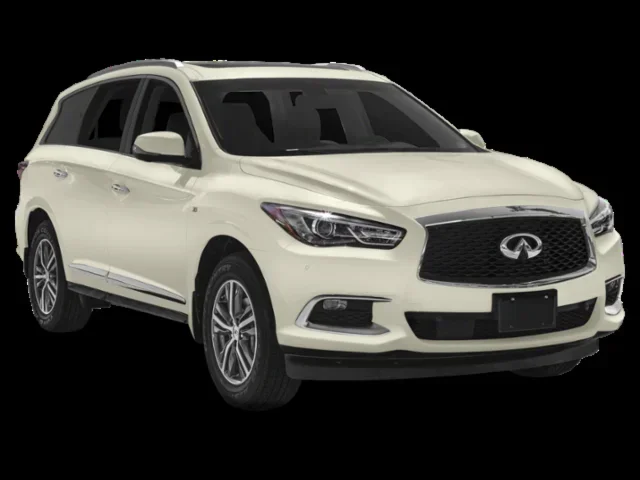
How to Connect Bluetooth to Your Acura MDX Step by Step
Connecting Bluetooth to your Acura MDX is simple and takes just a few minutes. This step-by-step guide walks you through pairing your phone, enabling hands-free calling, streaming audio, and fixing common connection issues. Whether you drive a 2017 or 2024 model, you will find clear instructions that make the process easy for everyone.
Have you ever jumped into your Acura MDX and wished you could just tap your phone to the car and go? Connecting Bluetooth to your Acura MDX is one of those small things that makes driving so much more enjoyable. You get to stream your favorite music, take calls without fumbling with your phone, and keep your hands where they belong on the wheel.
The good news is that the process is straightforward. Whether you are new to the Acura brand or you have been driving the MDX for years, this guide will walk you through every step. We will cover pairing your phone, using hands-free calling, streaming audio, and even fixing common issues. By the end, you will be a Bluetooth pro in your MDX.
Before we dive in, let us quickly talk about why Bluetooth matters in modern vehicles. Wireless connectivity is no longer a luxury. It is an expectation. The Acura MDX comes packed with technology that makes your driving experience smoother, safer, and more connected. Understanding how to use it fully unlocks the true potential of your vehicle.
Key Takeaways
- Easy Pairing Process: You can connect your phone to the Acura MDX Bluetooth system in under five minutes using the infotainment screen.
- Hands-Free Calling: Once paired, you can make and receive calls safely without taking your hands off the wheel.
- Audio Streaming: Stream music, podcasts, and audiobooks wirelessly through your car speakers for a better driving experience.
- Multiple Devices Supported: The Acura MDX can store several paired phones, so passengers can connect their devices too.
- Troubleshooting Tips: Simple fixes like resetting Bluetooth or updating your phone software solve most connection problems.
- Keep It Updated: Regularly check for system updates to keep your Acura connectivity running smoothly.
📑 Table of Contents
Understanding the Acura MDX Bluetooth System
The Acura MDX features a built-in infotainment system that supports Bluetooth wireless technology. This system allows you to connect your smartphone for calls, audio streaming, and even messaging. The interface is user-friendly and intuitive, but knowing where to look helps you get started faster.
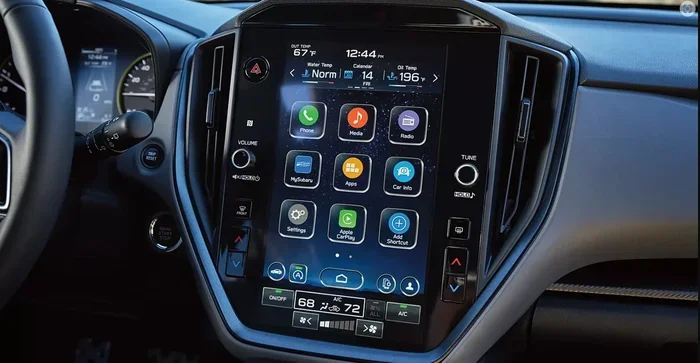
The MDX uses a central touchscreen display to manage all Bluetooth settings. Depending on your model year, the screen size and layout may vary slightly. However, the core steps for Bluetooth pairing remain the same across most generations. You will find the Bluetooth menu under the Setup or Settings icon on the home screen.
What You Need Before You Start
Before you begin the pairing process, make sure you have the following ready:
- A smartphone with Bluetooth capability (most phones made after 2015 support this)
- Your phone’s Bluetooth turned on
- Your Acura MDX ignition in accessory or ON mode
- A clear line of sight between your phone and the car’s infotainment system
Taking these quick preparatory steps saves you time and frustration. It also ensures that the device pairing process goes smoothly from the start.
Step-by-Step Guide to Connect Bluetooth to Your Acura MDX
Now let us get into the actual steps. Follow along carefully, and you will have your phone connected in no time.
Step 1: Turn On Your Car’s Infotainment System
Press the ENGINE START/STOP button or turn the ignition key to accessory mode. The infotainment screen will light up. Wait for the system to fully boot up before you proceed. This usually takes about 10 to 15 seconds.
Step 2: Navigate to the Bluetooth Settings Menu
On the home screen, look for the Setup or Settings icon. Tap it, then select Bluetooth. This opens the Bluetooth settings menu where you can manage all paired devices. If this is your first time connecting, the system will show an option to add a new device.
Step 3: Put Your Phone in Pairing Mode
On your smartphone, go to Settings and turn on Bluetooth. Make sure your phone is set to discoverable or visible to other devices. How Do I Put My Phone In Pairing Mode is one of the most common questions people ask, and the answer is simple. On most phones, you just toggle Bluetooth on and the phone automatically becomes visible for a few minutes.
Step 4: Search for and Select Your Acura MDX
Back on your car’s screen, tap the option to search for new devices. The MDX will scan for nearby Bluetooth devices. Your phone should appear in the list within a few seconds. Tap on your phone’s name to begin the pairing process.
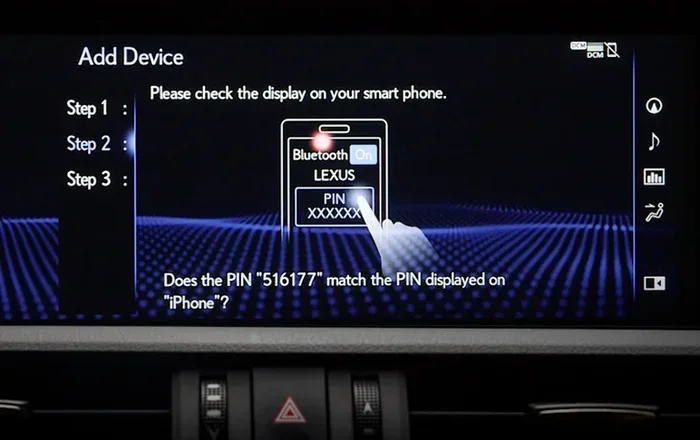
Step 5: Confirm the PIN Code
Some versions of the Acura MDX will display a PIN code on the screen. You may need to enter this code on your phone to complete the connection. Other models pair automatically without a PIN. Follow the on-screen prompts and tap Confirm or Pair when prompted.
Step 6: Test the Connection
Once paired, try making a test call or playing a song from your phone. If the audio comes through the car speakers and the call audio routes through the car’s microphone, you are all set. Congratulations, you have successfully connected Bluetooth to your Acura MDX!
Hands-Free Calling with Bluetooth
One of the biggest benefits of connecting Bluetooth to your Acura MDX is hands-free calling. This feature keeps you safe by letting you answer calls without touching your phone. The car’s microphone picks up your voice clearly, and the audio plays through the speakers.
Once your phone is paired, incoming calls will automatically route through the car system. You will see the caller’s name or number on the infotainment screen. To answer, simply press the phone button on the steering wheel. To end the call, press the same button again.
Setting Up Voice Dialing
The Acura MDX supports voice dialing through its Bluetooth connection. You can say “Call” followed by a contact name, and the system dials for you. This is especially useful when you are driving and need to reach someone quickly. How Do I Set Up Auto Text When Driving is another related feature that some Acura models support, allowing you to respond to messages using voice commands.
Managing Call Audio Settings
You can adjust the call volume separately from the audio volume in the Bluetooth settings menu. This gives you control over how loud the other person’s voice is during a call. If the volume is too low or too high, simply tweak it in the settings until it feels comfortable.
Streaming Audio Through Bluetooth
Beyond calls, Bluetooth audio streaming lets you play music, podcasts, and audiobooks through your car’s speakers. This is a game-changer for long drives or daily commutes. The Acura MDX supports high-quality audio streaming over Bluetooth, so you get clear, rich sound.
To stream audio, simply open your music app on your phone after the Bluetooth connection is established. The audio will automatically route through the car’s sound system. You can control playback using the infotainment screen or the steering wheel controls.
Many Acura MDX owners also enjoy connecting apps like Spotify, Apple Music, or Pandora. As long as your phone has a data connection, you can stream endless content through your car speakers. The experience feels seamless and wireless, which is exactly what you want from a modern vehicle.
If you are interested in broader connectivity options, you might also explore Can You Use Android Auto Through Bluetooth In Toyota systems for comparison. While this refers to Toyota vehicles, the concept of wireless smartphone integration is similar across brands and gives you a sense of what modern cars can do.
Audio Quality Tips
Here are a few tips to get the best sound quality from your Bluetooth connection:
- Keep your phone within a few feet of the car’s antenna for a stronger signal
- Close other apps on your phone that might interrupt audio playback
- Adjust the equalizer settings in your car’s audio menu
- Make sure your phone software is up to date for the best Bluetooth performance
Pairing Multiple Devices
The Acura MDX can store multiple Bluetooth profiles, which is great for families or households with more than one driver. Each phone can be paired separately, and the system remembers them all.
To add a second or third phone, simply repeat the pairing steps above. The system will list all previously connected devices as well as newly discovered ones. You can set a priority device so that your phone connects automatically when you start the car.
Switching Between Paired Devices
If you have multiple phones paired, switching between them is easy. Go to the Bluetooth settings menu and select the device you want to use. The car will disconnect from the previous phone and connect to the new one. This works for both calls and audio streaming.
Troubleshooting Common Bluetooth Issues
Even with a straightforward system like the Acura MDX, you might run into issues occasionally. Here are the most common problems and how to fix them.
Bluetooth Not Showing Up on the Car Screen
If your phone does not appear in the car’s Bluetooth search list, try these steps:
- Turn Bluetooth off and back on your phone
- Restart the car’s infotainment system by holding the power button for 10 seconds
- Move your phone closer to the center console
- Delete old Bluetooth pairings from both your phone and the car
Audio Cutting Out or Static Noise
Interference can cause audio dropouts or static. This often happens when you are near a strong Wi-Fi signal or other electronic devices. Moving your phone to the center console area usually resolves the issue. If the problem persists, try unpairing and re-pairing the devices.
Phone Connects but No Audio Streams
Sometimes the Bluetooth connection works for calls but not for music. Check the audio settings on your phone and make sure media audio is enabled for the Bluetooth connection. On most phones, you can find this under Settings > Bluetooth > your Acura MDX > Media Audio.
When to Reset the Entire Bluetooth System
If nothing else works, a full reset can clear up persistent issues. Go to the Bluetooth settings on the car screen, delete all paired devices, and restart the system. Then try pairing your phone again from scratch. This solves the vast majority of Bluetooth problems.
Maintaining Your Bluetooth Connection
Keeping your Bluetooth connection running smoothly requires a little regular attention. Think of it like maintaining any other part of your car.
Keep Your Software Updated
Both your phone and your Acura’s infotainment system benefit from regular software updates. These updates often include Bluetooth improvements and bug fixes. Check for updates on your phone monthly, and ask your Acura dealer about system updates for your MDX.
Clean the Infotainment Screen
A clean screen makes navigating the Bluetooth menus much easier. Use a soft microfiber cloth to wipe the display gently. Avoid harsh chemicals that could damage the screen coating.
Remove Old Pairings Regularly
If you have had your MDX for a while, you may have accumulated old Bluetooth pairings that are no longer in use. Clearing these out keeps the system running efficiently and reduces clutter in the device list.
Final Thoughts
Connecting Bluetooth to your Acura MDX opens up a world of convenience and safety. From hands-free calling to wireless audio streaming, the benefits are clear and immediate. The process is simple enough that anyone can do it in just a few minutes, and once it is set up, you will wonder how you ever drove without it.
Remember to keep your devices updated, clean out old pairings, and troubleshoot quickly if issues arise. A well-maintained Bluetooth connection makes every drive more enjoyable and safer for everyone on the road. Take a few minutes today to set up your connection, and you will thank yourself every time you get behind the wheel.
Enjoy the wireless freedom that comes with your Acura MDX, and happy driving!
Frequently Asked Questions
How long does it take to connect Bluetooth to an Acura MDX?
The entire process takes about 3 to 5 minutes. Once you have your phone and the car ready, the actual pairing is very quick. Most people complete it in under two minutes after the first time.
Can I connect more than one phone to my Acura MDX at the same time?
The Acura MDX can store multiple paired phones, but typically only one phone streams audio at a time. You can switch between paired devices easily through the Bluetooth settings menu on the infotainment screen.
Why won’t my phone connect to the Acura MDX Bluetooth?
This is usually caused by an old pairing that needs to be deleted or a Bluetooth setting that needs to be refreshed. Try turning Bluetooth off and back on, restarting the car’s system, or removing old pairings and trying again.
Do I need an app to use Bluetooth in my Acura MDX?
No, you do not need any additional apps. The Acura MDX’s built-in infotainment system handles all Bluetooth connections natively. Your phone’s standard Bluetooth settings are all you need.
Can I stream music from any app using Bluetooth on the Acura MDX?
Yes, you can stream music from any app that plays audio on your phone. Popular apps like Spotify, Apple Music, YouTube Music, and Pandora all work seamlessly through the Acura MDX Bluetooth connection.
How do I delete a paired phone from my Acura MDX?
Go to the Bluetooth settings menu on the infotainment screen, find the device you want to remove, and select Delete or Forget Device. This removes the pairing from the car’s memory so it will not connect automatically again.