How to Connect to Lexus Bluetooth Step by Step Guide
This guide walks you through how to Connect to Lexus Bluetooth quickly and easily. You’ll master the pairing process, stream music, make hands-free calls, and use Android Auto safely. We also share expert troubleshooting tips if your connection fails. Follow our step-by-step instructions for a seamless wireless experience in any Lexus model.
You just got into your Lexus and want to play your favorite playlist or take a call without fumbling with wires. How to Connect to Lexus Bluetooth is simpler than you think. Most drivers spend too much time searching for the right menu. This guide cuts through the confusion. You will learn the exact steps to pair your phone, stream audio, and use hands-free features. We also cover common problems and how to fix them fast.
Whether you drive a Lexus RX, ES, NX, or IS, the Bluetooth process is nearly identical. You need your phone, a few minutes, and this guide. Connecting to Lexus Bluetooth unlocks wireless calling, music streaming, and navigation prompts. It makes every drive safer and more enjoyable. Let us walk you through each step clearly.
Before you start, gather your phone and your Lexus key. Make sure your vehicle is parked safely. You do not need any special tools. The built-in Bluetooth system handles everything. If you have never paired a device before, do not worry. We will explain every tap and swipe. By the end, you will be a pro at Lexus Bluetooth setup.
Key Takeaways
- Simple Pairing: You can connect your phone to Lexus Bluetooth in under two minutes using the infotainment screen.
- Works for All Models: The steps apply to Lexus RX, ES, NX, IS, and GX with only minor menu differences.
- Hands-Free Safety: Bluetooth lets you make calls, stream music, and reply to texts without taking your hands off the wheel.
- Android Auto Support: Many Lexus models support Android Auto through Bluetooth for a seamless phone integration.
- Easy Troubleshooting: A simple reset or firmware update fixes most Bluetooth connection issues.
- Multiple Devices: You can pair up to five phones and switch between them with a single tap.
📑 Table of Contents
How to Connect to Lexus Bluetooth: The Complete Guide
Connecting your phone to your Lexus is a two-part process. First, you prepare your phone. Second, you use the car’s infotainment screen. This guide covers both parts in detail. You will also learn how to manage multiple devices and troubleshoot when things go wrong.
What You Need Before You Start
You only need a few things to get started. Make sure your phone’s Bluetooth is turned on. Your Lexus must be in park or accessory mode. The infotainment screen should be awake. Here is a quick checklist:
- A smartphone (iPhone or Android).
- Your Lexus key or push-start button.
- The vehicle parked in a safe spot.
- The infotainment system powered on.
Once you have these, you are ready. The next section shows you exactly how to pair your phone. We compare iPhone and Android steps side by side so you can follow the one that matches your device.
iPhone vs Android Bluetooth Pairing Steps
The pairing process differs slightly between iPhone and Android. Both take less than two minutes. Use the table below to find your path.
| Step | iPhone | Android |
|---|---|---|
| 1. Open Bluetooth Settings | Settings > Bluetooth | Settings > Connections > Bluetooth |
| 2. Turn Bluetooth On | Toggle Bluetooth to ON | Toggle Bluetooth to ON |
| 3. Put Phone in Pairing Mode | iPhone is always visible | Tap “Pair new device” |
| 4. Select Lexus on Phone | Tap “Lexus” under Other Devices | Tap “Lexus” from the list |
| 5. Confirm on Car Screen | Accept the PIN if prompted | Accept the PIN if prompted |
| 6. Done | Connected instantly | Connected instantly |
As you can see, both paths are straightforward. If your phone does not appear on the car screen, check that it is in pairing mode. You can find a full guide on how to put your phone in pairing mode if you get stuck.
Step-by-Step Pairing Process
Now we dive into the exact steps for your Lexus. Follow these numbered instructions carefully. You will be connected in no time.
- Start the car or switch to accessory mode. Press the start button with your foot on the brake. The infotainment screen will light up.
- Press the “Phone” or “Settings” button. On most Lexus models, this is a dedicated button on the steering wheel or the touchscreen home screen.
- Select “Bluetooth” or “Connections.” You may see a menu labeled “Phone Settings.” Tap on it.
- Choose “Add New Device” or “Pair Device.” The car will start searching for nearby phones. This takes about 10 seconds.
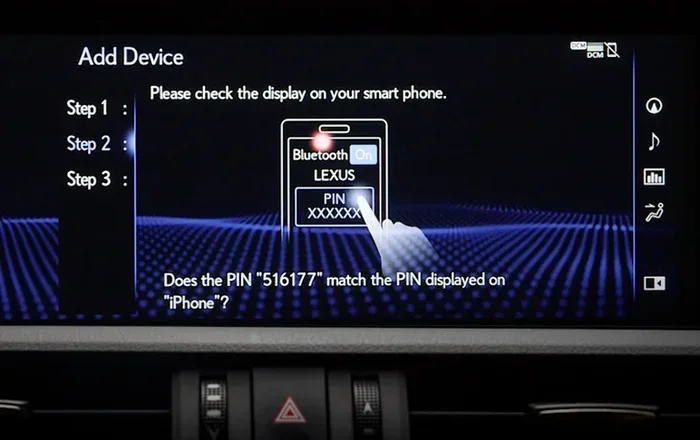
- Select your Lexus name from your phone’s Bluetooth list. Your phone will show a prompt asking to pair. Tap “Pair” or “Connect.”
- Enter the PIN if required. Some Lexus models display a 4-digit PIN on the car screen. Type it into your phone. Others pair automatically.
- Confirm the connection. You will see “Connected” on both the car screen and your phone. Your phone’s Bluetooth icon will fill in.
That is it. You are now connected to Lexus Bluetooth. You can make calls, play music, and use voice commands right away. If you want to connect another phone later, simply repeat the process from step 4.
Quick Tip: The first time you pair, the car may ask if you want to share contacts and call history. Say “Yes” to enable full hands-free features. You can change this later in the Bluetooth settings.
Troubleshooting Common Bluetooth Issues
Sometimes the connection does not work the first time. Do not panic. Most issues are easy to fix. Here are the three most common problems and their solutions.
Phone Won’t Show Up in the Car’s List
If your phone does not appear on the Lexus screen, check a few things. First, make sure your phone’s Bluetooth is fully on. Some phones hide Bluetooth when they are in battery saver mode. Second, move closer to the car’s center console. Bluetooth range is about 30 feet. Third, restart your phone’s Bluetooth by turning it off and back on. If the problem continues, try restarting the car’s infotainment system. You can do this by holding the power button for 10 seconds.
Audio Keeps Cutting Out
Interrupted audio often happens when your phone is in your pocket or bag. The signal gets blocked. Move your phone to a visible spot on the dashboard or seat. Also, check if other devices are connected to your phone via Bluetooth. A smartwatch or tablet can sometimes interfere. Disconnect them temporarily and see if the audio improves.
Resetting the Lexus Bluetooth System
If nothing else works, a reset usually solves the problem. On most Lexus models, go to Settings > Bluetooth > Delete Device. Remove your phone from the car’s memory. Then delete the Lexus entry from your phone’s Bluetooth list. Restart both devices and try pairing again. This fresh start clears most glitches.
Expert Insight: Lexus infotainment systems occasionally need a software update. If you have tried the steps above and still face issues, visit your Lexus dealer. They can check for system updates and refresh the Bluetooth module. This is especially helpful for older models.
Using Bluetooth for Hands-Free Calls and Music Streaming
Once your phone is connected, you can enjoy two big benefits: hands-free calling and wireless music. Both make driving safer and more fun.
Making and Receiving Calls
When a call comes in, the Lexus screen will show the caller’s name if your contacts are synced. You can answer by pressing the phone button on the steering wheel. To dial a number, use the voice command button and say “Call [Name].” You do not need to touch your phone at all. The call audio plays through the car speakers, and your voice comes through the microphone. This keeps your eyes on the road and hands on the wheel.
Streaming Music and Podcasts
With Bluetooth connected, you can stream music from Spotify, Apple Music, or any app on your phone. Press the “Media” or “Audio” button on the car screen. You will see your phone listed as a source. Select it, and your music will play through the car’s speakers. You can control volume from the steering wheel or the screen. Some Lexus models also support Bluetooth audio for podcasts and audiobooks. Just open your app and hit play.
Setting Up Auto-Text Replies While Driving
Safety is our top priority. If you receive a text message while driving, you can set up an automatic reply. This tells the sender you are driving and will respond later. To enable this feature, you need to configure it on your phone first. After your Lexus Bluetooth is connected, you can fine-tune the auto-reply settings. For a complete walkthrough, check our guide on how to set up auto text when driving. It covers both iPhone and Android options in detail.
Common Mistake: Many drivers try to read and reply to texts manually while driving. This is dangerous and illegal in many states. Always use the auto-reply feature or let your car’s voice system read messages aloud. Keep your eyes on the road.
Android Auto and Lexus Bluetooth
Android Auto brings your favorite apps to the car screen in a safe, driver-friendly layout. You can use Google Maps, Spotify, WhatsApp, and more with just your voice. Lexus models that support Android Auto can use it over a Bluetooth connection. This means you do not need a USB cable to enjoy the full Android Auto experience.
What Is Android Auto?
Android Auto is a Google app that mirrors your phone’s key features onto your car’s display. It uses large buttons, voice commands, and a dark theme to reduce distractions. You can navigate, play music, send messages, and make calls without touching your phone. It works wirelessly through Bluetooth on supported Lexus models.
How to Enable Android Auto via Bluetooth
To use Android Auto with your Lexus Bluetooth, you first need to install the Android Auto app on your phone. Then, connect your phone to the car via Bluetooth as described earlier. On your phone, open Android Auto and follow the setup prompts. The car screen will display the Android Auto home screen. You can now access maps, music, and communication apps directly from the Lexus infotainment system. For more details on compatibility, see our article can you use Android Auto through Bluetooth in Toyota. Since Lexus is part of the Toyota family, the same Bluetooth Android Auto rules often apply.
Compatibility with Lexus Models
Most Lexus models from 2018 onward support wireless Android Auto through Bluetooth. Older models may require a USB cable for the first setup. Check your owner’s manual or ask your Lexus dealer if you are unsure. The feature works best with Android phones running version 10 or later. Once connected, you can switch between standard Bluetooth audio and Android Auto by tapping the Android Auto icon on the car screen.
Maximizing Your Lexus Bluetooth Experience
You have your phone connected. Now let us make the experience even better. A few simple adjustments can improve sound quality, battery life, and overall convenience.
Updating Your System
Lexus releases firmware updates for the infotainment system. These updates often improve Bluetooth stability and add new features. To check for updates, go to Settings > System > Software Update on your car screen. If an update is available, follow the prompts to download and install it. Always do this when the car is parked and connected to Wi-Fi if possible.
Using Multiple Devices
Lexus Bluetooth can remember up to five phones. This is great for families or couples. When you enter the car with a new phone, the system may ask if you want to connect the other paired device. You can also manually switch devices by going to the Bluetooth menu and selecting the desired phone. The audio will switch seamlessly, so you can take over a call or continue playing your playlist.
Safety Tips for Bluetooth Use
Bluetooth makes driving safer, but it still requires your attention. Use voice commands whenever possible. Keep your phone within reach but out of your line of sight. If you need to type something, pull over safely first. Remember that Bluetooth does not replace safe driving habits. Always watch the road and keep your hands on the wheel.
Key Takeaway: A solid Lexus Bluetooth connection transforms your driving experience. You get wireless calls, crystal-clear audio, and smart app integration. With the steps above, you can set it up in under five minutes and enjoy it every day.
Conclusion
You now know exactly how to Connect to Lexus Bluetooth from start to finish. You learned the pairing steps for both iPhone and Android. You discovered how to fix common problems and how to get the most from hands-free calling and music streaming. You also saw how Android Auto can add even more functionality to your Lexus. Connecting to Lexus Bluetooth is a simple skill that pays off every time you drive. Take a few minutes today to pair your phone. You will wonder how you ever drove without it. Enjoy the freedom of a wireless connection and stay safe on the road.
Frequently Asked Questions
How long does it take to connect to Lexus Bluetooth?
The actual pairing process takes less than two minutes once your phone and car are ready. You just need to put both devices in discovery mode and confirm the connection.
Can I connect multiple phones to my Lexus Bluetooth?
Yes, most Lexus models can remember up to five paired phones. You can switch between them easily using the infotainment screen or by selecting the device name when you start the car.
Why won’t my phone show up when I try to pair?
This usually happens when Bluetooth is off, the phone is too far away, or it is not in pairing mode. Make sure Bluetooth is on and your phone is set to be visible to other devices. Restart both devices if needed.
Do I need a USB cable for Bluetooth in a Lexus?
No, Bluetooth is completely wireless. You do not need a cable for audio streaming or calls. However, a USB cable may be required for the first-time setup of Android Auto on older Lexus models.
How do I delete a paired phone from my Lexus?
Go to Settings > Bluetooth on the car screen. Find the device you want to remove and select “Delete” or “Forget.” This clears the pairing and frees up a slot for a new device.
Is it safe to use Bluetooth while driving?
Yes, Bluetooth hands-free calling and voice commands are designed to keep your eyes on the road and hands on the wheel. Always use voice controls and avoid typing or reading messages while driving.