How to Reset iPhone Bluetooth and Fix Connection Issues
Resetting your iPhone Bluetooth is the fastest way to solve connection problems, dropped audio, and pairing failures. This guide walks you through multiple reset methods, from a simple Bluetooth toggle to a full network settings reset. You will also learn prevention tips to keep your iPhone Bluetooth working smoothly every day.
Your iPhone Bluetooth suddenly stops working, and you cannot connect to your headphones, speaker, or car system. It is frustrating, right? You are not alone. Thousands of iPhone users face Bluetooth problems every day. The good news is that a Bluetooth reset almost always solves the issue. In this guide, we will show you exactly how to reset iPhone Bluetooth and fix connection problems in just a few minutes.
We will cover every method, from the simplest toggle trick to the full network settings reset. You will also learn why your iPhone Bluetooth keeps disconnecting and how to stop it from happening again. Whether you are trying to connect wireless earbuds, your car audio system, or a portable speaker, this guide has you covered. Let us dive in and get your Bluetooth working again.
Key Takeaways
- Simple reset: Turning Bluetooth off and back on fixes most minor connection glitches.
- Forget and re-pair: Removing a device and pairing it again solves deeper pairing issues.
- Network settings reset: A full reset clears all Bluetooth cache and restores default connections.
- iOS updates matter: Keeping your iPhone updated prevents many Bluetooth bugs.
- Distance and interference: Physical barriers and other wireless signals often cause disconnections.
- Restart your devices: A simple restart of both your iPhone and Bluetooth device works wonders.
📑 Table of Contents
- Why Does iPhone Bluetooth Keep Disconnecting?
- How to Reset iPhone Bluetooth: Step-by-Step Methods
- Quick Fixes to Try Before Resetting
- Common Bluetooth Mistakes to Avoid
- Preventing Future Bluetooth Connection Problems
- Expert Insights: When to Seek Professional Help
- Comparison: Which Reset Method Should You Use?
- Final Thoughts
Why Does iPhone Bluetooth Keep Disconnecting?
Before you learn how to reset iPhone Bluetooth, it helps to understand why the problem happens in the first place. Bluetooth connections rely on a stable wireless signal between two devices. When something interrupts that signal, your connection drops or fails entirely.
Several common causes lead to Bluetooth problems. Interference from other wireless devices is a big one. Wi-Fi routers, microwaves, and even USB 3.0 ports can disrupt the Bluetooth signal. Distance also matters. If you move too far from your Bluetooth device, the connection weakens and eventually drops.
Software glitches are another major culprit. Sometimes the Bluetooth module on your iPhone gets stuck in a bad state. It thinks it is connected when it is not, or it refuses to connect at all. Outdated iOS software can also introduce bugs that affect Bluetooth performance. Older devices may struggle with newer Bluetooth protocols.
Hardware issues are less common but still possible. A damaged antenna or a problem with the Bluetooth chip can cause persistent failures. If none of the software fixes work, you might need professional help. But for most users, a simple reset solves everything.
How to Reset iPhone Bluetooth: Step-by-Step Methods
Now let us get into the actual reset process. There are several ways to reset Bluetooth on your iPhone. We start with the easiest method and work our way up to the most thorough fix. Try each one in order until your connection is restored.
Method 1: Toggle Bluetooth Off and On
This is the simplest fix and works for most minor glitches. It refreshes the Bluetooth connection without deleting any paired devices.
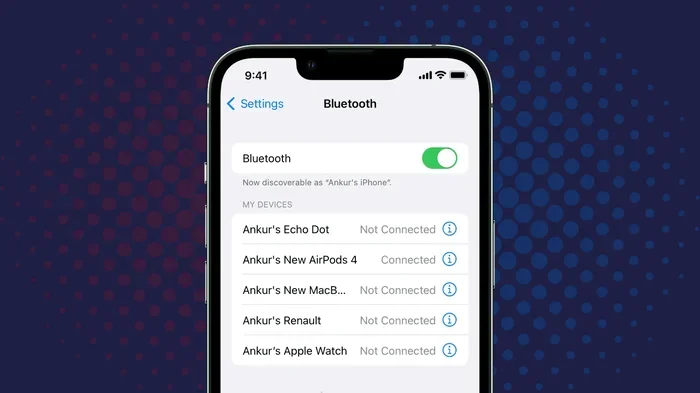
- Open the Settings app on your iPhone.
- Tap on Bluetooth.
- Turn the Bluetooth switch off. Wait about 10 seconds.
- Turn the Bluetooth switch back on.
- Check if your device reconnects automatically.
If your device does not reconnect, try tapping on it in the list of available devices. This forces your iPhone to search for the device again. Sometimes this simple refresh is all you need to fix a stubborn connection problem.
Method 2: Forget the Device and Re-Pair It
When toggling Bluetooth does not work, the next step is to forget the device and pair it again. This clears the old connection data and starts fresh.
- Go to Settings and tap on Bluetooth.
- Find the device that is giving you trouble.
- Tap the info icon (i) next to the device name.
- Select Forget This Device and confirm.
- Turn Bluetooth off and then back on.
- Put your Bluetooth device into pairing mode.
- Select the device from the list on your iPhone.
Re-pairing often fixes connection issues caused by corrupted pairing data. Your iPhone forgets all the old connection settings and creates a brand new link. This method works great for headphones, speakers, and car audio systems.
If you use your phone with a car system, you might want to check how to pair your phone properly. For example, some older vehicles like Do 2012 Honda Civics Have Bluetooth require specific pairing steps that differ from newer models.
Method 3: Restart Your iPhone
A restart clears temporary software glitches that can interfere with Bluetooth. It is a quick and easy step that many people overlook.
To restart your iPhone, press and hold the power button along with the volume button. Slide to power off. Wait 30 seconds, then turn your phone back on. Once it is fully loaded, try connecting your Bluetooth device again.
This method works because a restart clears the RAM and resets all running processes. Your Bluetooth module gets a fresh start, which often resolves connection problems instantly.
Method 4: Reset All Settings on Your iPhone
If the above methods do not work, you can reset all settings on your iPhone. This does not delete your photos, apps, or personal data. It only resets system settings like Wi-Fi, Bluetooth, and notifications to their defaults.
- Open Settings and go to General.
- Scroll down and tap Transfer or Reset iPhone.
- Select Reset.
- Tap Reset All Settings.
- Enter your passcode if prompted.
- Confirm the reset.
After the reset, you will need to reconnect your Wi-Fi and Bluetooth devices. This method is more thorough than a simple Bluetooth toggle because it resets all system-level settings that could be causing the problem.
Method 5: Reset Network Settings
This is the most powerful reset method. It clears all network-related settings, including Wi-Fi passwords, VPN configurations, and Bluetooth pairings. Use this as a last resort before seeking professional help.
- Go to Settings and tap General.
- Scroll down and select Transfer or Reset iPhone.
- Tap Reset.
- Choose Reset Network Settings.
- Enter your passcode.
- Confirm the reset.
Your iPhone will restart automatically after the reset. You will need to reconnect to Wi-Fi and re-pair all Bluetooth devices. This method completely wipes the Bluetooth cache and forces your iPhone to rebuild all connection data from scratch.
Keep in mind that resetting network settings can also affect your cellular data settings. You may need to re-enter APN settings for your carrier. If you are unsure, you can contact your carrier for the correct settings.
Quick Fixes to Try Before Resetting
Sometimes you do not need a full reset. A few quick fixes can solve your Bluetooth problem in seconds. Try these before you dive into the reset methods above.
- Check your distance: Move closer to your Bluetooth device. Walls and furniture can block the signal.
- Turn off other wireless devices: Disable Wi-Fi or other Bluetooth devices nearby. They can cause interference.
- Check battery levels: Low battery on your Bluetooth device can cause connection drops. Charge it fully and try again.
- Restart both devices: Power off your Bluetooth device and your iPhone, then turn them back on.
- Check for iOS updates: Go to Settings > General > Software Update. Install any available updates.
These quick fixes solve many Bluetooth issues without requiring a full reset. They take only a minute or two and are well worth trying first.
Common Bluetooth Mistakes to Avoid
Many people make mistakes that worsen their Bluetooth problems. Avoid these common pitfalls to keep your connections stable.
Ignoring Software Updates
Apple regularly releases iOS updates that fix Bluetooth bugs. If you skip updates, you miss these fixes. Always keep your iPhone updated to the latest version of iOS. Updates also improve overall Bluetooth performance and compatibility with new devices.
Keeping Too Many Devices Paired
Your iPhone can remember many paired devices. But having too many paired devices can slow down the Bluetooth connection and cause confusion. Go through your paired device list regularly and forget devices you no longer use.
Placing Your iPhone Near Interference Sources
As mentioned earlier, Wi-Fi routers, microwaves, and USB 3.0 ports can interfere with Bluetooth signals. Keep your iPhone away from these devices when using Bluetooth. If you notice connection problems, move to a different room or away from other electronics.
Not Checking Bluetooth Device Compatibility
Not all Bluetooth devices work perfectly with every iPhone model. Some older devices use older Bluetooth versions that may not connect properly to newer iPhones. Before buying a new Bluetooth device, check its compatibility with your iPhone model.
For example, if you are connecting your phone to a car system, compatibility matters a lot. Some cars support Android Auto through Bluetooth while others do not, and the connection process can vary widely between models.
Preventing Future Bluetooth Connection Problems
Once you fix your Bluetooth issue, you want to keep it from happening again. Follow these simple habits to maintain strong, stable Bluetooth connections on your iPhone.
- Restart your iPhone weekly: A regular restart clears out temporary glitches and keeps everything running smoothly.
- Update iOS regularly: Install updates as soon as they become available. They often include Bluetooth bug fixes.
- Forget unused devices: Clean up your paired device list every few months.
- Keep devices charged: Low battery is one of the top causes of Bluetooth disconnections.
- Store devices properly: Keep your Bluetooth devices in a safe, dry place away from other electronics.
These habits take very little time but they save you from a lot of frustration. A little prevention goes a long way when it comes to Bluetooth connectivity.
Expert Insights: When to Seek Professional Help
Most Bluetooth problems are software-related and can be fixed with a reset. But sometimes the issue is hardware-related. Here are signs that you need professional help.
- Bluetooth still does not work after a full network reset. This could indicate a hardware problem with your iPhone.
- Your iPhone overheats when using Bluetooth. Overheating can damage internal components, including the Bluetooth antenna.
- Bluetooth works intermittently for no clear reason. This could be a failing Bluetooth chip or antenna.
- None of your Bluetooth devices connect. If every single Bluetooth device fails, the problem is likely with your iPhone.
If you notice any of these signs, visit an Apple Store or an authorized service provider. They can diagnose the issue and recommend the right repair. Do not try to open your iPhone yourself, as this can void your warranty and cause further damage.
Comparison: Which Reset Method Should You Use?
Not every reset method is right for every situation. Here is a quick comparison to help you choose the best method for your problem.
- Toggle Bluetooth: Best for minor glitches. Takes 10 seconds. No data loss.
- Forget and Re-Pair: Best for one device that will not connect. Takes 1 minute. No data loss.
- Restart iPhone: Best for general software hiccups. Takes 2 minutes. No data loss.
- Reset All Settings: Best for persistent Bluetooth issues. Takes 5 minutes. No personal data loss, but you lose Wi-Fi passwords and settings.
- Reset Network Settings: Best for deep connection problems. Takes 5 minutes. Clears all network and Bluetooth data.
Start with the simplest method and work your way down the list. In most cases, the first or second method solves the problem. Only use the more thorough methods if the simpler ones fail.
Final Thoughts
Learning how to reset iPhone Bluetooth is an essential skill for every iPhone user. Bluetooth problems are incredibly common, but they are almost always easy to fix. Whether you use a simple toggle, forget and re-pair a device, or perform a full network settings reset, you have the tools to solve the problem.
Remember to try the quick fixes first before diving into a full reset. Keep your iPhone updated, maintain your paired devices, and avoid interference sources. These habits keep your Bluetooth connections strong and reliable.
If you ever find that Bluetooth keeps disconnecting or refuses to connect, do not panic. Follow the steps in this guide and you will have your devices connected again in no time. A little patience and the right approach go a long way toward fixing any Bluetooth issue.
Now that you know how to handle Bluetooth problems, you can enjoy wireless audio, hands-free calling, and seamless device connections without worry. Your iPhone Bluetooth is ready to work for you again.
Frequently Asked Questions
Why won’t my iPhone connect to Bluetooth even after a reset?
Try restarting both your iPhone and the Bluetooth device. If the problem persists, forget the device on your iPhone and pair it again. If none of these steps work, check for iOS updates or contact Apple Support for further assistance.
Does resetting iPhone Bluetooth delete any data?
No. A Bluetooth reset does not delete your photos, apps, messages, or any personal data. However, resetting network settings will erase saved Wi-Fi passwords and Bluetooth pairings. You will need to reconnect to Wi-Fi and re-pair Bluetooth devices afterward.
How often should I reset my iPhone Bluetooth?
You should only reset Bluetooth when you experience connection problems. Resetting too often is unnecessary and can disrupt your paired devices. A monthly restart of your iPhone is usually enough to keep Bluetooth running smoothly.
Can interference from other devices cause Bluetooth problems?
Yes. Other wireless devices like Wi-Fi routers, microwaves, and USB 3.0 ports can interfere with Bluetooth signals. Moving away from these devices often resolves connection issues instantly.
What is the difference between resetting Bluetooth and resetting network settings?
Resetting Bluetooth only refreshes the Bluetooth module. Resetting network settings clears all network-related data, including Wi-Fi passwords, VPN settings, and Bluetooth pairings. The network settings reset is much more thorough and should be used only when simpler methods fail.
Do I need to unpair all devices before resetting iPhone Bluetooth?
No. You do not need to unpair all devices. However, if a specific device is causing problems, forgetting that device and re-pairing it is often the best approach. A full network settings reset will remove all paired devices automatically.