How to Connect a Phone to a Honda Civic Step by Step
Learn how to connect a phone to a Honda Civic with our detailed step by step guide. This article covers Bluetooth pairing, Apple CarPlay, and Android Auto setup so you can enjoy hands free calling, navigation, and music streaming on every drive. Whether you own a new or older model, these simple steps will get your phone connected in minutes.
Need to get your phone talking to your Honda Civic? You are in the right place. How to Connect a Phone to a Honda Civic is simpler than you might think. Whether you want to stream music, use GPS navigation, or make hands free calls, connecting your phone opens up a whole new driving experience. This guide walks you through every method step by step, so you can get connected fast and start enjoying the ride.
Modern Honda Civic models come packed with smart features that make phone integration easy. From Bluetooth to Apple CarPlay and Android Auto, there are several ways to link your device. Even if you drive an older model, there is almost always a way to get your phone working with your car’s audio system. Let us dive in and explore each option.
In this article, you will learn the exact steps for Bluetooth pairing, how to set up Apple CarPlay and Android Auto, what to do when things go wrong, and pro tips to keep your connection strong. By the end, you will feel confident connecting your phone to your Honda Civic every single time.
Key Takeaways
- Bluetooth Pairing: The most common and wireless way to connect your phone to a Honda Civic.
- Apple CarPlay and Android Auto: Both offer seamless smartphone integration for navigation and music.
- USB Connection: A reliable wired option for older Honda Civic models without wireless support.
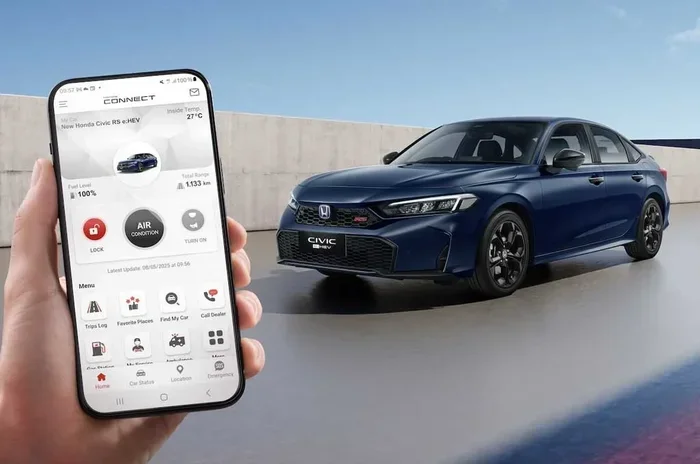
- Honda Connect App: Lets you control certain features remotely from your phone.
- Troubleshooting Tips: Simple fixes for common connection issues like pairing failures and audio delays.
- Quality Cables Matter: Using the right USB cable prevents many common connectivity problems.
📑 Table of Contents
Understanding Your Honda Civic Connectivity Options
Before you start plugging things in or tapping screens, it helps to know what connectivity options your Honda Civic actually supports. Different model years and trim levels come with different features. Understanding these options saves you time and frustration.
Bluetooth vs Wired Connection
Bluetooth is the most popular way to connect a phone to a Honda Civic. It is wireless, easy to use, and works with almost any smartphone. You can stream music, make calls, and use voice commands without ever touching a cable. Most Honda Civics from 2012 onward support Bluetooth audio streaming and hands free calling.
A wired connection uses a USB cable to link your phone directly to the car’s infotainment system. This method works well for older models that may not support Bluetooth or wireless features. A USB connection also charges your phone while you drive, which is a nice bonus on long road trips.
Apple CarPlay vs Android Auto
Both Apple CarPlay and Android Auto bring your phone’s interface to your car’s screen. They let you access maps, music, messages, and more using voice commands or the touchscreen. How to Connect a Phone to a Honda Civic with these systems is straightforward, but the setup differs slightly between the two.
Apple CarPlay works with iPhones and offers a clean, familiar interface. Android Auto works with Android phones and provides similar functionality. Both systems support popular apps like Spotify, Google Maps, and Apple Maps. Newer Honda Civic models often support wireless versions of both systems, which means no cables needed at all.
Comparison of Connection Methods
| Method | Wireless | Works With | Best For |
|---|---|---|---|
| Bluetooth | Yes | All smartphones | Calls and basic audio streaming |
| USB Cable | No | All smartphones | Older models and reliable charging |
| Wireless CarPlay/Android Auto | Yes | iPhone and Android | Full screen mirroring and apps |
| Wired CarPlay/Android Auto | No | iPhone and Android | Stable connection and fast setup |
How to Connect a Phone to a Honda Civic Using Bluetooth
Bluetooth pairing is the foundation of phone connectivity in any Honda Civic. Once paired, your phone connects automatically every time you get in the car. Here is exactly how to do it.
Step by Step Bluetooth Pairing
First, make sure Bluetooth is turned on your phone. Go to your phone settings and enable Bluetooth. Next, start your Honda Civic and press the setup or phone button on the steering wheel or infotainment screen. Your car will enter pairing mode and become visible to nearby devices.
On your phone, search for available Bluetooth devices. You should see your Honda Civic listed. Tap on it to begin pairing. You may need to enter a PIN code, which is usually 0000 or 1234. Once paired, your phone will connect automatically in the future.
After pairing, go to your car audio settings and make sure Bluetooth audio streaming is enabled. This allows music and other audio to play through your car speakers. Test it by playing a song on your phone and adjusting the volume using the car controls. This simple Honda Civic Bluetooth setup takes less than two minutes once you know the steps.
Managing Multiple Paired Devices
Honda Civic models allow you to pair multiple phones at once. This is great for families or couples who share a car. Each paired phone can connect automatically when the owner gets in the vehicle.
To manage your paired devices, go to the Bluetooth settings in your Honda Civic infotainment system. You can delete old devices, change connection priorities, and set which phone connects first. Keeping your device list clean ensures smooth and reliable Bluetooth pairing car experiences every time. If you ever switch phones, simply remove the old device from the car’s memory and pair the new one.
Setting Up Apple CarPlay on a Honda Civic
Apple CarPlay is a fantastic feature for iPhone users. It mirrors your phone’s interface on your car’s display, making navigation, messaging, and music safer and more convenient. Here is how to set it up on your Honda Civic.
Wireless vs USB CarPlay
Wireless Apple CarPlay connects to your Honda Civic without any cables. It uses Bluetooth and Wi-Fi to establish a connection. Not all Honda Civic models support wireless CarPlay, so check your owner manual or your specific model year.
USB CarPlay uses a Lightning cable to connect your iPhone to the car’s USB port. This method works on virtually all Honda Civic models that support CarPlay. The connection is stable and often faster to set up than wireless. If your car supports both, wireless is more convenient, but USB is perfectly reliable for everyday use.
Supported Honda Civic Models
Most Honda Civic models from 2016 onward support Apple CarPlay. The feature became standard on many trims starting in 2019. If you drive a 2016 to 2021 Honda Civic, you may need a USB cable for CarPlay. Models from 2022 and newer often include wireless Apple CarPlay as standard.
To check if your specific model supports CarPlay, look at the infotainment screen. If you see a CarPlay icon or the smartphone icon in your audio source menu, your Honda Civic is compatible. This smartphone integration car feature has become one of the most valued options for modern drivers.
Using Android Auto with Your Honda Civic
Android Auto brings the power of your Android phone to your Honda Civic’s infotainment system. It works very similarly to Apple CarPlay but is designed for Android devices. Here is everything you need to know.
Android Auto Setup Process
First, download the Android Auto app from the Google Play Store on your phone. Make sure your phone is running Android 10 or newer for the best experience. Connect your phone to your Honda Civic using a USB cable or wirelessly if your model supports it.
Once connected, the Android Auto interface will appear on your car screen. You can access Google Maps, Spotify, podcasts, and other supported apps. Use voice commands by saying “Hey Google” to make calls, send messages, or get directions without taking your eyes off the road. This car phone integration guide approach keeps you safe and connected.
Features You Will Love
Android Auto offers great navigation with Google Maps, which is one of the most accurate mapping services available. You can also use voice assistants to control music, send texts, and make calls safely. The interface is designed to be simple and distraction free, so you stay focused on driving.
Many Honda Civic owners love that Android Auto updates automatically. New features and app support come regularly through the Google Play Store. This keeps your Honda Civic multimedia system fresh and current without any extra effort. The phone mirroring car experience feels natural and intuitive once you get used to it.
Troubleshooting Common Connection Issues
Even with the best setup, you may run into connection problems from time to time. Do not worry. Most issues are easy to fix. Here are the most common problems and how to solve them.
Phone Won’t Pair with the Car
If your phone will not pair with your Honda Civic, start by turning Bluetooth off and back on. Sometimes a simple restart of both devices does the trick. Make sure your phone is discoverable and that your Honda Civic is in pairing mode. If the problem persists, delete the old pairing from both devices and try again.
Another common cause is a full Bluetooth memory. Honda Civics can store a limited number of paired devices. Go to your car’s Bluetooth settings and remove any devices you no longer use. This frees up space for a new connection. Following these Honda Civic Bluetooth troubleshooting steps resolves the issue in most cases.
Audio Quality Problems
If your phone connects but the audio sounds muffled or distorted, check a few things first. Make sure your phone is not too far from the car’s Bluetooth antenna. Physical barriers like your body or phone cases can weaken the signal. Try moving your phone closer to the center console.
Also, check if any apps on your phone are interfering with audio output. Some apps force audio through their own channels instead of the Bluetooth connection. Closing background apps and restarting the audio source often fixes this issue. Good Honda Civic audio streaming depends on a strong and clear Bluetooth signal.
CarPlay or Android Auto Not Showing Up
If CarPlay or Android Auto does not appear on your Honda Civic screen, try using a different USB cable. Many cables are charge only and do not support data transfer. A high quality USB cable is essential for these features to work properly. This is one of the most overlooked USB cable phone car issues.
Make sure the apps are updated on your phone. Both Apple CarPlay and Android Auto rely on the latest software versions for compatibility. Restarting your phone and your car’s infotainment system can also resolve temporary glitches. Keep your Honda Civic USB connection clean and free of dust for the best results.
Tips for a Seamless Phone Connection
Want the best possible phone connection every time you drive? These simple tips make a big difference. Follow them and your Honda Civic phone experience will be smooth and reliable.
Keep Your Software Updated
Both your phone and your Honda Civic’s infotainment system receive software updates. These updates often include bug fixes and new features for phone connectivity. Check for updates regularly. On your phone, go to settings and look for system updates. For your Honda Civic, visit a dealer or check the owner manual for update instructions. Updated software means better phone compatibility Honda Civic and fewer connection headaches.
Use Quality Cables and Accessories
If you use a USB cable for CarPlay or Android Auto, invest in a good one. Cheap cables often fail to transmit data properly and can cause frustrating connection drops. Look for cables from reputable brands that support data transfer and fast charging. A quality cable lasts longer and provides a more stable connection for your Honda Civic media connectivity needs.
Restart Before Long Trips
Before a long road trip, restart both your phone and your Honda Civic’s infotainment system. This clears temporary files and refreshes Bluetooth connections. It is a quick habit that prevents many common connectivity issues. A fresh start means a smoother and more reliable car phone sync on the road.
Clean Your USB Ports
Dust and debris can build up in your Honda Civic’s USB ports over time. This can cause poor connections or prevent your phone from being recognized. Use a soft brush or compressed air to clean the ports gently. A clean connection means better audio and faster data transfer every time. This simple maintenance step goes a long way for your Honda Civic touch screen and overall connectivity.
Final Thoughts
Connecting your phone to a Honda Civic is one of the simplest ways to upgrade your daily driving experience. Whether you use Bluetooth for hands free calls, Apple CarPlay for iPhone users, or Android Auto for Android fans, the process is straightforward and rewarding. Once you set it up, you will wonder how you ever drove without it.
If you are in the market for a new Honda Civic or any other vehicle, it helps to understand what you are getting into. Check out How Much Is A Brand New Car to get a sense of pricing and what to expect. A new Honda Civic comes loaded with the latest connectivity features that make phone integration Honda Civic seamless.
Remember, keeping your phone and car software updated, using quality cables, and following the steps in this guide will ensure a strong and reliable connection every time. Honda builds great vehicles across its lineup, from the compact Civic to the spacious Honda Odyssey, and they all share a commitment to smart connectivity. Drive safe, stay connected, and enjoy every mile.
For those wondering about broader connectivity options across different car brands, you might find it helpful to explore Can I Use Toyota Connect Without A Subscription for a wider perspective on what connected car services are available today.
Frequently Asked Questions
What is the easiest way to connect a phone to a Honda Civic?
Bluetooth is the easiest and most common method. Simply turn on Bluetooth on your phone, put your Honda Civic in pairing mode, and select the car from your phone’s Bluetooth menu. The whole process takes less than two minutes and requires no cables.
Once paired, your phone connects automatically every time you get in the car. This makes Honda Civic phone connection effortless for daily driving.
Can I use Apple CarPlay on a Honda Civic?
Yes, most Honda Civic models from 2016 onward support Apple CarPlay. Newer models from 2022 and up often include wireless Apple CarPlay as standard. You will need an iPhone running iOS 13 or newer for the best experience. Simply plug in a Lightning cable or connect wirelessly to access CarPlay on your Honda Civic’s screen.
Why won’t my phone connect to my Honda Civic via Bluetooth?
There are several common reasons. Your phone might not be in discoverable mode, the car’s Bluetooth memory might be full, or the pairing may need to be reset. Try turning Bluetooth off and back on both devices. If that does not work, delete the old pairing and start fresh. These simple Honda Civic Bluetooth troubleshooting steps solve the problem in most cases.
Do I need a special cable for Apple CarPlay or Android Auto?
Yes, you need a cable that supports data transfer, not just charging. Many cheap cables are charge only and will not work with CarPlay or Android Auto. Look for cables from reputable brands that explicitly support data transfer. A good quality USB cable ensures a stable and fast connection for your Honda Civic infotainment system.
Can I connect more than one phone to my Honda Civic?
Yes, Honda Civic models allow you to pair multiple phones at once. Each phone can connect automatically when its owner gets in the vehicle. You can manage paired devices in the Bluetooth settings on your car’s infotainment screen. This is especially helpful for families or couples who share a car.
Is wireless CarPlay available on all Honda Civic models?
No, wireless CarPlay is only available on certain Honda Civic models, typically newer ones from 2022 and up. Older models may require a USB cable for CarPlay. Check your owner manual or look for the CarPlay icon in your audio source menu to confirm compatibility with your specific Honda Civic.