How Long Does a Toyota Software Update Take to Finish
A Toyota software update typically takes between 15 minutes and 2 hours, depending on the update size, your internet connection, and the vehicle model. The process includes a download phase and an installation phase, and you should avoid driving or turning off the car during this time. Knowing what to expect helps you plan ahead and prevents frustrating delays.
A Toyota software update is one of those things every Toyota owner needs to deal with at some point. Whether you drive a brand-new 2024 model or a reliable older Camry, software updates keep your vehicle running smoothly. They fix bugs, improve safety features, and sometimes even add new capabilities. But one question almost everyone asks is the same: how long does a Toyota software update take to finish?
The answer is not always simple. It depends on several factors, including the type of update, your internet connection, and your specific vehicle model. In this guide, we will break down everything you need to know about the Toyota update process. You will learn how long each phase takes, what affects the duration, and how to avoid common problems.
So grab a cup of coffee, and let us walk through the entire process step by step.
Toyota vehicles today are more connected than ever. The Toyota software update process has evolved significantly over the past few years. Older models required a trip to the dealer for every update. Newer models can receive updates over the air, much like a smartphone. This shift has made the process more convenient but also raised questions about timing and reliability.
Understanding the update timeline matters for practical reasons. You need to know how long your car will be unavailable. You also want to avoid being stuck with a frozen screen halfway through a long drive. This article covers all of that and more. We will look at the download phase, the installation phase, and everything in between.
Key Takeaways
- Most Toyota software updates take 15 minutes to 2 hours: the download and installation phases each have different timeframes.
- Internet speed matters a lot: a fast Wi-Fi connection can cut download time significantly.
- You cannot use the car during an update: the vehicle must remain parked and powered on throughout the process.
- Interrupting an update can cause serious problems: always let the process complete fully.
- Over-the-air updates are faster than dealer visits: many newer Toyota models support remote updates through the Toyota app.
- Common errors like frozen screens usually resolve with a restart: but persistent issues need a dealer visit.
- Regular updates improve safety and performance: keeping your software current is worth the wait.
📑 Table of Contents
- What Happens During a Toyota Software Update
- How Long Does Each Phase Take
- Factors That Affect Toyota Software Update Duration
- Can You Use Your Toyota While It Updates
- Common Problems and How to Fix Them
- When Should You Update Your Toyota Software
- Over-the-Air Updates vs Dealer Updates
- Tips to Speed Up Your Toyota Software Update
- Final Thoughts
What Happens During a Toyota Software Update
Every Toyota software update follows a similar structure. The process generally has two main phases: downloading the update files and installing them on your vehicle. Each phase has its own time requirements. Let us look at both in detail.
The Download Phase
The first step in any Toyota software update is downloading the update files. These files contain the new code, bug fixes, and feature improvements. The size of these files varies widely. Some updates are small, around 50 megabytes, while others can be several gigabytes.
During the download phase, your vehicle connects to a Wi-Fi network or uses its cellular connection. The speed of this connection directly affects how long the download takes. A strong Wi-Fi signal will make the process much faster. A weak signal or slow cellular data can stretch the download time significantly.
Most Toyota owners report that the download phase takes anywhere from 5 minutes to 45 minutes. Smaller updates with minor fixes tend to download quickly. Larger updates that include new maps or feature packages take more time. You can usually continue using your vehicle while the download happens in the background.
The Installation Phase
Once the download is complete, the installation phase begins. This is the more critical part of the process. During installation, the new software replaces the old code on your vehicle’s systems. Your car will need to remain powered on but should not be driven.
The installation phase typically takes between 10 minutes and 90 minutes. The exact time depends on the update size and the complexity of the systems being updated. For example, an update that only touches the infotainment system will be faster than one that updates multiple modules, including safety and engine controls.
During installation, your vehicle’s screens may go dark or show a progress bar. This is completely normal. Do not turn off the engine or disconnect the power. Interrupting the installation can lead to serious issues that may require a dealer visit to fix.
How Long Does Each Phase Take
Let us break down the typical timelines so you can plan accordingly. The table below summarizes the average durations for different types of Toyota updates.
- Small bug fixes: Download takes 5 to 15 minutes. Installation takes 10 to 20 minutes. Total time is around 15 to 35 minutes.
- Infotainment updates: Download takes 15 to 30 minutes. Installation takes 20 to 45 minutes. Total time is around 35 to 75 minutes.
- Major system updates: Download takes 30 to 60 minutes. Installation takes 45 to 90 minutes. Total time can reach 2 hours or more.
- Map and navigation updates: Download takes 20 to 40 minutes. Installation takes 15 to 30 minutes. Total time is around 35 to 70 minutes.
These times are averages based on reports from Toyota owners and dealer experiences. Your actual experience may vary. Factors like internet speed, vehicle model, and update complexity all play a role.
For comparison, how long does it take to order a car from the manufacturer? That process can take weeks or even months. A software update, by contrast, is relatively quick. Still, it is important to set aside enough time so you are not tempted to rush or interrupt the process.
Factors That Affect Toyota Software Update Duration
Not all Toyota software updates take the same amount of time. Several key factors influence the total duration. Understanding these factors helps you set realistic expectations and avoid frustration.
Internet Connection Speed
The speed of your internet connection is the biggest factor in the download phase. If you are connected to a fast home Wi-Fi network, the download will be quick. If you are using a weak cellular signal or a slow public network, the download can drag on for much longer.
Toyota recommends using a stable Wi-Fi connection for updates. A strong signal with at least 10 megabits per second is ideal for most updates. If your Wi-Fi is slow, consider moving the vehicle closer to the router or using a mobile hotspot with a strong signal.
Vehicle Model and Year
Different Toyota models have different hardware and software architectures. Newer models with more advanced systems tend to have larger update files. A 2024 Toyota RAV4 with the latest infotainment system may have a larger update than a 2018 model with a simpler setup.
Additionally, some older models do not support over-the-air updates. These vehicles require a physical connection at a dealer or service center. The installation time at a dealer is usually similar, but you also need to factor in travel time and waiting at the service center.
If you are curious about other Toyota timelines, you might wonder how long after you clear codes to pass emissions. The answer depends on your driving patterns, but it gives a sense of how long some Toyota-related processes can take.
Update Size and Complexity
Not all updates are created equal. A simple security patch might only be a few megabytes and install in minutes. A comprehensive update that refreshes the entire vehicle software suite can be several gigabytes and take over two hours.
The complexity of the update also matters. An update that touches only one system, like the audio system, will be faster than one that updates the powertrain, safety features, and infotainment simultaneously. Toyota bundles updates strategically, and the size reflects what is being changed.
Vehicle Battery and Power Supply
Your vehicle’s battery health can affect the update process. If the battery is low, the vehicle may warn you to charge it before starting the update. A low battery during installation can cause the process to fail or even damage the software.
Toyota recommends having at least a 50% battery charge before starting any update. For vehicles with a 12-volt battery, make sure the battery is in good condition. If your vehicle has a hybrid battery, ensure it has sufficient charge as well.
Can You Use Your Toyota While It Updates
The short answer is no. During the installation phase, your vehicle needs to remain undisturbed. You should not drive the car, turn off the engine, or disconnect the power source. Doing so can corrupt the software and lead to costly repairs.
During the download phase, you can generally use the vehicle for basic functions. However, it is best to avoid heavy use of the infotainment system during a download, as this can slow things down or cause conflicts.
Some owners wonder if they can leave the car unattended during an update. Toyota advises against this. It is best to stay nearby in case any issues arise. If the update encounters a problem, you want to be able to address it immediately.
If you rely on Toyota Connect for remote features, you might also ask can I use Toyota Connect without a subscription. The answer is that some basic features remain available without a subscription, but full functionality, including software update notifications, may require an active plan.
Common Problems and How to Fix Them
While Toyota software updates are generally reliable, problems can occasionally occur. Knowing what to do when things go wrong saves time and stress.
Update Stuck or Frozen
Sometimes the update progress bar stops moving. This can happen if the internet connection drops or if the vehicle’s system encounters a temporary glitch. If this happens, wait at least 15 to 20 minutes before taking any action.
If the update is truly stuck, you can try restarting the vehicle. Turn off the engine, wait 30 seconds, and restart. The update should resume from where it left off. If it does not, you may need to visit a Toyota dealer for assistance.
Error Messages During Update
Error messages can appear for various reasons, including insufficient storage space, a weak internet connection, or a corrupted update file. If you see an error, note the message code or text. This information helps the dealer diagnose the issue quickly.
Common fixes include checking your Wi-Fi connection, freeing up storage space on the vehicle’s system, and restarting the update process. If these steps do not work, a dealer visit is the best next step. Toyota service centers have specialized tools to troubleshoot and resolve update issues.
Update Takes Longer Than Expected
If your update is taking much longer than the average times mentioned above, check your internet connection first. A slow or unstable connection is the most common cause of extended update times. Also, make sure no other devices are heavily using the same network.
If the connection is fine and the update is still dragging, it may be a large update that simply needs more time. Be patient and let it run. Interrupting a long update can cause more problems than waiting a little extra time.
When Should You Update Your Toyota Software
Timing matters when it comes to Toyota software updates. You do not want to start a major update right before you need to drive somewhere important. Planning ahead makes the process smoother for everyone.
The best time to update is when you have several hours of free time. Weekend mornings or evenings work well. Choose a time when you do not need the vehicle for at least a few hours. This gives the update plenty of time to complete without pressure.
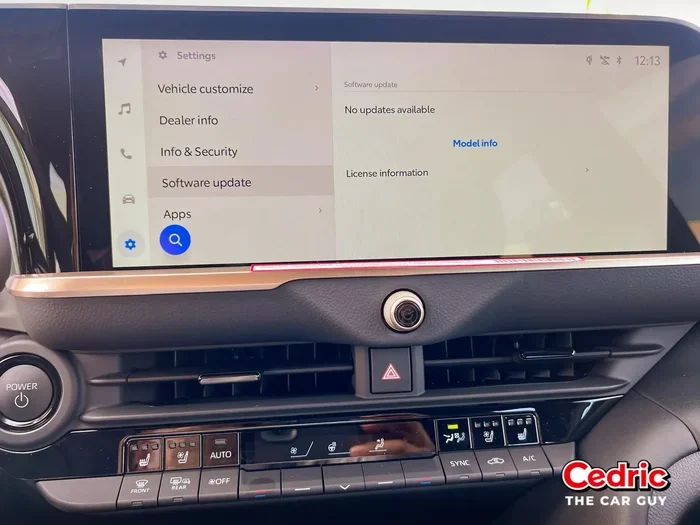
Toyota sends notifications when updates are available. You can also check for updates manually through the vehicle’s settings menu or the Toyota app on your phone. If you are wondering about the app, you might also ask can you use the Toyota app without a subscription. The app provides update notifications and some control features, but a subscription unlocks more functionality.
Regular updates keep your vehicle safe and performing at its best. Toyota releases updates periodically, and staying current ensures you have the latest features and security patches. Think of it like updating your phone, but for your car.
Over-the-Air Updates vs Dealer Updates
Toyota offers two main ways to update your vehicle’s software. Over-the-air updates happen remotely through your Wi-Fi or cellular connection. Dealer updates require a visit to a Toyota service center where a technician connects your vehicle to their diagnostic equipment.
Over-the-air updates are faster and more convenient. You can start them from your home or anywhere with a Wi-Fi connection. They also tend to be less disruptive since you do not need to travel to a service center.
Dealer updates are necessary for some older models and for certain major updates that require a physical connection. The installation time at a dealer is similar to an over-the-air update, but you also need to factor in the time spent at the service center.
Both methods follow the same basic process of downloading and installing. The key difference is convenience. If your vehicle supports over-the-air updates, this is the preferred method for most Toyota software update needs.
Tips to Speed Up Your Toyota Software Update
While you cannot control every factor, there are several things you can do to make the update process faster and smoother.
- Use a strong Wi-Fi connection: A fast and stable home network is the best setup for downloading updates quickly.
- Charge your battery fully: Start with at least a 50% charge to avoid interruptions from low battery warnings.
- Close other apps and systems: Turn off unnecessary features to free up system resources for the update.
- Check for updates during off-peak hours: Server traffic can slow downloads. Updating late at night or early in the morning can help.
- Keep your vehicle plugged in if possible: For hybrid and electric models, keeping the car connected to power ensures the battery stays at optimal levels throughout the update.
- Do not interrupt the process: Patience is key. Let the update run its full course without turning anything off.
Following these tips can reduce the overall time and minimize the risk of problems. A smooth update means less downtime and a happier Toyota owner.
Final Thoughts
So, how long does a Toyota software update take to finish? In most cases, you are looking at 15 minutes to 2 hours total. The download phase usually takes 5 to 45 minutes, and the installation phase takes 10 to 90 minutes. Several factors influence this timeline, including your internet speed, vehicle model, update size, and battery level.
The key takeaway is to plan ahead. Set aside enough time, use a strong Wi-Fi connection, and never interrupt the process. Regular updates are essential for keeping your Toyota safe, performant, and up to date with the latest features.
Toyota continues to improve its software update process with each new model year. Over-the-air updates are making it easier than ever to keep your vehicle current without a dealer visit. Embrace the updates, and your Toyota will reward you with better performance, enhanced safety, and new features over time.
Remember, a little patience during the update process goes a long way. Your Toyota is working hard behind the scenes to give you the best possible driving experience. Let it do its job, and you will be back on the road in no time.
Frequently Asked Questions
Can I drive my Toyota while a software update is installing?
No, you should not drive your vehicle during the installation phase. The car needs to remain parked and powered on. Driving or turning off the engine can interrupt the installation and potentially cause software issues that require a dealer to fix.
What should I do if my Toyota update gets stuck?
First, wait 15 to 20 minutes to see if it resumes on its own. If it does not, try restarting the vehicle by turning off the engine and waiting 30 seconds before starting again. If the update is still stuck after a restart, contact a Toyota dealer for assistance.
Are Toyota software updates free?
Most Toyota software updates are free of charge. However, some features or major updates may require an active subscription to Toyota Connected Services. Check with your dealer or the Toyota app for details about your specific model and update.
How often should I update my Toyota software?
Toyota releases updates periodically, typically a few times per year. It is a good practice to check for updates monthly or whenever you receive a notification. Keeping your software current ensures you have the latest safety features and bug fixes.
Can a Toyota software update fail?
While rare, software updates can fail due to a weak internet connection, low battery, or corrupted files. If an update fails, you may need to restart the process or visit a dealer. Always ensure your battery is charged and your Wi-Fi is strong before starting an update.
Do I need an internet connection to update my Toyota?
Yes, an internet connection is required to download the update files. Toyota recommends using a stable Wi-Fi connection for the best results. Some vehicles also support cellular connections for updates, but a Wi-Fi network is generally faster and more reliable.