How Do I Set My Device to Automatic Time Correctly
Setting your device to automatic time in your car is simple and keeps your clock accurate without any manual effort. Whether you drive a Toyota, Ford, BMW, or any other vehicle, your infotainment system can sync the time automatically using GPS or network signals. This guide walks you through the exact steps for every major car brand and helps you avoid common mistakes.
Have you ever driven somewhere and noticed your car clock is off by hours? Maybe you crossed a timezone and never updated it. Or perhaps daylight saving time caught you off guard again. The frustration of an incorrect clock in your vehicle is real. But here is the good news. Setting your device to automatic time takes just a few minutes and solves this problem forever.
Modern cars are smarter than ever. They can connect to satellites, cellular networks, and Wi-Fi. This means your vehicle can update its clock automatically. No more guessing. No more fumbling through menus every time the time changes. In this guide, we will show you exactly how to do it. We cover every major car brand, common problems, and expert tips you will not find in the owner manual.
Whether you drive a sedan, SUV, or truck, this guide applies to you. We kept the language simple and the steps clear. You do not need to be a tech expert to follow along. Let us get your car clock synced and accurate right now.
Key Takeaways
- Automatic time sync saves you from constantly resetting your car clock after trips or timezone changes.
- Most modern vehicles support automatic time through GPS, cellular data, or Wi-Fi connections.
- The process varies by car brand but is generally found in Settings, Clock, or Display menus.
- Common issues like incorrect timezone or signal loss can be fixed with simple troubleshooting steps.
- Manual time is still useful as a backup when GPS or network signals are unavailable.
- Daylight saving time updates work seamlessly with automatic time settings on most vehicles.
- Keeping your car software updated ensures the best automatic time performance.
📑 Table of Contents
What Does Automatic Time Mean in Your Vehicle?
Before we dive into the steps, let us understand what automatic time actually means. When you enable this feature, your vehicle uses external signals to set and update the clock. These signals can come from GPS satellites, cellular networks, or even Wi-Fi connections. The system detects your current timezone and adjusts the time accordingly.
This is different from manual time settings. With manual time, you have to enter the hour and minute yourself. You also need to change it when you travel across timezones. Automatic time removes all of that hassle.
How Does GPS Time Sync Work?
GPS time sync is the most common method. Your car receives signals from satellites orbiting the Earth. These signals contain precise time data. The infotainment system uses this data to set the clock. It also determines your location and timezone. This happens in seconds. You do not need to do anything once the feature is turned on.
Some vehicles also use network-based time sync. This means the car connects to a cellular network or Wi-Fi to get the current time. Both methods are reliable. GPS is generally more accurate for vehicles that spend a lot of time on the road.
Which Vehicles Support Automatic Time?
Most vehicles made after 2015 support automatic time. Here are some examples:
- Toyota and Lexus vehicles with Entune or Multimedia systems
- Ford and Lincoln models with SYNC 3 or SYNC 4
- Chevrolet and GMC trucks and SUVs with Infotainment 3
- BMW and Mercedes-Benz models with iDrive or MBUX
- Honda and Acura vehicles with Display Audio or HondaLink
- Nissan and Infiniti models with NissanConnect or Infotainment systems
If your vehicle has a touchscreen infotainment system, there is a very good chance it supports automatic time. Check your owner manual if you are unsure.
Why Automatic Time Matters for Your Car
You might wonder why this even matters. Your car clock seems like a small feature. But it affects more than you think. Let us look at the reasons why automatic time is important.
Accurate Time for Navigation and Scheduling
Your car clock affects the timing in your navigation system. If the time is wrong, your estimated arrival times will be off. This can mess up your schedule. You might miss appointments or arrive too early. Automatic time keeps everything in sync.
Seamless Daylight Saving Time Updates
Daylight saving time changes twice a year. With automatic time, your car adjusts on its own. You do not need to remember to spring forward or fall back. The system handles it automatically. This is one of the biggest benefits of enabling this feature.
Better Integration with Smart Features
Many modern cars have smart features tied to the clock. These include scheduled maintenance reminders, sunrise and sunset alerts, and automated climate control. All of these rely on accurate time. If your clock is wrong, these features do not work properly.
Timezone Detection When Traveling
If you travel across state lines or international borders, automatic time saves the day. Your car detects the new timezone and updates the clock. You do not need to stop and manually adjust anything. This is especially helpful for road trips and commutes that cross timezone boundaries.
How to Set Automatic Time on Different Car Brands
The exact steps vary by brand and model. But the general process is similar across most vehicles. Below, we walk you through the steps for the most popular car brands. Follow the one that matches your vehicle.
Toyota and Lexus
To set automatic time on a Toyota or Lexus:
- Press the Home or Settings button on your infotainment screen.
- Navigate to “Setup” or “Settings.”
- Select “Clock” or “Date and Time.”
- Look for “Automatic Time” or “Auto Clock Update.”
- Toggle the switch to On.
- The system will sync the time within a few seconds.
If your Toyota has a connected navigation system, the time sync happens automatically. You just need to make sure the feature is enabled in the settings menu.
Ford and Lincoln
For Ford and Lincoln vehicles with SYNC:
- Tap the Settings icon on your touchscreen.
- Go to “General” and then “Date and Time.”
- Find the “Automatic Time Zone” option.
- Turn it on.
- The clock will update based on your GPS location.
Ford vehicles with SYNC 4 offer even more options. You can choose between automatic and manual settings. The automatic mode uses both GPS and cellular data for the most accurate timekeeping.
Chevrolet and GMC
For Chevrolet and GMC vehicles:
- Press the Settings button on the infotainment screen.
- Select “Vehicle” or “Preferences.”
- Tap on “Clock” or “Time Settings.”
- Enable “Automatic Time” or “Auto Time Zone.”
- Wait for the system to sync.
Chevrolet vehicles with OnStar connectivity can also sync time through the cellular network. This is useful in areas where GPS signals might be weak.
BMW and Mercedes-Benz
For BMW and Mercedes-Benz luxury vehicles:
- Open the iDrive or MBUX control system.
- Go to “Settings” and then “Vehicle Settings.”
- Select “Clock” or “Time and Date.”
- Choose “Automatic Time” or “Auto Sync.”
- The system will pull the correct time from GPS or the network.
These luxury brands often use multiple sources for time sync. They combine GPS data with cellular network time for the highest accuracy. The process is usually faster and more reliable than in standard vehicles.
Honda and Acura
For Honda and Acura vehicles:
- Press the Settings button on your display.
- Navigate to “General Settings.”
- Select “Clock Setup” or “Time Settings.”
- Turn on “Automatic Time” or “Auto Adjust.”
- The clock will update within seconds.
Honda vehicles with Apple CarPlay or Android Auto can also sync time through your smartphone. This is a great backup option if your built-in GPS is not working properly.
Common Problems When Setting Automatic Time
Even though the process is straightforward, you might run into some issues. Here are the most common problems and how to fix them.
Automatic Time Option Is Grayed Out
If the automatic time option is not available or grayed out, it usually means your vehicle is not connected to a network. Check your GPS signal first. Make sure your car has a clear view of the sky. If you are in a tunnel or underground parking, the signal might be weak. Drive to an open area and try again.
For vehicles that use cellular data, make sure your data plan is active. Some connected car services require a subscription. Check with your dealer if you are unsure about your plan status.
Time Zone Is Wrong Even With Automatic Time On
Sometimes the clock shows the wrong time even when automatic mode is enabled. This usually happens when the GPS cannot determine your exact location. Here is what you can do:
- Restart your infotainment system by holding the power button for 10 seconds.
- Check that your GPS antenna is not blocked or damaged.
- Update your vehicle software to the latest version.
- Manually select your timezone as a temporary fix.
Clock Resets After Turning Off the Vehicle
If your clock keeps resetting every time you turn off the car, the automatic time sync might not be working correctly. This could be caused by a weak GPS signal or a software glitch. Try resetting the infotainment system to factory defaults. If the problem persists, visit your dealer for a diagnostic check.
Daylight Saving Time Does Not Update Automatically
In rare cases, the automatic time feature might not update for daylight saving time. This is usually a software issue. Make sure your vehicle firmware is up to date. Many manufacturers release updates that fix timezone and DST bugs. You can check for updates through your infotainment system or the manufacturer app.
Smartphone Connection Interferes With Car Clock
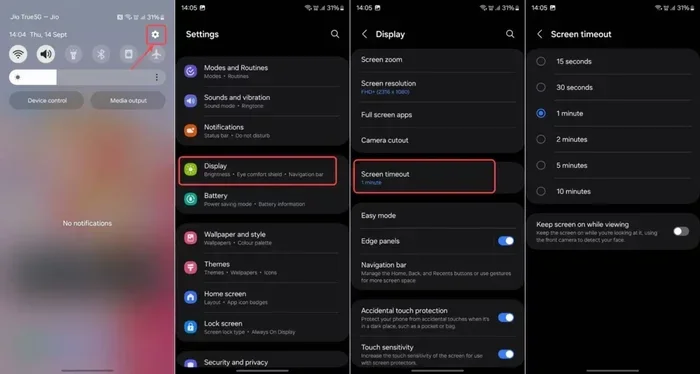
If you use Apple CarPlay or Android Auto, your phone might override the car clock. This happens when the phone’s time settings are different from the car’s. To fix this, make sure your phone is set to automatic time as well. Go to your phone settings and enable “Set Time Automatically.” This ensures both devices stay in sync.
Manual vs Automatic Time: Which Is Better?
Now that you know how to set automatic time, you might wonder if manual time is still worth using. Let us compare the two approaches.
| Feature | Automatic Time | Manual Time |
|---|---|---|
| Accuracy | Very high, synced to GPS or network | Depends on how often you update it |
| Timezone Detection | Automatic, no input needed | You must change it yourself |
| Daylight Saving Time | Updates automatically | You must remember to adjust |
| Works Without Signal | No, needs GPS or network | Yes, always works |
| Setup Time | A few minutes once | Requires regular attention |
| Best For | Daily drivers and frequent travelers | Older vehicles or areas with poor signal |
For most drivers, automatic time is the clear winner. It is convenient, accurate, and requires zero ongoing effort. However, manual time still has its place. If you drive an older vehicle without GPS or connectivity, manual time is your only option. And even with automatic time enabled, it helps to know how to set the clock manually as a backup.
Expert Tips for Keeping Your Car Clock Accurate
Here are some expert tips to make sure your automatic time setting works flawlessly every day.
Keep Your Vehicle Software Updated
Car manufacturers release software updates regularly. These updates often include improvements to GPS accuracy and time sync. Check for updates at least once a month. Many vehicles now support over-the-air updates. This means you can update your software without visiting a dealer. Simply connect to Wi-Fi and follow the prompts on your screen.
Use a GPS Signal Booster if Needed
If you live in an area with poor GPS reception, consider a signal booster. These small devices amplify GPS signals and improve accuracy. They are especially useful if you drive in mountainous areas, dense cities, or rural locations with limited satellite coverage.
Check Your Timezone Settings Periodically
Even with automatic time enabled, it is a good habit to check your timezone settings every few months. Make sure the system has the correct region and timezone. If you recently moved or traveled, verify that the clock adjusted properly.
Restart Your Infotainment System Regularly
Like any computer, your car infotainment system benefits from regular restarts. A simple reboot can fix minor glitches and improve performance. We recommend restarting the system once a week. This keeps everything running smoothly and ensures the time sync feature works reliably.
Pair Your Phone for Backup Time Sync
Connecting your smartphone to your car provides an extra layer of time accuracy. When your phone and car are connected, they share time data. This is especially helpful when GPS signals are weak. Both Apple and Android devices have excellent time sync capabilities. Make sure automatic time is enabled on your phone as well.
Key Takeaways
- Automatic time sync saves you from constantly resetting your car clock after trips or timezone changes.
- Most modern vehicles support automatic time through GPS, cellular data, or Wi-Fi connections.
- The process varies by car brand but is generally found in Settings, Clock, or Display menus.
- Common issues like incorrect timezone or signal loss can be fixed with simple troubleshooting steps.
- Manual time is still useful as a backup when GPS or network signals are unavailable.
- Daylight saving time updates work seamlessly with automatic time settings on most vehicles.
- Keeping your car software updated ensures the best automatic time performance.
Conclusion
Setting your device to automatic time is one of the easiest and most useful things you can do for your vehicle. It takes just a few minutes and saves you from the frustration of an incorrect clock. Whether you drive a Toyota, Ford, BMW, Honda, or any other brand, the process is straightforward and well worth the effort.
Automatic time means your car stays accurate across timezones, during daylight saving changes, and on long road trips. You never have to think about it again. Just enable the feature, and your vehicle handles the rest.
We covered the steps for all major car brands, common problems and fixes, and expert tips to keep everything running smoothly. We also compared manual and automatic time so you can make the best choice for your needs. The bottom line is clear. Automatic time is the way to go for modern vehicles.
Take a few minutes today to check your car settings. Enable automatic time if you have not already. You will wonder why you did not do it sooner. Your future self will thank you every time you glance at an accurate clock on your dashboard.
Share this guide with friends and family who still struggle with incorrect car clocks. It is a simple fix that makes a big difference. Safe driving and happy travels!
Frequently Asked Questions
How long does it take for automatic time to sync in a car?
In most vehicles, the automatic time sync takes just a few seconds. Once you enable the feature, the system connects to GPS satellites or the cellular network and updates the clock immediately. If it takes longer, check your GPS signal or restart the infotainment system.
Can I use automatic time if my car does not have GPS?
Some vehicles without built-in GPS can still use automatic time through a cellular or Wi-Fi connection. However, older cars without any connectivity might not support this feature. In that case, you will need to set the time manually or use a smartphone connection through Apple CarPlay or Android Auto.
Does automatic time work when driving internationally?
Yes, automatic time works internationally in most cases. Your vehicle detects the new timezone based on GPS location and adjusts the clock accordingly. However, some older models or basic infotainment systems might not support all international timezones. Check your vehicle specifications if you plan to travel abroad.
Why does my car clock show the wrong time even with automatic mode on?
This usually happens when the GPS signal is weak or blocked. It can also occur if your vehicle software is outdated. Try restarting the infotainment system, updating your software, or driving to an area with a clearer sky view. If the problem continues, manually select your timezone as a temporary solution.
Will automatic time drain my car battery?
No, automatic time does not significantly drain your car battery. The GPS receiver uses very little power. The time sync process happens quickly and does not run constantly in the background. Your battery will not be affected by this feature.
Can I set automatic time on older car models?
Older car models without smart infotainment systems may not support automatic time. However, if your older vehicle has a clock that connects to a smartphone via Bluetooth or CarPlay, you can get automatic time through your phone. Simply enable automatic time on your smartphone and connect it to your car.



2 Comments