How Do I Get Remote Control on My Toyota App Right Now
Getting remote control on your Toyota App is easier than you think. You can start your engine, lock doors, and check vehicle status from your phone. This guide walks you through every step to set up Toyota App remote control quickly and safely.
You just got into your car on a freezing morning. You don’t want to wait for the heater to warm up. What if you could start your car from your couch?
That is exactly what remote control on the Toyota App lets you do. It is one of the most useful features Toyota offers today. You can lock your doors, start the engine, and even find your car in a parking lot. All from your phone.
But here is the thing. Many Toyota owners do not know how to set it up. They download the app, but the remote features do not work. Why? Because there are a few steps you need to complete first. This guide covers every single one of them.
By the end of this article, you will know exactly how to get remote control working on your Toyota App. You will learn what you need, how to set it up, and how to fix common problems. Let us get started.
Key Takeaways
- Download and setup: You need the Toyota App and a connected Toyota account to access remote features.
- Remote start works from anywhere: As long as your car has cellular connectivity, you can start it from your phone.
- Key features include: Remote lock/unlock, climate control, vehicle location, and tire pressure monitoring.
- Subscription matters: Some remote features require an active Toyota Connect or app subscription.
- Troubleshooting is simple: Most issues fix with a phone restart, app update, or Wi-Fi check.
📑 Table of Contents
- What Is Remote Control on the Toyota App?
- What You Need Before Getting Started
- How to Download and Set Up the Toyota App
- How to Use Remote Control Features
- Troubleshooting Common Remote Control Issues
- Tips to Get the Most Out of Toyota App Remote Control
- Common Mistakes to Avoid
- Is Toyota App Remote Control Worth It?
- Final Thoughts
What Is Remote Control on the Toyota App?
The Toyota App gives you remote control of your vehicle using your smartphone. It connects to your car through the cloud. This means you do not need to be near your vehicle to use most features.
Think of it like a digital key fob. But better. A key fob only works from a short distance. The Toyota App works from anywhere you have a phone signal.
What Can You Do With Remote Control?
Here are the main features available through Toyota App remote control:
- Remote Start: Start your engine before you get in. Great for hot summers and cold winters.
- Remote Lock and Unlock: Lock or unlock your doors from your phone.
- Climate Control: Turn on the heater or air conditioning before you drive.
- Vehicle Location: Find your car in a crowded parking lot.
- Horn and Lights: Make your car honk and flash its lights so you can find it.
- Vehicle Status: Check fuel level, tire pressure, and mileage remotely.
Not every Toyota model has all of these features. But most newer Toyotas do. You can check if your car is compatible by visiting the Toyota website or asking your dealer.
What You Need Before Getting Started
Before you can use remote control on the Toyota App, you need a few things in place. This part is important. Skip it, and you will run into problems later.
1. A Compatible Toyota Vehicle
Your car needs to support Toyota Connect or a similar telematics system. Most Toyotas from 2017 and newer have this built in. Older models might need a dealer-installed module.
You can check your vehicle’s compatibility by looking for the Toyota Connected Services button on your dashboard. If you see it, you are good to go.
2. A Smartphone
You need either an iPhone or an Android phone. The Toyota App is free to download from the Apple App Store and Google Play Store. Make sure your phone is running a recent operating system.
3. A Toyota Account
You must have a Toyota account linked to your vehicle. This is the account you used when you registered your car. If you do not remember your login details, you can reset them through the app.
4. A Stable Internet Connection
Both your phone and your car need internet access. Your phone uses Wi-Fi or cellular data. Your car uses its built-in cellular module. If your car lost its connection, check if your Toyota Connect subscription is active. That could be the problem.
How to Download and Set Up the Toyota App
Setting up the app is the first real step. It takes about 10 minutes if you have everything ready. Here is the exact process.
Step 1: Download the App
Go to the Apple App Store or Google Play Store. Search for “Toyota.” You will see the official Toyota App. Tap download and wait for it to install.
Make sure you are downloading the official app. There are fake apps out there. Look for the Toyota logo and check the developer name. It should say “Toyota Motor Corporation.”
Step 2: Create or Sign Into Your Account
Open the app after installation. You will see a login screen. If you already have a Toyota account, enter your email and password. If not, tap “Create Account.”
You will need your vehicle information to link your car. Have your VIN ready. You can find it on your dashboard near the windshield or on your door jamb sticker.
Step 3: Link Your Vehicle
After logging in, go to “My Vehicles.” Tap “Add Vehicle.” Enter your VIN or use the QR code scanner if your car has one displayed. The app will connect your vehicle to your account.
This step can take a few minutes. The app needs to verify your vehicle and sync its systems. Do not close the app while it is working.
Step 4: Enable Remote Features
Once your vehicle is linked, go to the settings menu. Look for “Remote Services” or “Toyota Connect.” Toggle the remote features on. You may need to accept terms and conditions.
Some features require a subscription. If you see a prompt asking about a trial or paid plan, read it carefully. You can learn more about Toyota Connect subscriptions here to understand what is included.
How to Use Remote Control Features
Now that your app is set up, let us talk about how to actually use the remote control features. This is the fun part.
Remote Start
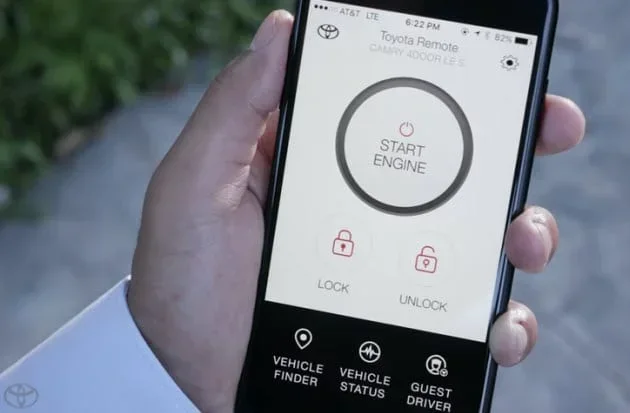
Remote start is the most popular feature. Here is how to use it:
- Open the Toyota App on your phone.
- Tap “Remote Start” on the home screen.
- Select your vehicle from the list if you have more than one.
- Tap “Start Engine.”
- Wait for the confirmation message.
Your car will start within 30 seconds. You can set a timer so the engine turns off after a certain amount of time. This saves fuel and keeps your car safe.
Important safety tip: Never start your car in an enclosed space like a garage. Carbon monoxide is dangerous. Always start your car outside.
Remote Lock and Unlock
You can lock or unlock your doors from anywhere. This is helpful if you forget to lock your car or if you need to let someone in. Just tap the lock or unlock button in the app.
You will get a notification when the action is completed. If it does not work, check your phone signal and your car’s connection. Starting your Rav4 with your phone uses the same Toyota App technology, so the setup process is similar.
Climate Control
You can turn on the air conditioning or heater before you get in. This is amazing during extreme weather. Just go to the climate control section in the app and adjust the temperature.
Note: Some models let you set a schedule. You can have your car warm up every morning at 7 AM. It is a small luxury that makes a big difference.
Vehicle Tracking and Alerts
The app shows your car’s location on a map. This is useful if you park in a large lot and forget where you left it. You can also set up alerts for:
- Low tire pressure
- Low fuel
- Unlocked doors
- Battery status
You can check your tire pressure directly through the Toyota App, which is one of the most used remote features. It saves you a trip to the gas station just to check your tires.
Troubleshooting Common Remote Control Issues
Sometimes things do not work the way they should. This is normal. Here are the most common problems and how to fix them.
The App Says “Vehicle Not Connected”
This usually means your car lost its cellular connection. Try these steps:
- Restart your phone.
- Check your Wi-Fi or cellular data.
- Wait 30 seconds and try again.
- If it still does not work, restart your car’s infotainment system.
Most of the time, a simple restart fixes the problem. If it does not, your car’s built-in modem might need attention. Call your Toyota dealer for help.
Remote Start Does Not Work
Remote start will not work if:
- Your key fob is inside the car.
- The hood is not fully closed.
- Your fuel level is too low.
- Your subscription has expired.
Check all of these first. They are the most common reasons remote start fails.
App Crashes or Freezes
Close the app completely and reopen it. If that does not work, delete and reinstall the app. Make sure you remember your login details before deleting.
Also, check for app updates. Developers release updates frequently to fix bugs. Keeping the app updated prevents most freezing issues.
Lock and Unlock Are Slow
The app communicates with your car through the cloud. If your phone signal is weak, the command might take longer. Move to a spot with better reception and try again.
Tips to Get the Most Out of Toyota App Remote Control
You have the app working now. Here are some tips to help you use it better.
Set Up Auto-Unlock
Some Toyota models support auto-unlock. When you approach your car with your phone, the doors unlock automatically. This feature uses Bluetooth and the Toyota App together. Check your settings to enable it.
Use Scheduled Climate Control
Set a daily schedule for your climate control. Wake up to a warm car in winter or a cool car in summer. It is a small thing that improves your day a lot.
Keep Your App Updated
Toyota releases updates regularly. These updates add new features and fix bugs. Turn on auto-updates in your phone’s app store so you always have the latest version.
Monitor Your Subscription
Some remote features stop working when your subscription ends. Set a reminder to check your subscription status every few months. You do not want to find out the hard way that your remote start stopped working because of an expired trial.
Pair with Your Smartwatch
If you use an Apple Watch or a Wear OS watch, you can control your Toyota right from your wrist. This is super convenient when you are carrying groceries or holding an umbrella.
Common Mistakes to Avoid
Here are mistakes Toyota owners make when setting up remote control:
- Skipping the account setup: You cannot use remote features without linking your vehicle to your Toyota account.
- Ignoring subscription status: Free trials end. If you do not pay, you lose access to premium features.
- Leaving the app open in the background: The app needs to run in the background to send alerts and notifications.
- Not checking for updates: Old app versions cause most connectivity problems.
- Using the app in areas with no signal: Remote features need cellular data on both ends.
Avoid these mistakes, and your experience will be smooth. Most people get remote control working on their first try. It just takes a little patience.
Is Toyota App Remote Control Worth It?
Here is the honest answer. Yes. It is worth it. The convenience alone makes it valuable. You can start your car from inside your house on a cold morning. You can check if you locked your doors without walking back to the car.
For parents, it is a game changer. You can warm up the car before your teenager drives off. For commuters, it means stepping into a comfortable car every day.
The features also add a layer of security. You can track your car if it gets stolen. You can lock it remotely if you forgot to do so. These are real benefits that matter every day.
Final Thoughts
Getting remote control on your Toyota App is simple once you know the steps. Download the app, link your vehicle, enable remote services, and you are good to go. The features are powerful and genuinely useful.
Start with remote start and lock/unlock. Once you are comfortable, explore the other features like climate control and vehicle tracking. Each one adds value to your daily driving experience.
If you run into any issues, refer back to the troubleshooting section. Most problems have simple fixes. And remember, your Toyota dealer is always available if you need hands-on help.
Now you know exactly how to get remote control on your Toyota App. Go ahead and try it. You will wonder how you ever drove without it.
Frequently Asked Questions
Can I use the Toyota App remote control for free?
Some features are free, but others require a Toyota Connect subscription. Remote start and vehicle tracking usually need a paid plan. Check your app for the current pricing and available trials.
How far away can I be from my car to use remote control?
You can use remote control from anywhere as long as your phone has a signal and your car has its built-in cellular connection. There is no distance limit. You can start your car from across town if needed.
Why does my Toyota App remote start not work some days?
This usually happens when your car’s cellular connection drops or your subscription has expired. Check your internet connection and subscription status first. Restarting both your phone and car infotainment system often fixes it.
Can I use Toyota App remote control on any Toyota model?
Most Toyotas from 2017 and newer support remote control features. Older models may need a dealer-installed telematics module. Check your specific model’s compatibility on the Toyota website or by asking your dealer.
Is it safe to leave my car running remotely?
Yes, it is safe if you follow the basic rules. Never leave your car running in an enclosed space. Keep the doors locked. The car will shut off automatically if someone puts it in gear or if the timer runs out.
What should I do if the Toyota App keeps crashing?
First, make sure your app is updated to the latest version. If it still crashes, delete and reinstall the app. Clear your phone’s cache if the problem continues. Contact Toyota support if none of these steps work.