How Do I Connect Google Maps to the Toyota Navigation
Connecting Google Maps to your Toyota navigation system is easier than you might think. Whether you use Toyota Connect, Android Auto, or a direct Bluetooth pairing, this guide walks you through every method so you can get real-time directions, traffic updates, and points of interest right on your Toyota touchscreen. You will learn the setup process, troubleshooting steps, and pro tips to make your driving experience smoother.
Have you ever jumped into your Toyota and wished you could just pull up Google Maps on the big touchscreen? Maybe you are used to the familiar layout of Google Maps on your phone and want that same experience while you drive. Connecting Google Maps to Toyota Navigation is something a lot of Toyota owners want to do, but the process is not always obvious.
The good news is that there are several ways to get Google Maps working with your Toyota infotainment system. Whether you have a newer model with Toyota Connect or an older setup that relies on Bluetooth and USB, there is a method that will work for you. In this guide, we will walk you through every option step by step so you can start using Google Maps on your Toyota dashboard without any headaches.
We will cover everything from initial setup to troubleshooting common problems. You will also learn about Toyota Connect features, how to pair your phone, and tips to make your navigation experience as smooth as possible. Let us dive in and get you connected.
Key Takeaways
- Multiple Connection Methods: You can connect Google Maps to Toyota Navigation using Toyota Connect, Android Auto, Bluetooth, or a USB cable depending on your model and year.
- Toyota Connect Is Key: Many newer Toyota models come with Toyota Connect, which enables cloud-based navigation and Google Maps integration without a subscription in some cases.
- Android Auto Simplifies Everything: If your Toyota supports Android Auto, mirroring Google Maps to your infotainment screen is quick and wireless.
- Voice Commands Work Great: You can change the voice on Toyota Navigation and use voice commands to control Google Maps hands-free while driving.
- Troubleshooting Is Simple: Most connection issues stem from Bluetooth pairing problems, outdated software, or incorrect settings that are easy to fix at home.
📑 Table of Contents
- Understanding Toyota Navigation and Google Maps Compatibility
- How to Connect Google Maps Using Android Auto
- Connecting Google Maps Through Toyota Connect
- Bluetooth and USB: Alternative Connection Methods
- Troubleshooting Common Connection Issues
- Pro Tips for the Best Google Maps Experience on Toyota
- Common Mistakes to Avoid When Connecting Google Maps to Toyota
- Final Thoughts on Connecting Google Maps to Toyota Navigation
Understanding Toyota Navigation and Google Maps Compatibility
Before you start plugging things in, it helps to understand what your Toyota model actually supports. Not every Toyota comes with the same infotainment system, and compatibility varies by year and trim level. Knowing what you are working with saves a lot of time and frustration.
What Toyota Navigation Systems Support Google Maps?
Toyota has used several different infotainment platforms over the years. The most common ones that support Google Maps integration include:
- Toyota Entune: Found in many models from 2011 to 2020. Some versions support Google Maps through a connected app.
- Toyota Audio Plus and Audio Plus with Navigation: Common in mid-range trims. These systems often work with Android Auto for Google Maps access.
- Toyota Multimedia System (latest generation): Found in newer models from 2021 onward. These systems have built-in Google Maps support or Android Auto compatibility.
- Toyota Connect: A cloud-based service available on select models that offers navigation features and can integrate with Google Maps.
If you are not sure which system your Toyota has, check your owner’s manual or look at the infotainment screen when you start the car. The brand name and version usually appear on the startup screen.
Do You Need a Subscription?
One of the most common questions Toyota owners ask is whether they need a paid subscription to use Google Maps with their navigation system. The answer depends on your method of connection. Can I Use Toyota Connect Without A Subscription? In many cases, basic navigation features work without a subscription, but cloud-based features like real-time traffic updates may require one. For Android Auto and Bluetooth connections, no subscription is needed at all.
Here is a quick comparison of the different connection methods:
- Android Auto (Wireless or Wired): Free. Requires a compatible smartphone and a Toyota model that supports Android Auto.
- Toyota Connect: May require a subscription for full features. Some plans include a trial period.
- Bluetooth Pairing: Free. Limited to basic map display and audio directions.
- USB Connection: Free. Provides a stable connection for map data and charging.
How to Connect Google Maps Using Android Auto
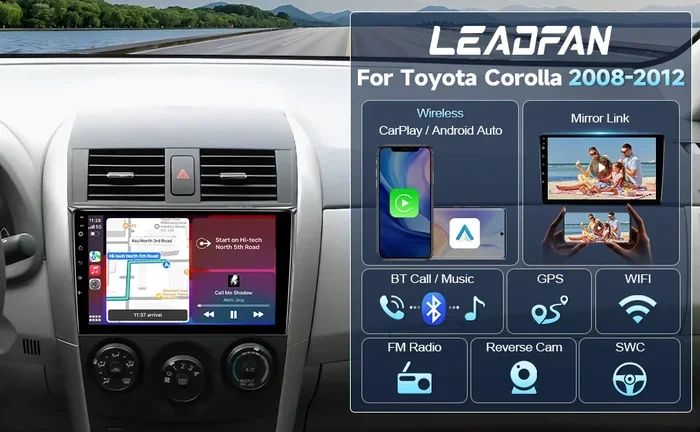
Android Auto is the easiest and most popular way to use Google Maps on your Toyota. If your Toyota was made after 2016, there is a good chance it supports Android Auto. This method mirrors your phone’s Google Maps directly onto the Toyota infotainment screen.
Step-by-Step Setup for Wireless Android Auto
Wireless Android Auto is the most convenient option because you do not need to plug in any cables. Here is how to set it up:
- Make sure your phone is compatible. Android Auto works with most Android phones running version 9.0 or later. Check the Google Play Store for the Android Auto app.
- Download the Android Auto app on your phone. Open the Google Play Store, search for “Android Auto,” and install the app if it is not already on your phone.
- Enable wireless Android Auto. Open the app on your phone and follow the prompts to set up wireless connection. You may need to grant location permissions.
- Put your Toyota in accessory mode. Press the start button without pressing the brake pedal. The infotainment system should power on.
- Select Android Auto on the Toyota screen. On the Toyota infotainment home screen, look for the Android Auto icon. Tap it and follow the on-screen prompts to pair your phone.
- Open Google Maps. Once connected, you can launch Google Maps directly from the Toyota screen. Your phone’s map data will display on the dashboard.
Using a Wired USB Connection
If your Toyota does not support wireless Android Auto or if you prefer a wired connection, using a USB cable works great too. Use a high-quality USB-C or USB-A cable (depending on your phone and Toyota model). Plug one end into your phone and the other into the USB port in the center console. Your Toyota should recognize the connection and prompt you to open Android Auto.
Quick Tip: Always use the original USB cable that came with your phone or a certified cable. Cheap cables can cause connection drops and slow charging, which is frustrating when you are navigating.
Connecting Google Maps Through Toyota Connect
Toyota Connect is Toyota’s connected services platform. It turns your Toyota into a smart vehicle with cloud-based features, including navigation. If your Toyota has Toyota Connect, you can access Google Maps and other navigation apps through the built-in browser or app integration.
Setting Up Toyota Connect for Navigation
Here is how to get started with Toyota Connect for Google Maps access:
- Activate your Toyota Connect account. Visit the Toyota Connect website or use the Toyota app on your phone. Follow the registration prompts and link your vehicle.
- Check your navigation settings. On the Toyota infotainment screen, go to Settings and look for the Connectivity or Services section. Make sure Toyota Connect is enabled.
- Access the built-in browser. Many Toyota Connect systems include a web browser. Open the browser and navigate to maps.google.com to access Google Maps directly.
- Bookmark Google Maps. Once you are on Google Maps, add it to your favorites or home screen for quick access the next time you drive.
Toyota Connect also allows you to send destinations from your phone to your car. Open Google Maps on your phone, tap the share button, and select your Toyota. The destination will appear on your car’s navigation screen automatically.
Bluetooth and USB: Alternative Connection Methods
If your Toyota does not support Android Auto or Toyota Connect, you can still use Google Maps through Bluetooth or USB. These methods are not as seamless as Android Auto, but they work in a pinch.
Using Google Maps via Bluetooth
To use Google Maps over Bluetooth, you first need to pair your phone with your Toyota. Go to your Toyota’s Settings, select Bluetooth, and put the system in pairing mode. On your phone, go to Bluetooth settings and find your Toyota in the list of available devices. Tap to pair and confirm the connection.
Once paired, open Google Maps on your phone. The audio directions will play through your car’s speakers. You will need to keep your phone mounted somewhere visible so you can follow the map on your phone screen while driving.
Using Google Maps via USB
Plugging your phone in via USB gives you a more stable connection than Bluetooth. The GPS signal from your phone will be more reliable, and you can charge your phone at the same time. Some older Toyota systems display a basic map on the screen when connected via USB, while others only provide audio directions.
Troubleshooting Common Connection Issues
Even when you follow the steps correctly, things can go wrong. Here are the most common problems Toyota owners face when connecting Google Maps and how to fix them.
Google Maps Not Showing on the Toyota Screen
If Google Maps does not appear on your Toyota infotainment screen, try these steps:
- Restart both devices. Turn off your Toyota’s infotainment system and restart your phone. Then try connecting again.
- Check your USB cable. A damaged cable is one of the most common causes of connection failure. Try a different cable.
- Update Android Auto. Go to the Google Play Store and check for updates to the Android Auto app. Outdated software can cause compatibility issues.
- Clear the cache on your phone. Go to Settings on your phone, find Android Auto, and clear the app cache. This removes temporary data that might be causing problems.
Poor Audio Quality or No Directions Through Car Speakers
If you can see the map but cannot hear directions through your car speakers, check the audio source on your Toyota. Make sure the infotainment system is set to the correct input (Bluetooth audio, USB audio, or Android Auto audio). You may also need to adjust the volume on both your phone and the car’s audio system.
Google Maps Freezing or Lagging
Google Maps can freeze or lag if your phone does not have a strong GPS signal or if your phone’s storage is full. Try moving to an area with better satellite reception, close other apps running in the background, and make sure your phone has at least 2 GB of free storage.
Pro Tips for the Best Google Maps Experience on Toyota
Once you have Google Maps connected, a few simple tips can make the experience much better.
Use Voice Commands for Hands-Free Navigation
One of the biggest benefits of using Google Maps on your Toyota is hands-free control. You can say “Hey Google” or use your Toyota’s voice command button to search for destinations, reroute, or adjust volume without taking your hands off the wheel.
If you want to change the voice that gives you directions, you can change the voice on Toyota Navigation through the settings menu. This is especially helpful if you prefer a specific accent or voice style for your directions.
Keep Your Maps Updated
Google Maps updates automatically when you have an internet connection, but it is still a good idea to check for updates manually every few weeks. Open the Google Play Store, search for Google Maps, and tap Update if available. Updated maps include the latest roads, businesses, and traffic patterns.
Download Offline Maps for Areas with Poor Signal
If you frequently drive in areas with weak cell service, download offline maps in Google Maps before you leave. Open Google Maps on your phone, search for the area you want, tap the name or address at the bottom, and select “Download offline map.” This way, you can still navigate even if you lose your data connection.
Use the Toyota Screen for Passenger Entertainment
When someone else is driving or you are parked, you can use the Toyota screen to browse Google Maps for travel planning, finding restaurants, or exploring new areas. This is a great feature for road trips where passengers can help navigate.
Common Mistakes to Avoid When Connecting Google Maps to Toyota
Avoiding these common mistakes will save you time and frustration:
- Skipping software updates. Both your phone and your Toyota infotainment system need to be up to date for the best compatibility. Check for updates regularly.
- Using a low-quality USB cable. Cheap cables often fail to transfer data properly. Invest in a good-quality cable that supports both data and charging.
- Ignoring Bluetooth pairing limits. Most Toyotas can only remember a few paired devices. If you have multiple phones, delete old pairings to keep things running smoothly.
- Not granting permissions. Google Maps needs location access and background data permission to work properly. Make sure you grant these when prompted.
- Forgetting to enable location services. If your phone’s location services are turned off, Google Maps cannot provide accurate directions. Always double-check before you start driving.
Final Thoughts on Connecting Google Maps to Toyota Navigation
Connecting Google Maps to your Toyota Navigation system opens up a world of convenience and familiarity. Whether you choose Android Auto for the smoothest experience, Toyota Connect for cloud-based features, or Bluetooth and USB for simpler setups, the process is straightforward once you know the steps.
Google Maps integration with your Toyota gives you access to real-time traffic updates, voice-guided directions, and millions of points of interest right on your dashboard. It makes every drive smarter and safer, especially when you combine it with hands-free voice commands.
Take a few minutes to set up your connection today. Once it is working, you will wonder how you ever drove without it. And if you run into any issues, refer back to this guide for quick troubleshooting solutions. Safe travels and happy navigating.
Frequently Asked Questions
Can I use Google Maps on my Toyota without a phone?
No, Google Maps on Toyota requires a connected smartphone for map data and GPS signal. The Toyota infotainment system acts as a display, but your phone provides the internet connection and location data needed for Google Maps to work.
Which Toyota models support Android Auto for Google Maps?
Most Toyota models from 2016 onward support Android Auto. This includes popular models like the Toyota Camry, RAV4, Highlander, Corolla, and Tacoma. Check your owner’s manual or the Toyota website for your specific model year to confirm compatibility.
Why does Google Maps disconnect from my Toyota while driving?
Google Maps may disconnect due to a weak Bluetooth signal, a loose USB connection, or low phone battery. Try using a different cable, moving your phone closer to the Toyota’s antenna, or switching to a wired connection for more stability.
Can I change the voice on Toyota Navigation when using Google Maps?
Yes, you can change the voice on Toyota Navigation through the settings menu. This applies to directions given through the Toyota system. When using Google Maps through Android Auto, you can change the Google Maps voice directly in the Google Maps app settings on your phone.
Do I need Wi-Fi to use Google Maps on my Toyota?
Google Maps works with both Wi-Fi and mobile data. For real-time traffic updates and live rerouting, you need an active internet connection. You can use your phone’s mobile data hotspot or connect to a Wi-Fi network if your Toyota supports it.
How do I update the maps on my Toyota navigation system?
If you use the built-in Toyota Navigation system, map updates are typically available through the Toyota website or the Toyota app. For Google Maps accessed through Android Auto, updates happen automatically through the Google Play Store whenever you have an internet connection.