How Do I Program My Remote Without Codes or Manuals
Programming your remote without codes is easier than you think. You can use the auto search method, brand code lists, or built-in smart features to get your remote working in minutes. This guide walks you through every method step by step.
Have you ever grabbed a remote control, pointed it at your TV, and realized you have no idea how to set it up? Maybe the manual is long gone. Maybe the codes online don’t match your model. The good news is that programming your remote without codes is totally doable. You don’t need a manual, a computer, or a tech degree. In this guide, we will walk you through every method that actually works. By the end, you will know exactly how to program my remote without codes and get back to watching what you love.
Remote controls have come a long way. Older remotes relied on a simple list of numeric codes. Newer remotes use smart features, Bluetooth, and Wi-Fi to connect. No matter what kind of remote you have, there is a way to set it up without hunting through a code booklet. We will cover the most popular methods, share practical tips, and help you avoid common mistakes. Let us get started.
Key Takeaways
- Auto Search Method: Lets your remote find the right code on its own without any manual input.
- Brand Code Lists: Give you a set of codes to try, which is faster if you know the brand.
- Code Search Function: Works like auto search but lets you narrow down the device type first.
- HDMI-CEC: A built-in smart feature that controls devices through your TV without any codes at all.
- Voice Control Remotes: Newer remotes can pair using Wi-Fi or Bluetooth instead of infrared codes.
- Troubleshooting Matters: Knowing common fixes saves time when the remote doesn’t respond right away.
📑 Table of Contents
What Does It Mean to Program a Remote Without Codes?
When we talk about universal remote programming, we usually mean teaching the remote to talk to your TV, soundbar, cable box, or streaming device. Most remotes come with a list of remote control codes that match specific brands. But what if you do not have that list? What if the code search online gives you nothing? That is where programming without codes comes in.
Programming without codes means using one of several built-in methods that let the remote figure things out on its own. Instead of typing in a number, the remote sends out signals and listens for a response. It is like the remote is knocking on doors until it finds the right one. Once it finds the right device, it locks in the connection.
This approach works for most universal remotes and many brand-specific remotes too. Whether you have a Roku remote, a Samsung remote, or a budget universal remote from the store, the basic principles are the same. You just need patience and a little time.
Why Would You Need to Program Without Codes?
There are a few common reasons people end up in this situation:
- Lost manual: The paper that came with the remote is nowhere to be found.
- Generic remote: You bought a cheap universal remote that did not include a code list.
- Online codes don’t work: You found codes online, but none of them match your specific model.
- New device setup: You added a new TV or soundbar and need to pair the remote quickly.
- Reset remote: Someone accidentally reset the remote, and now it has no stored codes.
No matter the reason, the methods below will help you get things working again.
Method 1: The Auto Search Method
The auto search method is the most popular way to program my remote without codes. It is simple, and it works on most universal remotes. The remote cycles through every possible code until it finds one that works. Here is how to do it.
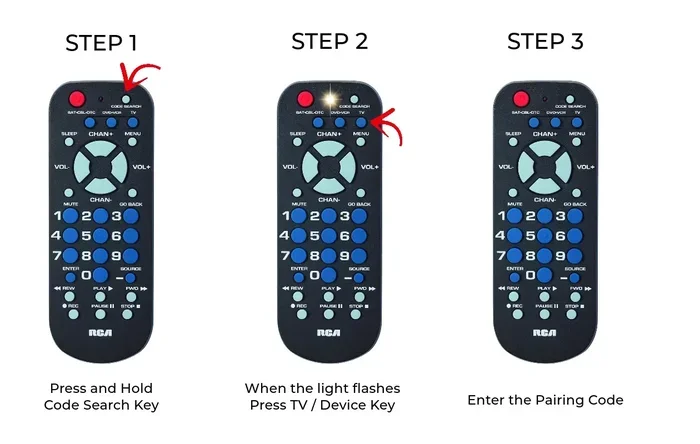
First, turn on the device you want to control. Your TV should be on and showing a picture. Next, point the remote at the device and hold down the setup button. On many remotes, this button is labeled “Setup,” “Code Search,” or “Magic.” Hold it until the remote light blinks or stays solid.
Now, press the device button on the remote. If you are programming for a TV, press the TV button. The remote light should blink once and then stay on. This tells the remote you are ready to search.
Press the power button on the remote. The remote will start sending signals one by one. Each signal is like a different infrared signal trying to reach your TV. When the TV turns off, stop. Do not press anything else for a few seconds.
Finally, press the setup button again to lock in the code. The remote light should blink twice to confirm. Now try using the remote to change the volume or switch inputs. If it works, you are done. If not, you can repeat the process.
Tips for the Auto Search Method
- Keep the remote pointed directly at the device during the search.
- Make sure the device is powered on and responsive before you start.
- Do not rush. Let the remote cycle through all the codes.
- If the TV turns off but the remote does not control other functions, you may need to try the next closest code.
- Some remotes let you save multiple codes. This is helpful if you have several devices.
Method 2: Using Brand Code Lists
Even though this article is about programming without codes, you can still use brand code lists in a smart way. Many manufacturers post their code lists online for free. You do not need the original manual anymore. Just go to the manufacturer’s website and search for your remote model.
Once you find the code list, you will see a series of numbers. Each number corresponds to a specific brand of TV or device. You enter these codes into the remote using the number buttons. The remote will confirm with a blink or a beep when the code is accepted.
This method is faster than auto search because you are targeting a specific brand. It works best when you know exactly what brand of TV or device you are trying to control.
How to Enter a Code Manually
- Turn on the device you want to control.
- Press and hold the setup button on the remote.
- Enter the four-digit code using the number pad.
- Release the setup button.
- Press the power button to test if the device turns off.
- If it does not work, try the next code on the list.
Device compatibility is the key here. A code for a Samsung TV will not work with a LG TV. Make sure you are using the right code list for the right brand. If you have a soundbar or cable box, look for the code list for that specific device too.
Method 3: The Code Search Function
The code search function is similar to the auto search method but with one big difference. It lets you choose the device type before searching. This means the remote only tests codes for TVs, or only for soundbars, or only for cable boxes. It narrows down the results and saves time.
To use this method, press and hold the setup button. Then enter the code search number, which is usually 9-9-1 or 9-9-9 depending on the remote brand. The remote light should start blinking. Now press the device button, like TV or DVD, and the search begins.
Press the power button repeatedly. Each press sends a new signal. When the device turns off, press the setup button to lock the code. This method is especially useful when you have a universal remote programming setup with multiple devices and want to pair each one individually.
When to Use Code Search vs Auto Search
Use the auto search method when you have no idea what brand or model you are dealing with. It casts a wide net and catches the right code eventually. Use the code search function when you know the device type but not the specific code. It is more targeted and usually faster.
For most households, the auto search method is the go-to option. It requires zero preparation and works with almost any device. The code search function is better when you are setting up a new entertainment system and want to be precise.
Method 4: HDMI-CEC and Smart Remote Features
Modern TVs and devices use a feature called HDMI-CEC, which stands for Consumer Electronics Control. This is a built-in technology that lets devices talk to each other through the HDMI cable. You may know it by different names depending on the brand. Samsung calls it Anynet+. LG calls it SimpLink. Sony calls it BRAVIA Sync.
When HDMI-CEC is turned on, your TV remote can control connected devices without any extra programming. You can switch inputs, adjust volume, and even turn devices on and off using the TV remote. This means you might not need to program my remote without codes at all. The TV handles the communication for you.
To use HDMI-CEC, go into your TV settings and look for the HDMI-CEC option. Turn it on. Then connect your soundbar, cable box, or streaming stick through an HDMI port. The devices should recognize each other automatically.
Voice Control Remotes
Some newer remotes use Wi-Fi or Bluetooth instead of infrared signals. These remotes can pair with devices using a simple on-screen setup process. You point the remote at your phone or tablet, follow the prompts, and the remote connects wirelessly. No codes needed. No signal searching required.
Brands like Apple, Roku, and Amazon Echo have embraced this approach. Their remotes use device pairing over a wireless connection. Once paired, the remote works just like any other controller. The setup is usually done through a companion app on your phone, which makes it even easier.
If you have a smart TV, check the TV settings for remote pairing options. Many smart TVs let you add a new remote directly from the settings menu. This is a quick way to get a new remote working without any codes or manuals.
Common Mistakes and How to Avoid Them
Even with the right method, things can go wrong. Here are the most common mistakes people make when programming a remote control without codes and how to fix them.
- Not holding the setup button long enough: The remote needs time to enter programming mode. Hold the button until the light blinks or stays solid before you do anything else.
- Pointing the remote the wrong way: Infrared remotes need a clear line of sight. Point the remote directly at the device sensor for the best results.
- Using the wrong device button: Make sure you press the correct button for the device you are pairing. Pressing the TV button when you are trying to program a soundbar will not work.
- Giving up too soon: Auto search can take a while. The remote might cycle through dozens of codes before finding the right one. Be patient.
- Ignoring the batteries: Weak batteries can cause the remote to send weak signals. Replace the batteries before you start programming.
- Not resetting the remote first: If the remote has old codes stored, they can interfere with the new setup. Reset the remote to clear any previous codes.
Quick Tips for Success
Here are a few quick tips that make the whole process smoother:
- Work in a quiet room with no signal interference.
- Keep the device you are programming within five feet of the remote.
- Write down any codes that work so you do not have to search again.
- If one method fails, try another. Different remotes respond better to different methods.
- Check the manufacturer website for updated code lists and pairing instructions.
What to Do When Nothing Works
Sometimes, despite your best efforts, the remote will not connect. This can be frustrating, but there are still things you can try.
First, try a remote reset. Most remotes have a small reset button on the back or inside the battery compartment. Press it with a paperclip and hold for five seconds. This clears all stored codes and brings the remote back to factory settings.
Second, check for device compatibility. Not every remote works with every device. Some universal remotes have limited device databases. If your TV or soundbar is very new or very old, the remote might not have a matching code or signal pattern.
Third, consider using a smart home app. Many TV brands have apps that let you control your TV from your phone. These apps connect over Wi-Fi and do not need any codes. They are a great backup when the physical remote just will not cooperate.
Finally, reach out to the manufacturer’s customer support. They can walk you through specific steps for your remote model. In many cases, they have access to internal code lists and pairing guides that are not available to the public.
Final Thoughts
Learning how to program my remote without codes is a skill that saves time and frustration. Whether you use the auto search method, brand code lists, the code search function, or smart features like HDMI-CEC, you have options. No single method works for every remote and every device, but at least one of these methods will get the job done.
The key is to stay patient, follow the steps carefully, and try a different method if the first one does not work. Most remotes can be set up in under ten minutes once you know the process. With the tips and guidance in this article, you should feel confident tackling any remote setup, even without a manual in hand.
Now go ahead and take control of your entertainment setup. Your remote is ready to work, and you do not need a single code to make it happen.
Frequently Asked Questions
Can I program a universal remote without a code list?
Yes, you can. The auto search method and code search function both work without a code list. The remote will scan through available codes and find the right one for your device on its own.
How long does it take to program a remote without codes?
It usually takes between five and fifteen minutes. The auto search method can take longer because the remote cycles through many codes. Manual code entry with a brand list is usually faster.
What if my remote does not have a setup button?
Check the back of the remote or the battery compartment. Some remotes use a small pinhole button labeled “Reset” or “Setup.” You may need a paperclip to press it. Consult the remote’s online manual for your specific model.
Do smart TV remotes need codes to pair?
Many smart TV remotes use Bluetooth or Wi-Fi and do not need codes at all. You can pair them through the TV settings menu or a companion app on your phone. This makes setup much simpler than traditional infrared remotes.
Why does my remote work for the TV but not the soundbar?
Each device needs its own separate code or pairing. You must program the remote for each device individually. Use the device button on the remote to select the correct device type before searching for the code.
Can I use my phone as a remote instead of programming a physical remote?
Yes, many smart TVs and streaming devices have free apps that turn your phone into a remote. These apps connect over Wi-Fi and do not require any codes. They are a great alternative if you cannot get a physical remote to work.
=== CONCLUSION ===
Programming your remote without codes is simpler than most people think. You have multiple methods at your fingertips, from auto search to smart features like HDMI-CEC. Each method has its strengths, and the best one depends on your remote and your devices. Start with the auto search method if you are unsure. Try brand code lists if you know the manufacturer. Use smart pairing features if your devices support them. With a little patience and the right approach, you will have your remote working perfectly in no time. Do not let a missing manual or unknown code stop you from enjoying your entertainment setup.