How Do I Add Apps to My Toyota and Unlock Features
Adding apps to your Toyota is easier than you think. Whether you want Apple CarPlay, Android Auto, or third-party apps on your Toyota infotainment system, this guide walks you through every step. You will learn how to connect your phone, access the Toyota app store, and unlock features that make every drive smarter and safer.
Your Toyota is more than just a car. It is a rolling tech hub packed with features designed to make your life easier. But did you know you can add apps to your Toyota and unlock a whole new level of functionality? From music streaming to navigation, the right apps transform your daily commute into a smarter, more connected experience.
Whether you drive a brand-new 2024 model or a slightly older Toyota, the process is surprisingly simple. This guide covers everything you need to know. We will walk you through connecting your phone, accessing the Toyota infotainment system, and downloading the apps you actually want. By the end, you will feel confident navigating your car’s digital landscape like a pro.
Let us be real for a second. Car technology can feel overwhelming. The menus, the settings, the blinking lights on the dashboard. But adding apps to your Toyota does not have to be stressful. We have broken everything down into clear, easy-to-follow steps. No jargon. No guesswork. Just straightforward advice that gets results.
Key Takeaways
- Toyota supports multiple app platforms: Apple CarPlay, Android Auto, and built-in apps work on most newer models.
- Wireless and wired connections are both options: You can pair your phone using Bluetooth or a USB cable.
- Third-party apps are available: Streaming, navigation, and messaging apps can be added with a few simple steps.
- Regular software updates keep your system current: Toyota releases updates that add new features and fix bugs.
- Safety features come built in: Hands-free calling and auto-text setup keep you focused on the road.
- Troubleshooting is straightforward: Most app issues can be fixed with a quick restart or update.
📑 Table of Contents
Understanding Your Toyota Infotainment System
Before you start adding apps, it helps to understand what you are working with. The Toyota infotainment system is the brain behind your car’s touchscreen and audio controls. It manages everything from your radio to your navigation to your phone connections. Knowing how it works makes the app-adding process much smoother.
What Is the Toyota Infotainment System?
The Toyota multimedia system is the central display unit in your dashboard. It typically sits on the center console and controls audio, navigation, phone calls, and more. Newer Toyota models come with larger touchscreens that support smartphone integration right out of the box. Older models may need a simple adapter or update to access the full range of features.
Toyota uses a platform called Toyota Entune in many of its vehicles. Entune acts as the gateway for apps, connectivity, and services. Think of it as the operating system for your car’s tech features. The version you have depends on your model year and trim level.
Which Toyota Models Support Apps?
Most Toyota models from 2018 onward support Apple CarPlay and Android Auto. These two platforms are the most popular ways to access apps on your car screen. Here is a quick look at what to expect:
- 2018 and newer: Full support for Apple CarPlay and Android Auto. Most models also support wireless connection.
- 2015 to 2017: Apple CarPlay and Android Auto are available on many models. A software update may be required.
- 2014 and older: Limited app support. You may need an aftermarket adapter to access modern features.
If you are unsure about your specific model, check your owner’s manual or visit your local Toyota dealer. They can confirm what your system supports and help you get set up.
How to Add Apps to Your Toyota
Now for the fun part. Adding apps to your Toyota is a straightforward process. The exact steps vary slightly depending on your model, but the general process is the same across the board. Let us walk through it.
Step 1: Connect Your Phone
First, you need to connect your smartphone to your Toyota. This is how your phone and car talk to each other. There are two main ways to do this: Bluetooth or a USB cable.
For a wireless connection, go to your car’s settings menu and select Bluetooth. Make sure Bluetooth is turned on in your phone settings. Your Toyota should appear as an available device. Tap to pair, and you are good to go. If you prefer a wired connection, simply plug a USB cable from your phone to the car’s USB port.
If you are new to this process, you might want to check out our guide on how to put your phone in pairing mode. It covers the basics in detail and can save you a few minutes of fumbling around.
Step 2: Enable Apple CarPlay or Android Auto
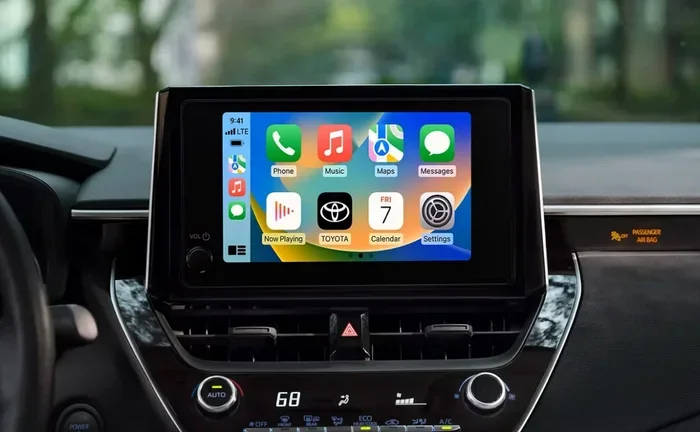
Once your phone is connected, you need to enable the right platform. On the Toyota touchscreen, look for the Apple CarPlay or Android Auto icon. Tap it, and your phone’s interface will appear on the car screen.
From there, you can access all your compatible apps directly from the car’s display. You will see your music apps, navigation tools, messaging services, and more. Everything is designed to be driver-friendly, with large buttons and simple menus.
Step 3: Download and Access Apps
Here is where the magic happens. The apps you see on your Toyota screen come from your phone, not from a separate car app store. This means you download apps the same way you normally would on your phone. Then, they automatically appear on your car display when connected.
For example, if you have Spotify on your phone, it will show up in Apple CarPlay or Android Auto when you connect. Same goes for Google Maps, Waze, Apple Music, and most other popular apps. The Toyota touchscreen simply mirrors what is on your phone in a safe, driver-friendly layout.
Popular Apps You Can Add to Your Toyota
So what apps actually work well on a Toyota? The good news is that most of the apps you use every day are compatible. Here are some of the most popular options:
Navigation Apps
- Google Maps: Free, reliable, and packed with real-time traffic updates.
- Waze: Great for community-driven traffic alerts and fastest-route suggestions.
- Apple Maps: Built into iPhones and works seamlessly with Apple CarPlay.
Music and Streaming Apps
- Spotify: Stream millions of songs and podcasts hands-free.
- Apple Music: Works natively with Apple CarPlay for a smooth experience.
- Pandora and iHeartRadio: Great for radio-style streaming with minimal setup.
Messaging and Communication
- WhatsApp and iMessage: Voice-to-text features let you stay connected safely.
- Hands-free calling: Built into the Toyota system for making and receiving calls.
One thing to keep in mind: not every app works perfectly in a car setting. Apps that require lots of scrolling or small buttons can be distracting. Stick to apps that are designed for driving or have a simplified car mode. If you enjoy watching content on longer trips, our guide on how to cast a movie to a car screen has some great tips for using your Toyota display for entertainment.
Connecting Your Phone: Wireless vs. Wired
You have two main options for connecting your phone to your Toyota: wireless and wired. Each has its pros and cons. Let us break them down.
Wireless Connection
A wireless connection uses Bluetooth to link your phone to the car. No cables needed. Just pair once, and your Toyota connects automatically every time you get in the car. It is clean, convenient, and the method most people prefer.
The downside? Wireless connections can sometimes be slower to load. You may also notice a slight drop in audio quality compared to a wired connection. For most people, though, the difference is barely noticeable.
Wired Connection
A USB cable provides a direct, stable connection. Apps tend to load faster, and audio quality is often better. A wired connection also charges your phone while you drive, which is a nice bonus.
The trade-off is simple: you have a cable hanging around. It is not a big deal, but some people find it annoying. If your Toyota supports wireless Apple CarPlay or Android Auto, that is usually the way to go.
Pro tip: If you are having trouble getting your phone to connect, make sure both your car and your phone are fully updated. Software updates often fix connectivity issues. Also, try deleting the old Bluetooth pairing and setting it up fresh. This simple step solves the problem more often than you would think.
Troubleshooting Common App Issues
Sometimes things do not work the way they should. Apps freeze, connections drop, or the screen does not respond. Before you panic, try these simple fixes.
App Not Showing Up on the Screen
This is the most common issue. Usually, it means the app is not properly connected. Try disconnecting and reconnecting your phone. Check that the app is open on your phone before you look for it on the car screen. Sometimes you need to launch the app on your phone first.
Audio Cuts Out or Sounds Strange
If your music keeps pausing or sounds fuzzy, the Bluetooth connection might be weak. Move your phone closer to the car’s internal antenna (usually near the center console). You can also try switching from wireless to wired to see if that improves things.
Screen Freezes or Responds Slowly
A slow or frozen screen often means the system needs a refresh. Turn off the car, wait 30 seconds, and restart. This clears the temporary memory and usually fixes the problem. If the issue persists, a Toyota software update might be needed. Your dealer can handle this quickly and often for free.
Connection Drops Frequently
If your phone keeps disconnecting, delete the Bluetooth pairing on both your phone and your car. Then set it up again from scratch. This re-establishes the connection and often resolves persistent dropping issues.
Expert Tips for Getting the Most from Toyota Apps
You have your apps set up. Now let us make sure you are getting the best experience possible. These expert tips will help you squeeze every bit of value out of your Toyota’s tech features.
Keep Your Software Updated
Toyota regularly releases software updates for its infotainment systems. These updates add new features, improve performance, and fix bugs. Check for updates through your Toyota dealer or the myT app. Staying current means your apps run smoother and you get access to the latest features.
Use Voice Commands
One of the biggest benefits of adding apps to your Toyota is hands-free control. Use voice commands to change songs, get directions, or send messages without taking your hands off the wheel. Both Apple CarPlay and Android Auto support robust voice activation. It is safer and more convenient than tapping on the screen while driving.
Set Up Auto-Text While Driving
Safety should always come first. Setting up auto-text responses while driving keeps you focused on the road. When someone texts you, your Toyota can automatically reply that you are driving. You can check out our guide on how to set up auto text when driving for a detailed walkthrough.
Organize Your Apps
Take a few minutes to organize the apps on your car screen. Pin your most-used apps to the home screen. Remove any you do not need. A clean, organized setup means less distraction and faster access to what matters.
Explore the Toyota App Suite
Toyota offers its own suite of apps and services. The myT app lets you remote start your car, check fuel levels, and even locate your vehicle. These built-in tools work alongside the apps you add from your phone to create a comprehensive connected experience.
Common Mistakes to Avoid
Adding apps to your Toyota is simple, but a few common mistakes can cause frustration. Here is what to watch out for:
- Skipping software updates: Outdated software causes most app issues. Always keep your system current.
- Using incompatible apps: Not every phone app works on your car screen. Stick to well-known, driving-friendly apps.
- Ignoring the USB cable quality: A cheap or damaged cable can cause connection problems. Use a high-quality cable.
- Overloading the system: Too many apps running at once can slow things down. Keep only what you need active.
- Not restarting the system: A simple restart fixes more problems than people realize. Do not skip this step.
Avoiding these mistakes keeps your Toyota connectivity running smoothly. It is like maintaining your car, but for your tech setup. A little attention goes a long way.
Final Thoughts
Adding apps to your Toyota opens up a world of convenience and entertainment. From navigation to music to hands-free messaging, the right apps make every drive better. The process is simpler than most people think, and once you have it set up, you will wonder how you ever drove without it.
Start with the basics. Connect your phone, enable Apple CarPlay or Android Auto, and load your favorite apps. Then explore the more advanced features as you get comfortable. Take it one step at a time. There is no rush.
Remember, your Toyota is a smart car. Treat it that way. Keep it updated, keep it organized, and enjoy all the features it has to offer. The road ahead is connected, and your Toyota is ready for it.