How Do I Add a Second Profile to My Toyota Account Today
Adding a second profile to your Toyota Account is simple and lets multiple users manage vehicles, settings, and preferences separately. This guide walks you through every step, from creating the new profile to linking it with Toyota Connect. You will learn how to switch between profiles, avoid common mistakes, and get the most out of your Toyota owner portal.
Have you ever wanted to share your Toyota Account with a family member or partner but not sure how to add a second profile? You are not alone. Many Toyota owners want to give someone else access to their vehicle settings, navigation preferences, and connected services without giving up full control. The good news is that adding a second profile to your Toyota Account is easier than you might think.
Whether you share a car with a spouse, manage a family fleet, or just want someone else to handle certain settings, a second profile keeps things organized. This guide will show you exactly how to do it. We will cover every step from start to finish, including tips, common mistakes, and expert advice. By the end, you will feel confident setting up a second profile on your own.
Let us dive right in and walk through the entire process together.
Key Takeaways
- Multiple profiles let each driver personalize their Toyota experience with separate settings, preferences, and vehicle access.
- The Toyota Account portal makes adding a second profile quick and straightforward with just a few clicks.
- Toyota Connect features can be shared or kept separate depending on how you set up each profile.
- Managing permissions and privacy settings is important when multiple people share one Toyota Account.
- Switching between profiles is seamless and takes only a few seconds on the app or website.
- Common setup errors are easy to fix with basic troubleshooting steps.
📑 Table of Contents
- Why Add a Second Profile to Your Toyota Account?
- How to Add a Second Profile to Your Toyota Account
- Setting Up Permissions for the Second Profile
- Switching Between Profiles on Your Toyota
- Common Issues When Adding a Second Profile
- Tips for Managing Multiple Toyota Profiles
- Can You Remove a Second Profile From Your Toyota Account?
- Final Thoughts
Why Add a Second Profile to Your Toyota Account?
Before we get into the how, let us talk about the why. A Toyota Account is more than just a login. It is the hub for all your vehicle’s connected features, settings, and preferences. When you add a second profile, you open up a world of convenience and personalization.
Here are some real reasons why people add a second profile:
- Shared vehicle ownership: Couples or family members who share a car each get their own personalized space.
- Separate preferences: One person might prefer a certain radio station or seat position while the other wants something different.
- Driver tracking: Some Toyota models let you monitor driving habits per profile, which is great for teen drivers or shared fleet vehicles.
- Privacy and security: A second profile keeps your personal data separate while still allowing access to key features.
- Toyota Connect access: If you use Toyota Connect, a second profile lets another user take advantage of connected services.
Adding a second profile is not just about convenience. It is about making sure everyone who drives the car has a tailored experience. And it keeps your main account safe and in your hands.
How to Add a Second Profile to Your Toyota Account
Now for the part you have been waiting for. Adding a second profile is a straightforward process. You can do it from a computer or the Toyota mobile app. Let us walk through both methods.
Method 1: Adding a Profile Through the Toyota Website
Follow these steps to add a second profile using a web browser:
- Log in to your Toyota Account. Go to the Toyota owner portal and enter your credentials. Make sure you are logged into the primary account.
- Navigate to Account Settings. Look for the profile or settings icon, usually found in the top right corner of the screen.
- Click on Manage Profiles. This option is where you can view existing profiles and add new ones.
- Select Add New Profile. You will see a button or link to create a second user profile.
- Enter the new user’s details. Fill in the name, email address, and any required information.
- Set permissions. Choose what the second profile can access, such as vehicle controls, navigation, or Toyota Connected Services.
- Save and confirm. Check your email for a verification link. The new profile owner must click it to activate their account.
Method 2: Adding a Profile Through the Toyota Mobile App
If you prefer using your phone, the Toyota app makes the process just as easy:
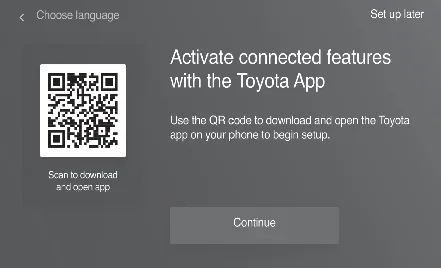
- Open the Toyota app and log in with your primary account.
- Tap the menu icon. Look for three lines or a profile picture in the corner.
- Go to Settings. Scroll down to find the Profiles or Account section.
- Tap Add New Profile. Follow the on-screen prompts to enter the new user’s information.
- Set permissions and preferences. Choose what the second user can see and control.
- Send the invitation. The new profile owner will receive an email or app notification to complete setup.
Both methods work well. The website gives you a larger screen to review settings, while the app lets you manage things on the go. Pick whichever feels more comfortable.
Setting Up Permissions for the Second Profile
One of the most important parts of adding a second profile is setting the right permissions. You do not want someone accidentally changing settings you care about. Toyota gives you fine-grained control over what each profile can do.
Permission Levels to Consider
- Full Access: The second profile can view and change all vehicle settings, including locks, climate, and audio.
- Limited Access: The profile can view vehicle status and navigation but cannot change core settings.
- View Only: The profile can see trip data and vehicle health but cannot make any changes.
- Toyota Connect Only: The profile gets access to connected services like remote start and lock/unlock but nothing else.
Take your time when setting permissions. Think about what each person really needs. If you are unsure, start with limited access and upgrade later. You can always change permissions from the Account Settings page.
Also, keep in mind that if you drive your Toyota without the key fob, the second profile may need specific permissions to use keyless entry and start features. Make sure to check this setting if the second user will be driving regularly.
Switching Between Profiles on Your Toyota
Once you have set up the second profile, you will want to know how to switch between them. Toyota makes this process smooth and fast.
On the Toyota mobile app, simply tap your profile icon and select the profile you want to use. The app will refresh and load that profile’s settings, preferences, and vehicle data.
In the vehicle itself, you can usually switch profiles through the infotainment system. Look for the profile icon on the home screen or under Settings. Select the second profile, and the system will adjust everything from seat position to radio presets.
Here are a few quick tips for switching profiles:
- Log out fully before switching to avoid data conflicts.
- Make sure both profiles are verified before trying to switch.
- Keep your primary profile logged in on your personal device for easy access.
- Use the app’s recent profiles feature to switch quickly without re-entering credentials.
Switching profiles should take just a few seconds. If it does not, there may be a simple fix, which we will cover in the troubleshooting section below.
Common Issues When Adding a Second Profile
Even though the process is straightforward, you might run into a few hiccups along the way. Here are the most common issues and how to solve them.
Profile Not Showing Up After Setup
If the second profile does not appear in the app or portal, try these steps:
- Check that the new profile owner clicked the verification email link.
- Log out and log back in to refresh the account.
- Clear your browser cache if you are using the website.
- Make sure you are logged into the correct Toyota Account.
Permissions Not Applying Correctly
Sometimes permissions do not take effect right away. This usually happens because of a sync delay. Wait a few minutes and try again. If the issue persists, remove the second profile and add it again with the correct permissions from the start.
Toyota Connect Features Not Working for the Second Profile
If the second profile cannot access Toyota Connect, check your subscription status. Some connected services require an active Toyota Connect subscription. You may also need to link the second profile to the vehicle’s VIN in the account settings.
Vehicle Settings Reverting After Switching
If your seat position or radio settings keep reverting when you switch profiles, make sure each profile has its own saved preferences. Go to the profile settings and customize each one individually. This ensures a smooth switch every time.
Tips for Managing Multiple Toyota Profiles
Managing more than one profile on a Toyota Account takes a little planning. Here are some expert tips to keep things running smoothly.
Use clear profile names. Instead of “User 1” and “User 2,” use names like “John” or “Sarah.” This makes switching quick and easy.
Review permissions every few months. People’s needs change. A profile that started with limited access might need full access after a few weeks.
Keep your primary profile secure. Use a strong password and enable two-factor authentication if Toyota offers it. This protects your account even if the second profile is compromised.
Take advantage of Toyota service features. If you need to bring your vehicle in for service, you can take your Toyota to any dealer for service regardless of how many profiles are on the account. Your service history stays linked to the vehicle.
Document the setup for other users. Write down the steps for switching profiles and troubleshooting. Share this with the second profile user so they can handle basic issues on their own.
Can You Remove a Second Profile From Your Toyota Account?
Yes, you can remove a second profile at any time. Go to Account Settings, find the Manage Profiles section, and select the profile you want to remove. Click Delete and confirm your choice.
Keep in mind that removing a profile does not delete any data associated with that profile from the vehicle itself. If you want a complete clean slate, you may need to reset the vehicle’s user profile settings as well.
Also, if the second profile owner has any active subscriptions or linked services, those will need to be cancelled or transferred before removal. Check with the second user first to avoid any confusion.
Final Thoughts
Adding a second profile to your Toyota Account is one of the best ways to get the most out of your vehicle’s connected features. It keeps things organized, personal, and secure for everyone who drives. The process is simple, the settings are flexible, and the benefits are real.
Take a few minutes today to set up that second profile. Follow the steps in this guide, double-check your permissions, and enjoy a smoother shared driving experience. Whether it is your spouse, a family member, or a trusted friend, a second profile makes sharing your Toyota easier for everyone involved.
Remember, your Toyota Account is your command center. The more you customize it, the better your experience will be. So go ahead, add that second profile, and make your Toyota truly yours.
Frequently Asked Questions
Can I add more than two profiles to my Toyota Account?
Yes, Toyota allows you to add multiple profiles to a single account. The exact number may vary depending on your vehicle model and Toyota’s current policy. Check your account settings for the option to add additional profiles beyond the second one.
Do both profiles need separate email addresses?
Yes, each profile typically requires a unique email address for verification and login purposes. This keeps accounts secure and ensures each user gets their own notification and settings preferences.
Will adding a second profile affect my Toyota warranty?
No, adding a second profile to your Toyota Account does not affect your vehicle warranty in any way. Your warranty is tied to the vehicle’s VIN, not to the number of profiles on your account.
Can the second profile owner access Toyota Connected Services?
Yes, as long as you grant the appropriate permissions during setup. The second profile can access features like remote start, lock/unlock, and vehicle diagnostics if you enable those permissions in the profile settings.
Is there a fee to add a second profile to my Toyota Account?
No, adding a second profile to your Toyota Account is completely free. There are no additional charges for creating or managing multiple profiles within your account.
What happens if I forget the password for the second profile?
You can reset the password from the Toyota login page. If you are the primary account owner, you can also manage the second profile’s access directly from your account settings, including resetting their credentials.