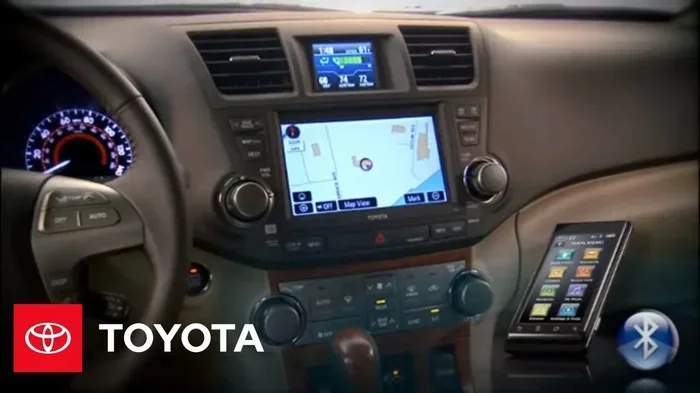
How Do You Connect Bluetooth to a Toyota Highlander Easily
Connecting Bluetooth to a Toyota Highlander is quick and straightforward, taking only a few minutes to complete. This guide covers everything from initial pairing to troubleshooting common issues, so you can enjoy hands-free calling and wireless audio streaming right away. Whether you own a 2020 or 2024 model, the process remains simple and user-friendly.
Have you ever gotten into your Toyota Highlander, turned the key, and wished you could just connect your phone without fumbling with wires? Connecting Bluetooth to a Toyota Highlander is one of the simplest and most useful things you can do for your daily drive. Whether you want to stream your favorite playlist, take hands-free calls, or use navigation apps, Bluetooth makes it all possible without lifting a finger.
The good news is that the Toyota Highlander has had solid Bluetooth integration for years, and the process is the same across most model years. In this guide, we walk you through every step. You will learn how to pair your phone, use advanced features, fix common problems, and get the most out of your Toyota Highlander’s wireless capabilities. Let us get started.
Key Takeaways
- Simple Pairing: The Toyota Highlander Bluetooth setup takes just a few minutes through the touchscreen display.
- Multiple Device Support: You can pair up to five mobile devices with the Toyota Highlander wireless system.
- Hands-Free Calling: Bluetooth enables safe, distraction-free phone calls while driving your Highlander.
- Wireless Audio Streaming: Stream music, podcasts, and navigation audio directly through your car speakers.
- Easy Troubleshooting: Most Bluetooth problems are resolved with a quick reset or settings adjustment.
- Auto-Reconnect: Once paired, your phone automatically connects every time you start the vehicle.
📑 Table of Contents
- How to Connect Bluetooth to a Toyota Highlander
- Bluetooth Features Available on the Toyota Highlander
- Pairing Multiple Devices with Your Toyota Highlander
- Bluetooth Connection Methods Compared
- Quick Tips for a Smooth Bluetooth Experience
- Common Bluetooth Mistakes and How to Avoid Them
- Expert Insights for the Best Bluetooth Experience
- Final Thoughts on Connecting Bluetooth to the Toyota Highlander
How to Connect Bluetooth to a Toyota Highlander
Step-by-Step Pairing Process
Pairing your phone to the Toyota Highlander Bluetooth system is easy. Follow these steps, and you will be connected in under five minutes.
- Start your Toyota Highlander and make sure the engine is running. Press the Bluetooth button on the steering wheel or go to the Settings menu on the touchscreen.
- Select “Bluetooth Settings” from the Toyota multimedia display. You should see an option that says “Add New Device” or “Pair Device.”
- On your phone, go to Settings and turn on Bluetooth. Make sure your phone is set to be visible to other devices.
- Your Toyota Highlander will search for nearby devices. Select your phone from the list that appears on the screen.
- A pairing code will show up on both screens. Confirm that the codes match, then tap “Pair” on both devices.
- Once connected, you will hear a confirmation tone. Your phone is now linked to the Toyota Highlander Bluetooth system.
That is it. The whole process takes less than five minutes. Once paired, your phone will automatically reconnect every time you start the vehicle. This is one of the best features of the Toyota Highlander wireless connection system. The Toyota Highlander infotainment system is designed to make device pairing as frictionless as possible, so even if you are not tech-savvy, you will find this process a breeze.
What to Do If Bluetooth Won’t Turn On
Sometimes the Bluetooth function on your Toyota Highlander may not respond. Before you panic, try these simple steps.
- Check that Bluetooth is turned on in your phone settings. This sounds obvious, but it is a common oversight.
- Restart your Toyota Highlander’s infotainment system. Turn the car off, wait 30 seconds, and turn it back on.
- Make sure your phone is within range. Bluetooth typically works within 30 feet of the vehicle.
- Check if another device is already connected. The Toyota Highlander can only stream audio from one device at a time.
If none of these steps work, try resetting the Bluetooth settings on your Toyota Highlander. Go to Settings, find Bluetooth, and select “Reset” or “Clear All Paired Devices.” Then start the pairing process again from scratch. This simple reset often solves 90 percent of Bluetooth connection problems.
Bluetooth Features Available on the Toyota Highlander
The Toyota Highlander Bluetooth system does much more than just make calls. Here are the key features you get once your phone is connected.
Hands-Free Calling
One of the biggest benefits of Bluetooth in the Toyota Highlander is hands-free calling. Once your phone is paired, you can make and receive calls using the car’s microphone and speakers. You never need to touch your phone while driving.
To make a call, use the voice command button on the steering wheel and say the name or number you want to dial. You can also access your phone book directly through the Toyota touchscreen. The audio quality is clear, and the built-in noise cancellation helps reduce road noise during conversations. This feature is especially valuable for drivers who need to stay connected while keeping their hands on the wheel and eyes on the road.
Audio Streaming Capabilities
With Toyota Highlander Bluetooth audio streaming, you can play music, podcasts, and audiobooks through your car speakers. This works with apps like Spotify, Apple Music, YouTube Music, and any other app that uses audio output.
The audio quality over Bluetooth is surprisingly good, especially with the newer Highlander models that support advanced Bluetooth codecs. You get clean, crisp sound that fills the cabin nicely. For the best experience, keep your phone within range and make sure your Bluetooth settings are set to the highest quality profile. Whether you are commuting to work or taking a long road trip, wireless audio streaming through your car’s speakers makes the drive far more enjoyable.
Voice Commands and Controls
The Toyota Highlander also supports voice commands through the Bluetooth connection. You can ask the system to play specific songs, skip tracks, adjust volume, or even read text messages aloud. This keeps your eyes on the road and hands on the wheel, which is exactly what Bluetooth is designed for.
The Toyota touchscreen displays respond quickly to voice inputs, and the system recognizes natural language commands. You do not need to memorize specific phrases. Simply speak naturally, and the system will understand your request. This level of smartphone integration makes the Toyota Highlander one of the most user-friendly vehicles for connected driving.
Pairing Multiple Devices with Your Toyota Highlander
One great feature of the Toyota Highlander Bluetooth system is that it supports multiple device pairings. This is perfect for families who share the same vehicle.
How Many Devices Can You Pair?
Most Toyota Highlander models allow you to pair up to five mobile devices at the same time. This means every member of your family can have their phone connected. When someone gets in the car, the system can automatically switch to their device, or you can manually select which phone you want to use.
This is a huge convenience for households with multiple drivers. Each person’s phone book, call history, and audio preferences stay separate. The vehicle recognizes which phone is connected and adjusts accordingly. No more swapping cables or asking someone to move their phone so you can connect yours.
Managing Connected Devices
To manage your paired devices, go to the Bluetooth Settings menu on the Toyota touchscreen. You will see a list of all connected and previously paired devices. From here, you can:
- Delete a device you no longer use
- Change the name that appears for each device
- Set a default device for calls and audio
- Check which device is currently connected
This makes it easy to keep your Bluetooth list organized. If you sell or give away your Toyota Highlander, you should clear all paired devices for security reasons. Keeping your device list clean also improves the overall performance of the car Bluetooth system.
Bluetooth Connection Methods Compared
There are a few ways to connect your phone to the Toyota Highlander. Here is a quick comparison to help you understand your options.
| Method | Pros | Cons |
|---|---|---|
| Bluetooth Wireless | No wires needed, hands-free, automatic reconnection | Slight audio delay, uses phone battery |
| USB Cable | Stable connection, charges phone, no battery drain | Wires can be messy, limited mobility |
| Android Auto Wireless | Full app access, better navigation, wireless option available | Requires compatible phone, setup is more complex |
For most people, Bluetooth is the go-to option because of its convenience and ease of use. If you want a deeper connection with your phone’s apps, you might also want to explore Can You Use Android Auto Through Bluetooth In Toyota. This guide covers how to get the best of both worlds with your Highlander.
Quick Tips for a Smooth Bluetooth Experience
Here are some quick tips that will save you time and frustration with your Toyota Highlander Bluetooth setup.
- Keep your phone software updated. Updates often include Bluetooth compatibility fixes that prevent connection issues.
- Turn off Bluetooth on devices you are not using. This reduces interference and helps your Highlander find your phone faster.
- Restart both devices if the connection drops. A simple reboot fixes most temporary Bluetooth glitches.
- Name your device clearly. Use a recognizable name for your phone so you can easily identify it on the Toyota touchscreen.
- Check the Bluetooth version. Newer Bluetooth versions offer better range and audio quality. Make sure your phone supports at least Bluetooth 4.0 for the best experience.
Common Bluetooth Mistakes and How to Avoid Them
Even with a simple process like Bluetooth pairing, people make mistakes that cause frustration. Here are the most common ones and how to avoid them.
Not Updating Your Phone Software
One of the top reasons Bluetooth fails to connect is outdated phone software. Both Apple and Android release updates that improve Bluetooth compatibility. Before you try anything else, make sure your phone is running the latest version. A simple software update can fix connection problems you did not even know you had.
Forgetting to Clear Old Pairings
If your Toyota Highlander has a long list of old paired devices, it can cause conflicts. Always clear old pairings before adding a new device. This keeps the Bluetooth system running smoothly and prevents connection delays. Think of it like cleaning out your closet. When you remove the old, the new has room to work properly.
Ignoring the Car’s Bluetooth Settings
Some people turn on Bluetooth on their phone but forget to enable it in the car’s settings. Both sides need to be active for the connection to work. Always check the car’s Bluetooth menu first when troubleshooting. It is the first place to look when something goes wrong.
Placing the Phone Too Far Away
Bluetooth has a limited range, usually about 30 feet. If your phone is in your back pocket or in the trunk, the connection may drop. Keep your phone in the console, glove box, or cup holder for the best results. The Bluetooth range on the Toyota Highlander is reliable within the cabin, but physical barriers like metal and concrete can weaken the signal.
Expert Insights for the Best Bluetooth Experience
Here are some expert tips to help you get the most from your Toyota Highlander Bluetooth connection.
Keep Your Phone Charged
Bluetooth uses power from your phone. If your battery is low, the connection may become unstable. Consider using a USB cable connection to charge your phone while streaming audio. This gives you a stable connection and keeps your phone powered up on long road trips. For those wondering about the overall value and longevity of their vehicle, you can explore Can A Toyota Highlander Last 300 to understand more about what makes this SUV a lasting investment.
Use the Right Bluetooth Profile
Your phone supports different Bluetooth profiles, including A2DP for audio streaming and HFP for hands-free calling. Make sure both are enabled in your phone’s Bluetooth settings. If audio quality is poor, check that the A2DP profile is active and set to the highest quality available. Understanding these profiles helps you troubleshoot audio issues quickly and effectively.
Reset the System Regularly
Like any technology, the Toyota Highlander Bluetooth system benefits from occasional resets. If you notice slow connections or audio glitches, try clearing all paired devices and re-pairing. This refreshes the system and often fixes minor issues without any effort. Think of it as a quick tune-up for your vehicle’s wireless connectivity.
Explore Toyota Connectivity Features
The Toyota Highlander offers more than just Bluetooth. If you are interested in additional connectivity features, check out Can I Use Toyota Connect Without A Subscription to learn about the full range of connected services available for your vehicle. Toyota’s connected services can enhance your driving experience far beyond basic Bluetooth audio streaming.
Final Thoughts on Connecting Bluetooth to the Toyota Highlander
Connecting Bluetooth to a Toyota Highlander is one of the first things you should do after purchasing this excellent SUV. The process is simple, fast, and opens up a world of convenience. From hands-free calling to wireless music streaming, Bluetooth makes every drive more enjoyable and safer for everyone on the road.
If you run into any issues, remember that most Bluetooth problems are easy to fix with a quick reset or settings check. The Toyota Highlander’s Bluetooth system is reliable and works consistently when set up correctly. Take a few minutes to follow the steps in this guide, and you will be connected in no time.
Now that you know how to connect Bluetooth to a Toyota Highlander, you are ready to enjoy a wireless, hassle-free driving experience every time you get behind the wheel. The combination of Toyota’s trusted build quality and modern wireless technology makes the Highlander a standout choice for anyone who values both reliability and connectivity.
Frequently Asked Questions
How long does it take to connect Bluetooth to a Toyota Highlander?
Connecting Bluetooth to a Toyota Highlander typically takes less than five minutes. The pairing process is straightforward and involves just a few taps on both your phone and the car’s touchscreen. Once paired, the connection is automatic every time you start the vehicle.
Can I connect more than one phone to my Toyota Highlander Bluetooth?
Yes, the Toyota Highlander Bluetooth system supports up to five paired devices. This is great for families or households where multiple people share the same vehicle. You can easily switch between devices through the car’s Bluetooth settings menu.
Why is my Bluetooth not connecting to my Toyota Highlander?
The most common reasons include an outdated phone software version, Bluetooth being turned off on either device, or too many old paired devices stored in the system. Try restarting both your phone and the car’s infotainment system. If the issue persists, clear all paired devices and re-pair from scratch.
Does Bluetooth in the Toyota Highlander charge my phone?
No, Bluetooth alone does not charge your phone. It only transmits audio data wirelessly. If you want to charge your phone while using Bluetooth, you will need to connect a USB cable separately. Some Toyota Highlander models offer wireless charging as an optional feature.
Can I stream music from any app using Toyota Highlander Bluetooth?
Yes, you can stream music from any app that uses audio output, including Spotify, Apple Music, YouTube Music, and podcasts. As long as the app plays audio on your phone, it will stream through the Toyota Highlander’s speakers when Bluetooth is connected.
Is the Bluetooth connection in the Toyota Highlander secure?
Yes, the Toyota Highlander uses standard Bluetooth encryption for all connections. Once paired, the connection is private and secure. If you sell or give away your vehicle, make sure to delete all paired devices from the Bluetooth settings for security purposes.