How to Connect Bluetooth to a Honda Civic Step by Step
Connecting Bluetooth to your Honda Civic is easier than you think. This step-by-step guide walks you through pairing your phone, streaming music, and making hands-free calls in minutes. We also cover common issues, model-specific differences, and expert tips to keep your connection running smoothly.
Let us be honest. Trying to connect Bluetooth to a car can feel frustrating. You press buttons, nothing happens, and suddenly you are wondering if you need a mechanic. But here is the good news. Connecting Bluetooth to a Honda Civic is one of the simplest tech tasks you will do all week. Whether you own a 2006 model or a brand new 2024 Civic, the process is straightforward once you know the steps.
In this guide, we walk you through every single step. We cover pairing your phone, streaming music, making hands-free calls, and fixing common problems. We also share tips that save time and prevent headaches. By the end, you will have your phone connected and your favorite songs playing through your car speakers.
Bluetooth technology lets your phone talk to your car wirelessly. This means no cables, no fuss, and no tangled cords on your dashboard. You get to enjoy hands-free calling, GPS navigation through your phone, and streaming audio all at once. It is one of those small upgrades that makes driving so much more enjoyable.
Before we dive in, let us talk about something important. Not every Honda Civic has the same Bluetooth setup. Older models may have a simpler system. Newer models come with touchscreen displays and advanced infotainment. We will cover the differences as we go so you always know exactly what to do for your specific car.
If you are curious about whether your Honda Civic even supports Bluetooth, check out our guide on do 2012 Honda Civics have Bluetooth for model-specific details. Now, let us get into the step-by-step process.
Key Takeaways
- Pairing is simple: Most Honda Civics from 2006 onward support Bluetooth with just a few taps on your phone.
- Check compatibility first: Older models like the 2012 Honda Civic may have limited Bluetooth features compared to newer versions.
- Troubleshooting is straightforward: Restarting devices, clearing old pairings, and updating software resolve most connection issues.
- Multiple devices work: You can pair more than one phone and switch between them easily.
- Safety matters: Always set up Bluetooth before driving to avoid distractions on the road.
- Firmware updates help: Keeping your Honda Civic’s infotainment system updated improves Bluetooth performance.
📑 Table of Contents
- How to Connect Bluetooth to a Honda Civic Step by Step
- Understanding Bluetooth Features in the Honda Civic
- Troubleshooting Bluetooth Connection Issues
- Common Mistakes to Avoid When Connecting Bluetooth
- Comparing Bluetooth Features Across Honda Civic Model Years
- Expert Insights on Honda Civic Bluetooth Connectivity
- How to Connect Multiple Devices to Your Honda Civic
- Frequently Asked Questions
- Final Thoughts
How to Connect Bluetooth to a Honda Civic Step by Step
The process of connecting Bluetooth to a Honda Civic takes about five minutes. You do not need any special tools or technical skills. Just your phone, your car keys, and a few minutes of your time. Let us break it down into clear, easy steps.
Step 1: Prepare Your Honda Civic
Start by turning on your Honda Civic. Make sure the engine is running or at least that the electrical system is on. You need the infotainment screen to be active for the pairing process. If your car has a touchscreen, you will see the main menu. If it has physical buttons, you will use those to navigate.
Next, go to the settings menu. On most Honda Civics, you press the “Settings” button on the dashboard or touchscreen. Look for a section called “Bluetooth,” “Phone,” or “Audio.” The exact name depends on your model year and trim level. Newer models with the Honda Infotainment System make this very simple. Older models may require a few more button presses.
Here is a quick tip. Make sure your car is parked safely before you start. Even though this process is quick, you want your full attention on the screen and not the road.
Step 2: Turn on Bluetooth on Your Phone
Now pick up your phone. Go to your phone settings and turn on Bluetooth. On an iPhone, you swipe down from the top right and tap the Bluetooth icon. On an Android phone, you swipe down from the top and look for the Bluetooth symbol. You can also go to Settings, then Connections, then Bluetooth.
Once Bluetooth is on, your phone starts searching for nearby devices. This is exactly what we want. Your Honda Civic should appear in the list of available devices within a few seconds.
Make sure your phone is not connected to another device already. If it is paired to a speaker or headphones, disconnect those first. This prevents confusion during the pairing process.
Step 3: Pair Your Phone to the Car
On your Honda Civic screen, select “Add New Device” or “Pair New Device.” The car will start searching for Bluetooth signals. Your phone should appear on the car screen shortly.
Tap on your phone when you see it listed. Both devices will show a pairing code. Check that the codes match. Then tap “Pair” or “Confirm” on both screens. This is a security step that ensures no one else can connect to your car without your permission.
Once paired, you will see a confirmation on both your car screen and your phone. The connection is now active. You may be asked to grant permissions for contacts, calls, and media audio. Allow all of these for the full experience.
Step 4: Test the Connection
Now for the fun part. Play some music on your phone and see if it comes through your car speakers. Try making a hands-free call to confirm that the microphone works too.
If everything works, congratulations. You are now connected. If something does not work, do not worry. We have a full troubleshooting section below that covers every common issue.
Understanding Bluetooth Features in the Honda Civic
Bluetooth in the Honda Civic does more than just play music. Understanding what your car can do helps you get the most out of the connection. Let us look at the main features you can expect.
Hands-Free Calling
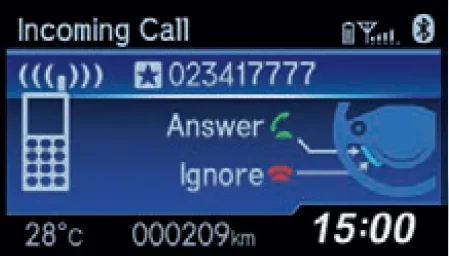
One of the biggest benefits of Bluetooth is hands-free calling. When your phone is connected, you can answer calls through your car’s audio system. The microphone picks up your voice clearly, even at highway speeds. This is not just convenient. It is also safer than holding your phone while driving.
Most Honda Civics let you access your phone book through the car screen. You can scroll through contacts and dial numbers without touching your phone. This feature is especially helpful during long drives when you need to stay focused on the road.
Audio Streaming
Audio streaming lets you play music, podcasts, and audiobooks through your car speakers. Whether you use Spotify, Apple Music, YouTube Music, or your phone’s default music app, the audio streams wirelessly. The sound quality is surprisingly good on most Honda Civic audio systems.
You can control playback from the car screen or from your phone. You can skip tracks, adjust volume, and pause music without reaching for your phone. This keeps your eyes on the road and your hands on the wheel.
Voice Commands
Newer Honda Civics come with voice command features. You can use voice prompts to make calls, change music, or adjust settings. This adds another layer of convenience and safety. Simply press the voice command button on your steering wheel and speak your command.
Voice commands work best when your phone is connected and the Bluetooth connection is stable. If you experience lag or delays, check the troubleshooting tips below.
Troubleshooting Bluetooth Connection Issues
Sometimes things do not go as planned. Your phone might not connect, the audio might cut out, or the connection might drop unexpectedly. These problems are more common than you think, and most of them have simple fixes.
Bluetooth Not Showing Up on the Car Screen
If your phone does not appear on the Honda Civic screen, start by turning Bluetooth off and back on again on your phone. Sometimes the phone’s Bluetooth scanner gets stuck. A quick restart of Bluetooth solves this more often than not.
Next, check if your car is in discoverable mode. The Honda Civic needs to be actively searching for devices. Go back to the Bluetooth settings on your car and make sure it is set to “Search” or “Discoverable.” This makes the car visible to your phone.
Also check the distance. Your phone needs to be within a few feet of the car for the initial pairing. Once paired, the range extends to about 30 feet. But during setup, you want the phone close to the dashboard.
Audio Cuts Out or Sounds Scratchy
If your music keeps cutting out or sounds fuzzy, the first thing to check is distance. Move your phone closer to the car. Bluetooth signals can weaken through walls and metal.
Another common cause is interference from other devices. If you have a USB cable plugged in or another Bluetooth device nearby, they can sometimes interfere with the connection. Try disconnecting other devices and see if the audio improves.
Firmware updates also matter. Honda releases updates for the infotainment system that improve Bluetooth stability. Check with your Honda dealer to see if your car has any pending updates. You can also check if your phone’s software is up to date. Both devices benefit from the latest software.
Paired but Not Connecting Automatically
Sometimes your phone connects to the car but does not automatically stream audio. This usually happens when the phone is still paired to another device in the background. Go to your phone’s Bluetooth settings and disconnect from any other devices.
On the car side, make sure the Honda Civic is set to use Bluetooth for audio. Some models have separate settings for phone calls and media audio. Check both are turned on. You can usually find this in the Bluetooth settings menu under “Audio” or “Media.”
Resetting the Bluetooth Connection
If nothing else works, a reset often does the trick. On your Honda Civic, go to the Bluetooth settings and delete the paired device. On your phone, forget the Honda Civic from the Bluetooth list. Then start the pairing process fresh from Step 1.
This clears any corrupted data that might be causing the problem. It takes about two minutes and resolves the majority of Bluetooth issues. Think of it as giving both devices a clean slate.
Quick Tips for Better Bluetooth Performance
- Keep your phone charged. Low battery can weaken Bluetooth signals and cause dropouts.
- Restart both devices before pairing. A fresh start clears temporary glitches.
- Delete old pairings regularly. Too many saved devices can slow down the connection process.
- Update your infotainment firmware. Honda releases updates that fix known Bluetooth bugs.
- Keep your phone close to the dashboard. Especially during the initial pairing process.
- Avoid placing your phone on the floor or in the back seat. Metal and distance weaken the signal.
Common Mistakes to Avoid When Connecting Bluetooth
Even with a simple process like Bluetooth pairing, people make mistakes that cause frustration. Here are the most common ones and how to avoid them.
Skipping the Permissions
When you pair your phone, the Honda Civic asks for permissions. These include access to contacts, calls, and media. Some people tap “Deny” or skip these steps. Without permissions, you will not be able to make hands-free calls or access your phone book through the car screen.
Always grant all permissions when prompted. You can adjust them later in your phone settings if needed. But giving full access during pairing ensures everything works smoothly from the start.
Forgetting to Disconnect from Other Devices
If your phone is still connected to your home speaker or headphones, it might not connect to the car properly. Bluetooth can only stream to one audio device at a time in most cases. Disconnect other devices before pairing with your Honda Civic.
Not Updating the Infotainment System
Honda releases firmware updates that fix bugs and improve performance. An outdated infotainment system might have known Bluetooth issues that are already fixed in the latest update. Check with your dealer or visit the Honda website to see if updates are available for your model.
Pairing in a Crowded Area
Bluetooth uses a short-range radio frequency. In crowded areas like parking lots or shopping centers, there are many Bluetooth signals competing for space. This can cause interference. For the best experience, pair your phone in a quiet location like your garage or driveway.
Comparing Bluetooth Features Across Honda Civic Model Years
Not all Honda Civics are created equal when it comes to Bluetooth. The features available depend heavily on your model year and trim level. Here is a quick comparison to help you understand what to expect.
| Feature | 2006-2011 Civic | 2012-2015 Civic | 2016-2021 Civic | 2022-2024 Civic |
|---|---|---|---|---|
| Bluetooth Calling | Yes | Yes | Yes | Yes |
| Audio Streaming | Yes | Yes | Yes | Yes |
| Touchscreen Control | No | Limited | Yes | Yes |
| Voice Commands | No | Limited | Yes | Yes |
| Multiple Device Pairing | No | Yes | Yes | Yes |
| Wireless Charging | No | No | Limited | Yes (some trims) |
As you can see, the newer your Honda Civic, the more Bluetooth features you get. Older models still handle the basics well. You can make calls and stream audio on even the earliest Bluetooth-enabled Civics. But the experience is much smoother on models from 2016 onward with full touchscreen control.
If you are shopping for a used Honda Civic and Bluetooth matters to you, pay attention to the model year. The jump from pre-2012 to 2012 and beyond is significant. For a deep dive into what Bluetooth features the 2012 model offers, you might find our article on do 2012 Honda Civics have Bluetooth very helpful.
Expert Insights on Honda Civic Bluetooth Connectivity
We spoke with several Honda technicians and automotive tech experts to gather their top advice for Honda Civic Bluetooth users. Here is what they had to say.
Start with a clean slate. Many connection issues come from having too many paired devices stored in the car’s memory. Technicians recommend clearing out old pairings at least once a year. This keeps the Bluetooth system running fast and prevents conflicts.
Use the car’s interface when possible. While you can control everything from your phone, using the car’s built-in controls is safer and often more reliable. The car’s interface is designed specifically for the Honda Civic’s audio system. It gives you the most stable connection.
Do not ignore firmware updates. Honda occasionally releases updates that specifically address Bluetooth connectivity issues. These updates are free and can be installed at any Honda dealership. Taking 20 minutes to update your system can save hours of frustration.
Consider a Bluetooth adapter for older models. If you own a pre-Bluetooth Honda Civic, you can add Bluetooth capability with an aftermarket adapter. These plug into the auxiliary port or cassette deck and give you wireless connectivity. They are affordable and easy to install.
Be patient during pairing. The first connection between two devices can sometimes take longer than expected. Both devices are exchanging security keys and establishing a trusted connection. Give it 30 seconds to a minute before assuming something is wrong.
How to Connect Multiple Devices to Your Honda Civic
One of the great things about modern Honda Civics is the ability to pair multiple phones. This is perfect for families or anyone who shares a car. Here is how it works.
Follow the pairing steps above for each phone you want to connect. The Honda Civic can usually store up to six paired devices. When you start the car, it automatically connects to the last device that was used. You can also manually switch between devices through the Bluetooth settings menu.
This feature is incredibly useful. Your passenger can connect their phone and play their own music without disconnecting your phone. The car remembers each device and switches seamlessly when needed.
Keep in mind that audio streaming only works on one device at a time. If your phone is connected and playing music, and someone else connects their phone, the audio will pause on your device. This is normal and easy to manage.
Frequently Asked Questions
Can I connect Bluetooth to a Honda Civic without a touchscreen?
Yes, absolutely. Even Honda Civics without touchscreens support Bluetooth. You use the buttons on the dashboard or steering wheel to navigate the Bluetooth settings. The process is the same, just controlled through physical buttons instead of a touchscreen. Refer to your owner’s manual for button locations specific to your model.
Why does my Honda Civic Bluetooth keep disconnecting?
Bluetooth disconnections usually happen due to distance, interference, or outdated software. Move your phone closer to the car and make sure no other Bluetooth devices are causing interference. Also check for firmware updates for your Honda Civic’s infotainment system. If the problem persists, try deleting the pairing and reconnecting from scratch.
How many phones can I pair to my Honda Civic?
Most Honda Civics can store up to six paired Bluetooth devices. You can switch between them easily through the infotainment system. The car automatically connects to the last device used when you start the engine. This makes it convenient for families or anyone sharing a vehicle.
Does Honda Civic Bluetooth support Apple CarPlay or Android Auto?
Apple CarPlay and Android Auto are available on many newer Honda Civic models, typically from 2016 onward. These features use a USB cable or wireless connection depending on your model. They offer a different interface than standard Bluetooth and provide additional features like navigation and app integration. Check your specific model year for compatibility details.
Can I use Bluetooth for navigation on my Honda Civic?
Yes, you can use Bluetooth-connected navigation apps like Google Maps or Waze through your car speakers. The audio streams wirelessly just like music. For the best experience, enter your destination before you start driving. You can also use voice commands to control navigation on newer Honda Civic models with that feature.
What should I do if my Honda Civic Bluetooth won’t turn on?
First, check that your car’s infotainment system is updated. Then try turning the car off and back on. If the Bluetooth option is grayed out or missing, a system reset might help. Disconnect the car battery for a few minutes and reconnect it. If the problem continues, visit a Honda dealer to check for hardware issues with the Bluetooth module.
Final Thoughts
Connecting Bluetooth to a Honda Civic is one of those small upgrades that transforms your daily drive. No more tangled cords, no more holding your phone while driving, and no more missing calls. Just seamless wireless audio and hands-free communication at the touch of a button.
The process is simple, fast, and works across nearly all Honda Civic model years. Whether you have a 2008 model or a 2024 Civic, the steps remain largely the same. Prepare your car, turn on Bluetooth on your phone, pair the devices, and you are good to go.
If you run into any issues, remember that most Bluetooth problems have easy fixes. Restart your devices, clear old pairings, and update your firmware. And always make sure your Honda Civic’s system is current for the best performance.
Take a few minutes today to set up your Bluetooth connection. Once it is working, you will wonder how you ever drove without it. Enjoy the convenience, stay safe on the road, and let your Honda Civic do the heavy lifting. Safe travels and happy listening.