How to Change BMW Bluetooth Name Quickly and Easily
Changing your BMW Bluetooth name is quick, simple, and takes just a few minutes. Whether you want to personalize your device, fix a confusing default name, or simply keep your car’s Bluetooth profile looking clean, this guide walks you through every step. You will learn how to update the Bluetooth name using your BMW iDrive system and the BMW Connected app. Follow our easy instructions to get your Bluetooth device showing the right name on all your connected devices.
Changing your BMW Bluetooth name might seem like a small thing, but it makes a big difference in your daily driving experience. Whether you want to personalize your device, fix a confusing default name, or simply keep your car’s Bluetooth profile looking clean, this guide has you covered. You will learn exactly how to change the Bluetooth name on your BMW using the iDrive system, the BMW Connected app, and even through troubleshooting steps when things do not work as expected.
This guide covers every BMW model, from the BMW 3 Series to the X5 and beyond. The steps are simple, and you do not need any special tools or technical skills. Follow along and you will have your BMW Bluetooth name updated in minutes.
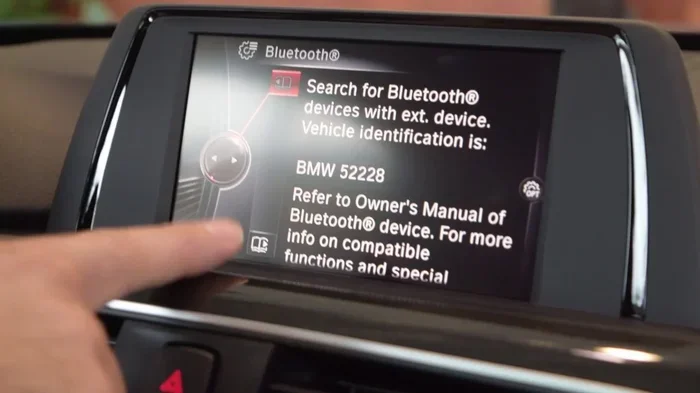
Your BMW Bluetooth name is the label that other devices see when your phone connects to the car. Sometimes, this name defaults to something generic like “BMW Audio” or a long string of characters that makes no sense. Changing the Bluetooth name on your BMW helps you identify your device quickly, especially if you share the car or have multiple BMWs in your household. The process is straightforward, but it varies slightly depending on your BMW model and the iDrive version you have. Newer BMWs with the latest iDrive system offer a more intuitive path to change the Bluetooth device name. Older models may require a few extra steps. Either way, this guide breaks it all down for you.
We will also cover how to use the BMW Connected app, which gives you another easy way to manage your BMW Bluetooth settings from your phone. By the end of this article, you will know exactly how to change your BMW Bluetooth name and keep it looking the way you want. Let us dive in.
Key Takeaways
- Easy iDrive Navigation: You can change your BMW Bluetooth name directly through the iDrive menu in just a few taps.
- BMW Connected App Option: The BMW Connected app offers an alternative way to rename your Bluetooth device from your phone.
- Works Across All Models: The process applies to BMW F-series, G-series, and older models with minor menu differences.
- Troubleshooting Included: We cover common Bluetooth name issues and how to fix them fast.
- No Special Tools Needed: You only need your car key, your phone, and about five minutes of time.
📑 Table of Contents
Why Changing Your BMW Bluetooth Name Matters
Many BMW owners never think about their Bluetooth device name until it causes confusion. A default name like “BMW Audio” or “Head Unit” does not tell you much. When you have multiple cars or share a vehicle, a personalized Bluetooth renaming makes life much easier.
Personalization and Convenience
Think about it this way. Your phone shows a list of available Bluetooth connections every time you get in the car. If your BMW shows up as “BMW Audio” or something generic, you might pause and wonder which car is which. Renaming your BMW Bluetooth name to something personal like “My BMW” or “John’s X5” removes that confusion instantly.
Customizing your car Bluetooth name also adds a nice personal touch. It is one of those small details that makes your driving experience feel more tailored to you. Just like choosing a phone wallpaper or a custom ringtone, giving your BMW wireless connectivity a name you like is a quick way to make the car feel more yours.
Avoiding Confusion with Multiple Devices
If you own more than one BMW or share your car with family members, Bluetooth customization becomes even more important. Each device can have a unique name that makes it easy to identify. This is especially helpful when Bluetooth pairing multiple phones to the same car. A clear, distinct Bluetooth profile name ensures everyone knows which phone is connected at any given time.
Also, some people use their BMW for work and personal use. Having two different Bluetooth device names helps them switch between profiles without confusion. It is a simple trick that saves time and frustration.
Before You Start: What You Will Need
Good news. You do not need any special equipment to change your BMW Bluetooth name. Here is what you need before you get started.
Supported BMW Models and iDrive Versions
The process works across a wide range of BMW models. Whether you drive a BMW F-series or a BMW G-series, the steps are similar. Here is a quick breakdown of what to expect based on your iDrive version:
- iDrive 6 and 7 (2018 and newer): The most straightforward path. The menu is clean and intuitive.
- iDrive 5 (2013-2017): Slightly different menu layout, but the same basic steps apply.
- iDrive 4 and earlier (2008-2012): You may need to navigate through a few more submenus, but it is still doable.
Even if you have an older model, you can still update your BMW Bluetooth settings. The BMW infotainment system has supported Bluetooth renaming for many years. If you are unsure about your iDrive version, check the screen when you start the car. The version number usually appears in the corner of the display.
Tools and Preparation
Here is your short checklist before you begin:
- Your car key or key fob (to start the vehicle or access the iDrive menu)
- Your smartphone (for the BMW Connected app method)
- A stable Bluetooth connection (make sure your phone is already paired to the car)
- About five to ten minutes of free time
That is it. No special software, no dealer visit required. You can do this yourself at home. It is worth noting that not all cars have Bluetooth, but every modern BMW does. Even vehicles like the 2012 Honda Civic came with Bluetooth, and BMW has offered it for much longer.
How to Change BMW Bluetooth Name via iDrive
The iDrive system is the brain of your BMW’s infotainment and multimedia system. It controls everything from audio to navigation, and it is where you will change your Bluetooth device name. The exact steps vary slightly depending on your iDrive version, but the general process is the same.
Steps for BMW Models with iDrive 6 and 7
Follow these steps carefully for the newest BMW models:
- Start your BMW and make sure the iDrive screen is on. You do not need to start the engine, but the system must be active.
- Press the Home button on the iDrive controller to go to the main menu.
- Navigate to Settings using the controller or touchscreen. It usually looks like a gear icon.
- Select Connected Vehicle or Bluetooth from the settings menu.
- Find the option for Device Name or Bluetooth Name.
- Tap on the current name and use the on-screen keyboard to type your new BMW Bluetooth name.
- Confirm your changes and exit the menu.
That is all there is to it. Your new Bluetooth renaming should take effect immediately. Try pairing your phone again to see the updated name appear on your device screen. The change is instant and does not require a restart.
Steps for Older iDrive Versions
If you have an older BMW with iDrive 4 or 5, the path is slightly different but still simple:
- Start the vehicle and access the iDrive main menu.
- Go to Settings and then select Bluetooth or Phone.
- Look for Device Management or Connected Devices.
- Select your phone from the list of paired devices.
- Find the option to edit the Bluetooth profile name.
- Use the iDrive controller to type in your new name.
- Save and exit.
For BMW F-series models produced between 2011 and 2018, the menu layout may vary slightly. The key is to look for the Bluetooth or Phone section within Settings. Once you find it, the rest follows the same logic. BMW G-series models from 2019 onward have a more streamlined process that is even easier to navigate.
How to Change BMW Bluetooth Name Using the BMW Connected App
The BMW Connected app gives you another convenient way to manage your BMW Bluetooth settings from your phone. This method is especially useful if you prefer using your phone over the car’s iDrive screen. The app also lets you track your vehicle, schedule service, and control remote features.
Setting Up the BMW Connected App
If you have not used the app before, here is how to get started:
- Download the BMW Connected app from the App Store (iPhone) or Google Play Store (Android).
- Create an account or sign in with your BMW ID.
- Pair your BMW with the app by following the on-screen instructions.
- Make sure your phone’s wireless connectivity is turned on and Bluetooth is enabled.
Once the app is connected, you can access a range of features, including Bluetooth customization options. The app syncs with your car’s multimedia system and lets you make changes remotely.
Renaming Your Bluetooth Device Through the App
To change your BMW Bluetooth name through the app:
- Open the BMW Connected app on your phone.
- Go to Vehicle Settings or Bluetooth Settings.
- Select the connected device you want to rename.
- Tap on the current device name and enter your preferred name.
- Save the changes and wait a few seconds for the update to sync with your car.
The app method is great because you can make changes even when you are not near your car. You can update the name while sitting on your couch or at your desk. Just make sure your phone and the car are both connected to the same network for the changes to sync properly.
Troubleshooting Common BMW Bluetooth Name Issues
Sometimes things do not go as smoothly as we hope. If your BMW Bluetooth name is not updating or you run into problems, do not worry. Here are the most common issues and how to fix them.
Bluetooth Name Not Updating
This is the most common complaint. You change the name in iDrive or the app, but the new name does not show up on your phone. Here is what to do:
- Restart your BMW: Turn the car off, wait 30 seconds, and turn it back on. This refreshes the BMW infotainment system.
- Delete and re-pair your phone: Go to the Bluetooth settings, forget the device, and pair it again. The new name should appear.
- Check for software updates: Older BMW models may need a software update to support the latest Bluetooth renaming features. Visit your dealer or check the iDrive update menu.
If none of these steps work, the issue might be with your phone’s Bluetooth cache. On Android phones, go to Settings > Apps > Bluetooth > Storage > Clear Cache. On iPhones, toggle Bluetooth off and back on. These simple steps resolve the problem in most cases.
Connection Problems After Renaming
Occasionally, changing the Bluetooth device name can cause a temporary disconnect. Your phone may not recognize the car right away after the rename. This is normal and usually resolves itself within a few minutes.
If the connection does not come back, try manually deleting the car from your phone’s Bluetooth pairing list and pairing it again. The new name will be detected fresh. Also, make sure your phone’s car Bluetooth settings are set to discoverable during the re-pairing process.
For persistent issues, you may want to visit a dealer. Just like you can take any car to any dealer for service, BMW dealers can help with stubborn Bluetooth issues. They have diagnostic tools that can reset the BMW multimedia system and clear any glitches.
BMW Bluetooth Tips for Better Connectivity
Once you have successfully changed your BMW Bluetooth name, you can take a few extra steps to keep your wireless connectivity running smoothly. These tips help you get the most out of your car’s Bluetooth features.
Keeping Your Bluetooth Profile Clean
Over time, your BMW’s Bluetooth system can accumulate old paired devices that you no longer use. These unused entries can slow down the Bluetooth pairing process and cause confusion. Go through your BMW connected device list regularly and remove any devices you no longer need.
Keeping your vehicle settings clean and organized is a good habit. It ensures that your BMW Bluetooth settings stay fast and responsive. Think of it like clearing out your phone’s storage — a little maintenance goes a long way.
Maximizing Wireless Connectivity
Here are a few pro tips for better BMW wireless connectivity:
- Keep your phone’s software updated: New Bluetooth updates improve compatibility and connection stability.
- Avoid interference: Keep your phone away from large metal objects or other wireless devices when pairing.
- Use the phone book feature: Your BMW’s infotainment system can sync your phone’s contacts, making it easy to call people hands-free.
- Restart Bluetooth monthly: A simple restart of both your phone and the car’s system keeps everything running smoothly.
These small habits make a big difference. They keep your BMW Bluetooth name working reliably every time you get behind the wheel.
Conclusion
Changing your BMW Bluetooth name is one of those simple upgrades that improves your daily driving experience. It takes just a few minutes, requires no special tools, and works across all BMW models. Whether you use the iDrive system or the BMW Connected app, the process is straightforward and user-friendly.
We covered everything from the basics of Bluetooth renaming to troubleshooting common issues and maximizing your wireless connectivity. You now know how to personalize your Bluetooth device name, keep your BMW Bluetooth settings clean, and avoid common pitfalls.
Take a few minutes today to update your BMW Bluetooth name. It is a small change that makes your car feel more personal and your connections more seamless. Once you do it, you will wonder why you did not do it sooner.
Frequently Asked Questions
Can I change my BMW Bluetooth name without starting the car?
Yes, you can access the iDrive menu and change the Bluetooth name without starting the engine. Just turn the ignition to the accessory position or press the start button without pressing the brake pedal. The iDrive screen will be active, and you can navigate to the Bluetooth settings to update your BMW Bluetooth name.
Will changing my BMW Bluetooth name affect my paired devices?
No, changing the Bluetooth device name does not delete any paired devices or erase your settings. All your paired phones, contacts, and preferences remain intact. The only thing that changes is the name that appears on other devices when they search for your car’s Bluetooth signal.
Can I change the Bluetooth name for a specific phone only?
Yes, you can set a different Bluetooth profile name for each paired phone. This is useful in households where multiple people use the same BMW. Each person can have a unique name that identifies their device on the car’s BMW infotainment system.
How often should I update my BMW Bluetooth name?
There is no need to update it regularly. Change your BMW Bluetooth name whenever you want to personalize it, switch to a different name, or fix a confusing default label. As long as the name is clear and identifiable, there is no reason to change it frequently.
Why does my BMW Bluetooth name revert to the default after a restart?
This is a rare issue that can happen on older iDrive versions. If your BMW Bluetooth settings reset after a restart, try updating your car’s software. You can check for updates through the iDrive system or visit your BMW dealer. A software update usually fixes this problem and locks in your custom Bluetooth renaming.
Can I use the BMW Connected app to change the Bluetooth name on multiple BMWs?
Yes, if you own multiple BMWs and each is linked to your BMW Connected account, you can manage the Bluetooth name for each vehicle separately through the app. This is especially helpful for households with more than one BMW. Just switch between vehicles in the app and update the car Bluetooth name for each one individually.