How Do I Connect My Phone to My Car Screen Right Now
Connecting your phone to your car screen is easier than you think. Whether you use Bluetooth, a USB cable, Apple CarPlay, or Android Auto, this guide walks you through every method step by step. You will learn the fastest ways to mirror your phone, stream music, use GPS, and make hands-free calls safely.
Have you ever jumped into your car and wished your phone screen was already on your dashboard? You are not alone. Millions of drivers want to know how do I connect my phone to my car screen, and the answer is simpler than most people think.
Your car screen can do so much more than just play the radio. It can show your maps, stream your favorite playlists, read your text messages out loud, and let you take calls without touching your phone. The key is getting your phone and your car to talk to each other. This guide covers every method you can use right now.
Whether you drive a new sedan or an older truck, there is a connection method that will work for you. Let us walk through each option in plain, simple steps so you can get back on the road with your phone connected in minutes.
Key Takeaways
- Multiple Connection Methods: Bluetooth, USB, Apple CarPlay, and Android Auto are the main ways to link your phone to your car screen.
- Bluetooth is the Most Common: Almost every car made after 2010 supports wireless Bluetooth pairing.
- Wired Connections Offer Stability: USB cables provide better audio quality and faster charging than wireless options.
- Smart Projection Systems Matter: Apple CarPlay and Android Auto turn your car screen into a smart display.
- Troubleshooting is Simple: Most connection issues can be fixed by restarting devices or updating software.
- Safety First: Always set up your connection before driving, and use hands-free features while on the road.
📑 Table of Contents
- Why Connecting Your Phone to Your Car Screen Matters
- Method 1: Connect via Bluetooth (The Easiest Way)
- Method 2: Use a USB Cable for a Wired Connection
- Method 3: Apple CarPlay for iPhone Users
- Method 4: Android Auto for Android Phone Users
- Method 5: Screen Mirroring Apps
- Troubleshooting Common Connection Problems
- Common Mistakes to Avoid
- How to Choose the Right Connection Method for You
- Final Thoughts
Why Connecting Your Phone to Your Car Screen Matters
Your smartphone is already the center of your digital life. Why leave it behind when you drive? Connecting your phone to your car screen gives you access to navigation, music, podcasts, and communication — all without digging through your pocket every few minutes.
Here are the biggest reasons this connection matters so much:
- Hands-free calling and messaging keep your eyes on the road.
- Real-time GPS navigation through apps like Google Maps or Waze.
- Seamless music streaming from Spotify, Apple Music, or YouTube.
- Voice commands let you control your phone without lifting a finger.
- Better audio quality through your car’s built-in speakers.
- Phone charging while you drive, so your battery stays full.
When you understand why this matters, the setup process feels much less like a chore and more like a small upgrade to your daily drive.
Method 1: Connect via Bluetooth (The Easiest Way)
Bluetooth is the most popular way to connect a phone to a car screen. Almost every vehicle made in the last decade has built-in Bluetooth support. It is wireless, simple, and does not require any extra cables.
Step-by-Step Bluetooth Pairing
Follow these steps to pair your phone with your car using Bluetooth:
- Turn on your car and go to the infotainment or settings menu on your car screen.
- Select Bluetooth from the menu. Make sure it is set to “Visible” or “Discoverable.”
- Open Bluetooth on your phone. Go to Settings, then Bluetooth, and toggle it on.
- Wait for your car to appear in the list of available devices on your phone.
- Tap your car’s name on your phone screen to start pairing.
- Enter the PIN if your car asks for one. It is usually 0000 or 1234.
- Confirm the connection on both devices. You should hear a chime in your car.
That is it. Your phone is now connected to your car screen. You can start playing music, make calls, and use navigation right away.
Quick Bluetooth Tips
- Keep your phone within 10 feet of the car during the first pairing.
- If your car does not show up, restart both devices and try again.
- Most cars remember your phone after the first connection, so it pairs automatically next time.
- Check your car manual for specific Bluetooth menu names — they vary by brand.
Method 2: Use a USB Cable for a Wired Connection
A USB cable connection is the second most common way to link your phone to your car screen. It provides a more stable connection than Bluetooth and often charges your phone at the same time.
How to Connect Using USB
Here is how you set up a wired connection:
- Find the USB port in your car. It is usually on the center console, the dashboard, or near the steering wheel.
- Plug one end of your USB cable into your phone.
- Plug the other end into the car’s USB port.
- Wait a few seconds for the car screen to recognize your phone.
- Select the USB or Media option on your car screen if a prompt appears.
- Allow access on your phone if a permission popup shows up.
Once connected, you can browse your phone’s music library on the car screen, use navigation apps, and charge your battery at the same time.
Wired vs. Wireless: Which is Better?
| Feature | USB (Wired) | Bluetooth (Wireless) |
|---|---|---|
| Connection Stability | Very stable | Good, but can drop |
| Audio Quality | Excellent | Good |
| Charging | Yes | No |
| Setup Speed | Fast | Very fast |
| Cable Needed | Yes | No |
| Best For | Music and navigation | Quick hands-free calls |
Most people find that a USB connection works better for music and navigation because the data transfer is faster and more reliable. Bluetooth is great for quick hands-free calls when you do not want to plug anything in.
Method 3: Apple CarPlay for iPhone Users
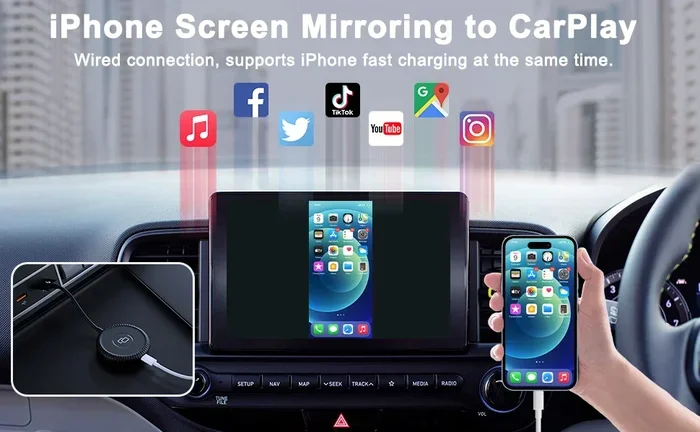
If you drive an iPhone, Apple CarPlay is a game-changer. It projects your phone’s interface directly onto your car screen. You get a simplified, car-friendly version of your iPhone that is designed to keep you safe and focused on driving.
How to Set Up Apple CarPlay
Setting up Apple CarPlay is straightforward. Here is what to do:
- Check if your car supports CarPlay. Most cars made after 2016 do. Look for the CarPlay icon on your car screen.
- Use a Lightning or USB-C cable to connect your iPhone to the car’s USB port.
- Tap CarPlay on your car screen when the prompt appears.
- Unlock your iPhone and tap “Trust” if asked.
- Start using CarPlay. You will see your phone’s apps on the car screen in a driver-friendly layout.
Some newer cars and iPhones support wireless CarPlay, which means you do not need a cable at all. Just go to your car’s Bluetooth or CarPlay settings and follow the on-screen prompts.
What You Can Do with CarPlay
- Use Siri for voice-controlled calls and messages.
- Navigate with Apple Maps or Google Maps.
- Stream music from Spotify, Apple Music, or podcasts.
- Send and receive text messages through voice or minimal taps.
- Adjust volume, climate, and car settings through the car screen.
Apple CarPlay makes your car feel much smarter without needing to buy a new vehicle. It is one of the best reasons to connect your phone to your car screen.
Method 4: Android Auto for Android Phone Users
If you use an Android phone, Android Auto works very much like Apple CarPlay. It mirrors your phone’s key features onto your car screen in a clean, easy-to-use interface designed for driving.
Setting Up Android Auto
Here is how to get Android Auto running on your car screen:
- Download the Android Auto app from the Google Play Store on your phone.
- Connect your phone to your car using a USB cable.
- Open Android Auto on your phone and follow the setup prompts.
- Accept the permissions for location, contacts, and media.
- Enjoy Android Auto on your car screen.
Wireless Android Auto is also available on many newer phones and car models. You can find it in your car’s app list or settings menu without plugging in a cable.
Top Features of Android Auto
- Google Maps integration for turn-by-turn navigation.
- Voice commands powered by Google Assistant.
- Music apps like Spotify, YouTube Music, and Pandora.
- Messaging with read-aloud and voice replies.
- Customizable home screen with your favorite apps.
Android Auto is one of the most popular ways to connect an Android phone to a car screen. It works with thousands of car models and keeps you connected safely.
Method 5: Screen Mirroring Apps
Not all cars support CarPlay or Android Auto. That is where screen mirroring apps come in. These apps duplicate your phone screen onto your car display using Bluetooth or Wi-Fi.
Popular Screen Mirroring Options
- MirrorLink — An open standard supported by some car brands like Sony and Huawei.
- AutoMirror — A third-party app that works with many Android phones.
- Screen Mirroring via Wi-Fi — Some aftermarket car stereos support Wi-Fi mirroring.
These apps are especially helpful if you have an older car without built-in smart features. You simply install the app on your phone, connect to your car’s infotainment system, and your phone screen appears on the dashboard.
Expert Insight
Screen mirroring is not always as smooth as CarPlay or Android Auto. The image quality and response time may vary depending on your car model and phone. However, for older vehicles, it is one of the best ways to bring smart features to your car screen.
Troubleshooting Common Connection Problems
Sometimes things do not work the first time. That is completely normal. Here are the most common issues people face when trying to connect their phone to a car screen, along with simple fixes.
Phone Does Not Show Up on Car Screen
This is the most common problem. Try these steps:
- Turn Bluetooth off and back on on both your phone and your car.
- Restart your phone and your car’s infotainment system.
- Delete old pairings from both devices and start fresh.
- Check if your phone is in discovery mode so the car can find it.
- Move your phone closer to the car’s infotainment unit.
Audio Cuts Out or Sounds Scratchy
If your music sounds fuzzy or keeps cutting in and out:
- Switch from Bluetooth to a USB cable for better audio quality.
- Make sure your phone is fully charged or plugged into power.
- Check if other Bluetooth devices nearby are interfering.
- Update your phone’s software and your car’s infotainment firmware.
CarPlay or Android Auto Keeps Disconnecting
Smart projection systems can sometimes be finicky. Try these fixes:
- Use a high-quality, certified USB cable — cheap cables often cause disconnections.
- Clear the CarPlay or Android Auto cache on your phone.
- Reinstall the Android Auto app or update iOS on your iPhone.
- Check that your phone’s screen is unlocked during the connection process.
Quick Tips for a Smooth Connection
- Always update your phone software before setting up a new connection.
- Keep your car’s infotainment system updated with the latest firmware.
- Use the same USB port every time for consistency.
- Clean your phone’s charging port and the car’s USB port regularly.
- Set your phone to “Do Not Disturb While Driving” mode after connecting.
Common Mistakes to Avoid
Even experienced phone users make mistakes when setting up their car connection. Here are the ones to watch out for:
- Ignoring software updates. Old software can cause compatibility problems with your car’s infotainment system.
- Using a damaged cable. A frayed or cheap USB cable is the number one cause of connection failures.
- Not granting permissions. If your phone asks for access to contacts or location, allow it so apps work properly on the car screen.
- Connecting while driving. Always set up your phone connection when the car is parked and safely stopped.
- Overloading the system. Too many connected devices can confuse your car’s Bluetooth. Remove old devices you no longer use.
Avoiding these simple mistakes saves a lot of frustration and gets you connected faster.
How to Choose the Right Connection Method for You
Not sure which method to pick? Here is a quick guide based on your needs:
- Want the simplest setup? Go with Bluetooth. No cables, no apps, just pair and go.
- Need the best audio quality? Use a USB cable for a wired connection.
- Have an iPhone? Apple CarPlay gives you the most seamless experience.
- Have an Android phone? Android Auto is your best bet for a smart car screen.
- Have an older car? Try a screen mirroring app or an aftermarket Bluetooth receiver.
- Want wireless convenience? Look for wireless CarPlay or wireless Android Auto support in your car.
The best method is the one that fits your phone, your car, and your daily driving habits. Many drivers use a combination of methods — Bluetooth for calls and USB for music, for example.
Final Thoughts
Knowing how do I connect my phone to my car screen opens up a whole new level of convenience and safety every time you get behind the wheel. Whether you choose Bluetooth, USB, Apple CarPlay, or Android Auto, the process is straightforward and well worth the few minutes it takes to set up.
Start with the method that fits your phone and car best. Follow the steps in this guide, and you will be connected in no time. If you run into issues, the troubleshooting section has you covered with simple fixes for the most common problems.
Your car screen is a powerful tool when it is connected to your phone. Use it to navigate, stream, call, and message — all while keeping your eyes on the road and your hands on the wheel. That is the real power of connecting your devices the right way.
Now that you have all the information you need, go ahead and try it. Pick one method from this guide, connect your phone, and enjoy a smarter, safer driving experience starting today.
Frequently Asked Questions
Can I connect my phone to any car screen?
Most cars made after 2010 have some form of Bluetooth connectivity. For Apple CarPlay or Android Auto, your car needs to support these systems, which are common in vehicles from 2016 and newer. Older cars may need an aftermarket adapter or receiver to connect your phone.
Is it safe to connect my phone while driving?
It is safest to set up your phone connection while the car is parked. Once connected, use hands-free features like voice commands and steering wheel controls to interact with your phone. Never look at your phone screen while driving.
Do I need an expensive cable to connect my phone via USB?
No. A standard USB cable that came with your phone will work for most connections. However, a high-quality, certified cable ensures a more stable connection and better charging speed. Avoid very cheap or damaged cables.
Why does my Bluetooth connection keep disconnecting?
Bluetooth disconnections are common and usually easy to fix. Try restarting both your phone and your car’s infotainment system. Also check if other Bluetooth devices nearby are causing interference. Updating your phone’s software and your car’s firmware can also solve this problem.
Can I use Apple CarPlay and Android Auto on the same phone?
No. Apple CarPlay is designed exclusively for iPhones, and Android Auto works only with Android phones. However, you can switch between them by connecting a different phone or using a dual phone system in some vehicles.
What is the difference between Bluetooth and CarPlay or Android Auto?
Bluetooth provides basic wireless connectivity for calls and audio streaming. Apple CarPlay and Android Auto go much further by projecting your phone’s screen onto your car display, giving you access to apps, navigation, and voice controls in a driver-friendly interface.
=== CONCLUSION ===
Connecting your phone to your car screen is one of the simplest upgrades you can make to your driving experience. Whether you use Bluetooth for quick calls, a USB cable for reliable music, Apple CarPlay for iPhone users, or Android Auto for Android fans, there is a method that works perfectly for you.
Follow the steps in this guide, avoid the common mistakes, and enjoy a connected, safer, and more entertaining drive every time you hit the road. Your phone and your car were meant to work together — now you know exactly how to make it happen.