How Do I Add a Second Profile to My Toyota App Step by Step
Adding a second profile to the Toyota App is simple and lets multiple drivers personalize their experience. Whether you share your car with a spouse, teen driver, or co-worker, a separate profile keeps settings, preferences, and driving data organized. This guide walks you through every step with clear instructions and helpful tips.
If you share your Toyota with someone else, you know the struggle. One person sets the radio station. Another changes the climate control. Then nobody remembers how to get back to their preferred settings. That is where the Toyota App comes in. With the ability to add a second profile, you can keep everyone’s preferences organized and separate.
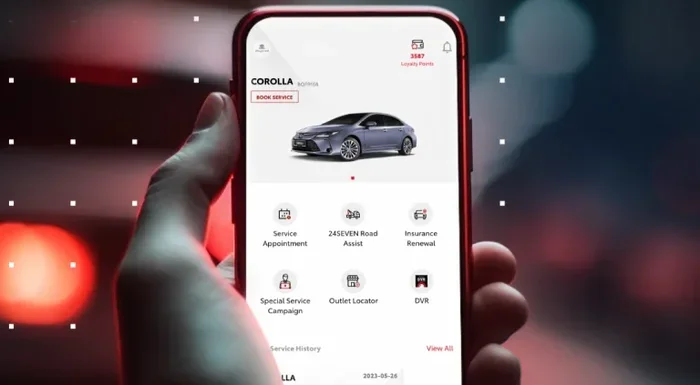
The Toyota App is more than just a remote start tool. It is a full-featured platform that lets you manage vehicle settings, track maintenance, and stay connected to your car. Adding a second profile means each driver gets a personalized experience. This guide will show you exactly how to do it, step by step.
Whether you are setting up a profile for a spouse, a teenage driver, or a co-worker who borrows your car, the process is straightforward. You do not need any special technical skills. Just a smartphone, the Toyota App, and about five minutes of your time. Let us dive in.
Key Takeaways
- Multiple profiles keep settings separate: Each user gets their own preferences, driving data, and alerts.
- The process is quick and free: You can add a second profile in just a few minutes through the app settings.
- Profile management is easy: Switch between profiles anytime and customize each one independently.
- Toyota Connect works with multiple profiles: Each user can access connected services with their own login.
- Troubleshooting is straightforward: Most issues resolve with a simple app update or re-login.
- Family sharing is supported: Add profiles for family members and manage permissions easily.
📑 Table of Contents
What Is a Toyota App Profile?
A profile in the Toyota App is your personal setup within the application. It stores your preferences, driving habits, and connected services data. Think of it like a user account on your phone or computer. Each profile keeps things organized and private.
When you first set up the Toyota App, you create a primary profile. This is tied to your Toyota account and your specific vehicle. The primary profile controls things like vehicle settings, notification preferences, and access to Toyota connected services. A second profile works the same way but keeps a different person’s data separate.
Here is what each profile can store:
- Driver preferences: Seat position, mirror angles, climate settings
- Navigation favorites: Home, work, and frequently visited locations
- Media settings: Preferred radio stations and playlists
- Alert preferences: Maintenance reminders, low fuel alerts, and security notifications
- Driving data: Trip history and fuel efficiency tracking
Having separate profiles means no more fighting over settings. Each person gets their own space inside the app. This is especially useful for families who share one Toyota vehicle.
Why Add a Second Profile to the Toyota App?
You might wonder why you need a second profile at all. Can’t you just share one account? Technically, yes. But doing so creates a messy experience. Here are the real reasons adding a second profile makes sense.
First, personalization. When your spouse or teen driver uses the app, they want their own experience. They want their favorite stations, their preferred climate settings, and their own navigation history. A second profile delivers exactly that.
Second, privacy. Your driving data is personal. A second profile keeps each person’s trip history and driving habits private. You do not have to worry about someone else seeing your routes or fuel consumption.
Third, convenience. Switching between profiles takes seconds. The app remembers each user’s settings automatically. So when your partner gets behind the wheel, they simply select their profile and everything is ready.
Fourth, safety and responsibility. If you have a new driver in the household, a separate profile lets you monitor their driving habits without mixing data with yours. You can track their trips and set boundaries separately.
And fifth, if you use Toyota Connect services, each profile can maintain its own connected features. This ensures that services like remote start, lock/unlock, and vehicle tracking stay tied to the right user.
Step-by-Step Guide to Adding a Second Profile
Now let us get into the actual process. Adding a second profile to the Toyota App is quick and easy. Follow these steps carefully and you will be done in minutes.
Step 1: Open the Toyota App
Launch the Toyota App on your smartphone. Make sure you are logged into your primary account. If you have not downloaded the app yet, head to the App Store or Google Play Store and search for “Toyota App.” Install it and open it up.
If you are not yet signed in, enter your Toyota account credentials. If you do not have an account, you will need to create one first. This is tied to your vehicle and gives you access to all the app’s features.
Step 2: Navigate to Settings
Once you are in the app, look for the Settings icon. It is usually located in the top-right corner or in the main menu. Tap on it to open the settings panel.
In the settings menu, you will see several options related to your account and vehicle. Scroll down until you find the profile or user management section. This is where you control your profiles.
Step 3: Select “Add New Profile”
Tap on the option to add a new profile. The app may label this as “Add User,” “Create Profile,” or “Manage Profiles.” The exact wording can vary depending on your app version.
You will be prompted to enter some basic information for the new profile. This typically includes a display name and a few preference defaults. Keep it simple and use a name that is easy to recognize, like “Spouse” or “Teen Driver.”
Step 4: Set Up Preferences
After you create the profile, the app will walk you through setting up preferences. This is where you customize the experience for the second user. You can set default navigation home locations, preferred media sources, and notification settings.
Take your time here. Getting these settings right means the second user will have a smooth experience from day one. You can always go back and adjust preferences later.
Step 5: Save and Switch Profiles
Once you have set up the new profile, tap Save. The app will confirm the profile has been created. You can now switch between profiles by going back to the main menu and selecting the profile you want to use.
Switching profiles is instant. The app loads the selected user’s preferences and settings. It is a seamless experience that makes sharing your Toyota vehicle much more convenient.
Managing Multiple Profiles Effectively
Adding a second profile is just the beginning. Managing multiple profiles well ensures everyone has a great experience. Here are some practical tips.
Keep profile names clear and simple. Use names like “Driver 1” and “Driver 2” or “Mom” and “Dad.” Avoid confusing names that might cause mix-ups.
Review settings regularly. Every few weeks, check that each profile still has the correct preferences. Over time, settings can drift or get accidentally changed.
Use the auto-text feature when driving. Each profile can have its own auto-text settings. This means when someone is driving, their profile can automatically respond to messages. Learn more about setting this up by checking our guide on how to set up auto text when driving.
Monitor connected services separately. Each profile can have its own access to Toyota connected services. If you are curious about whether you need a subscription for full access, our article on using the Toyota App without a subscription covers this in detail.
Teach other users how to switch profiles. Make sure everyone who drives your car knows how to switch between profiles. A quick walkthrough the first time saves confusion later.
Profile Management Best Practices
- Set a default profile for the most frequent driver
- Keep emergency contact info updated in each profile
- Review notification settings for each user
- Clear out old trip data from unused profiles
- Update preferences after seasonal changes (winter tires, summer AC, etc.)
Common Issues and How to Fix Them
Adding a second profile is generally smooth. But sometimes things do not go as planned. Here are the most common issues and how to solve them.
Issue 1: The app does not show the “Add Profile” option. This usually means your app is out of date. Go to the App Store or Google Play Store and check for updates. Install any pending updates and restart the app.
Issue 2: Profile settings do not save. Make sure you have a stable internet connection. The Toyota App needs to sync with the cloud to save profile data. Try switching between Wi-Fi and mobile data if needed.
Issue 3: Cannot switch between profiles. Log out of the app completely and log back in. This refreshes the session and often resolves switching issues.
Issue 4: Connected features not working for the second profile. Some connected features require a separate Toyota Connect subscription. Check if each profile has the right service access. You can learn more about Toyota Connect and subscriptions here.
Issue 5: Notifications not appearing for the new profile. Check your phone’s notification settings. Make sure the Toyota App has permission to send notifications. Also verify that notification preferences are enabled within the app for the second profile.
Quick Troubleshooting Tips
- Always keep your Toyota App updated to the latest version
- Restart your phone if the app behaves unexpectedly
- Clear the app cache if profiles are not loading correctly
- Re-link your vehicle if the connection drops after adding a profile
- Contact Toyota support if issues persist after troubleshooting
Tips for Getting the Most From Multiple Profiles
Once you have your second profile set up, there are ways to make the most of it. These tips help you and other drivers get a better experience with the Toyota App.
Personalize the home screen. Each profile can have a different home screen layout. Set it up to show the most relevant information for that user. For example, a teen driver might want to see fuel level and maintenance reminders front and center.
Set up the backup camera for each driver. If your Toyota has a backup camera that connects to the app, each profile can have its own camera settings. Find out how to enable this feature by reading our guide on how to turn on the backup camera.
Use profile-specific vehicle alerts. Set different alert thresholds for each driver. A cautious driver might want low-fuel alerts at 25%, while another might prefer 15%. These small customizations add up to a better experience.
Keep a family log. Use the trip history feature in each profile to track who drove when. This is helpful for shared vehicles and can be useful for expense splitting or maintenance scheduling.
Explore the app together. If you are adding a profile for a less tech-savvy person, sit down with them and explore the app. Show them how to switch profiles, adjust settings, and use key features. A little guidance goes a long way.
Making Multiple Profiles Work for Your Family
- Assign each family member their own color or icon for easy identification
- Set default navigation to each person’s most common destination
- Adjust climate defaults based on personal comfort preferences
- Use the app’s trip-sharing feature to keep everyone in the loop
- Review and update profiles quarterly to keep them current
Final Thoughts
Adding a second profile to the Toyota App is one of the simplest ways to improve the shared driving experience. It takes just a few minutes and delivers real value every time you or someone else gets behind the wheel. Separate preferences, clean data, and a personalized experience for every driver.
The process is straightforward. Open the app, go to settings, add a new profile, set preferences, and you are done. Managing multiple profiles is just as easy. With a few best practices, you can keep everything organized and running smoothly.
If you run into any issues, the troubleshooting tips above should help you resolve them quickly. And remember, keeping your app updated is the best way to avoid most problems. The Toyota team continues to improve the app with new features and better profile management tools.
Take a few minutes today to set up that second profile. You will wonder how you ever managed without it. Happy driving!
Frequently Asked Questions
Can I add more than two profiles to the Toyota App?
The Toyota App supports multiple profiles beyond just two. You can add as many profiles as you need for your household or team. Each profile maintains its own settings and preferences independently.
Do I need a separate Toyota account for each profile?
No, you do not need a separate Toyota account. All profiles can be managed under one primary account. The app simply creates separate user spaces within the same account for organization and privacy.
Will adding a second profile affect my primary profile settings?
No, adding a second profile will not change or affect your primary profile in any way. Each profile operates independently with its own settings, preferences, and data. Your original setup stays exactly the same.
Can I delete a profile I no longer need?
Yes, you can delete any profile from the Toyota App. Go to the profile management section in settings, select the profile you want to remove, and choose the delete option. This frees up space and keeps your app organized.
Is the Toyota App profile feature available on both iPhone and Android?
Yes, the profile feature is available on both iOS and Android devices. The process for adding a second profile is the same regardless of your phone type. Just make sure your app is updated to the latest version.
Can each profile control different vehicle features?
Each profile can have its own preferences for vehicle features like climate, media, and navigation. However, some vehicle-level settings may be shared across all profiles. Check your specific Toyota model for details on what can be customized per profile.
=== CONCLUSION ===
Adding a second profile to your Toyota App is a smart move for anyone who shares their vehicle. It keeps things organized, personal, and private. The process is fast, free, and easy to manage. With just a few taps, you can create a tailored experience for every driver in your household.
Remember to keep your app updated, review settings regularly, and teach other users how to switch profiles. These small habits make a big difference in your daily driving experience. The Toyota App is designed to make your life easier, and multiple profiles are a perfect example of that.
So go ahead and set up that second profile today. Your future self, and your co-driver, will thank you.