How to Connect Mazda Bluetooth in Just a Few Minutes
Connecting Mazda Bluetooth is quick and easy when you follow the right steps. This guide walks you through pairing your phone, troubleshooting common issues, and making the most of your Mazda’s wireless features. Whether you drive a Mazda3, CX-5, or another model, you will be connected in minutes.
There is something satisfying about pressing a button and having your phone connect wirelessly to your car. No fumbling with cables. No searching for the right cord. Just instant music, navigation, and calls through your Mazda speakers. Connecting Mazda Bluetooth does not have to be a frustrating experience, even if you are not tech-savvy.
Whether you just bought a new Mazda or you have been driving one for years, setting up Bluetooth is one of the first things you should do. It makes driving safer, keeps your hands on the wheel, and lets you enjoy your favorite playlists without taking your eyes off the road. In this guide, we will walk you through every step, from initial pairing to fixing common problems.
We have also included tips for getting the best sound quality and answers to the questions most drivers ask. By the end of this article, you will know exactly how to connect Mazda Bluetooth and get the most out of your car’s wireless features.
Key Takeaways
- Pairing your phone to Mazda Bluetooth takes under five minutes with the right steps for your model.
- Both Apple CarPlay and Android Auto can work through Bluetooth or USB connections.
- Common Bluetooth issues like static or disconnections are usually easy to fix with simple resets.
- Hands-free calling and audio streaming are the two core features of Mazda Bluetooth connectivity.
- Keeping your phone and Mazda system updated prevents most connection problems.
- Multiple phones can be paired to one Mazda system for shared convenience.
- Knowing your Mazda model’s specific Bluetooth menu helps you navigate faster.
📑 Table of Contents
- What You Need Before Connecting Mazda Bluetooth
- Step-by-Step Guide to Connect Mazda Bluetooth
- How to Pair Your Phone with Mazda Bluetooth
- Troubleshooting Mazda Bluetooth Connection Issues
- Mazda Bluetooth Features You Should Know About
- Tips for Better Bluetooth Performance in Your Mazda
- Common Mistakes to Avoid When Connecting Mazda Bluetooth
- Final Thoughts
What You Need Before Connecting Mazda Bluetooth
Before you start the pairing process, make sure you have everything ready. Having these items and settings checked ahead of time saves you from frustrating retries.
Check Your Mazda Model Year
Mazda has updated its infotainment systems over the years. The steps for a 2018 Mazda3 are slightly different from a 2023 Mazda CX-50. Newer models come with Mazda Connect infotainment systems that have larger screens and simpler menus. Older models may have smaller displays with fewer features but still support full Bluetooth connectivity.
If you are unsure of your model year, check the driver-side door jamb or your vehicle registration. This helps you find the exact guide for your specific system.
Make Sure Bluetooth Is Enabled on Your Phone
Both iPhone and Android devices need Bluetooth turned on before pairing. On iPhone, swipe down from the top right corner and tap the Bluetooth icon. On Android, swipe down from the top and look for the Bluetooth symbol in your quick settings.
Also make sure your phone is not in airplane mode. Airplane mode disables all wireless connections, including Bluetooth. If you have trouble finding the Bluetooth setting, you can always go to Settings > Bluetooth on your phone.
Have Your Phone Charged
Nothing kills a smooth pairing session faster than a dead battery. Keep your phone plugged in or make sure you have at least 30 percent battery before starting. A low battery can cause the phone to disconnect during the pairing process.
Step-by-Step Guide to Connect Mazda Bluetooth
Now that you are prepared, here is the actual process. We will cover the general steps that work for most Mazda models. Specific menu names may vary slightly depending on your year and trim level.
Step 1: Turn on Your Mazda and the Infotainment System
Press the start button or turn the key to power on your Mazda. You do not need to start the engine, but the electrical system must be active. Tap the screen or press the power button on the infotainment unit to wake it up. Wait for the home screen to appear fully.
Step 2: Navigate to the Bluetooth Settings
On the Mazda Connect home screen, look for the Settings icon. It usually looks like a gear. Tap on it, then find the Bluetooth or Phone option. On some models, you may need to tap Connectivity first, then select Bluetooth.
If you are using a model with a rotary controller instead of a touchscreen, use the controller to scroll to Settings and press the center button. Navigate to Bluetooth using the arrow keys.
Step 3: Put Your Phone in Pairing Mode
Go to your phone’s Bluetooth settings and make sure it is set to discoverable or visible to other devices. This allows your Mazda to find your phone. For detailed help on this step, you can also check our guide on how to put your phone in pairing mode.
Step 4: Search for Devices on Your Mazda
In the Mazda Bluetooth menu, tap Search for Devices or Add Device. The system will scan for nearby Bluetooth-enabled phones. This usually takes 10 to 15 seconds. Your phone name should appear on the Mazda screen.
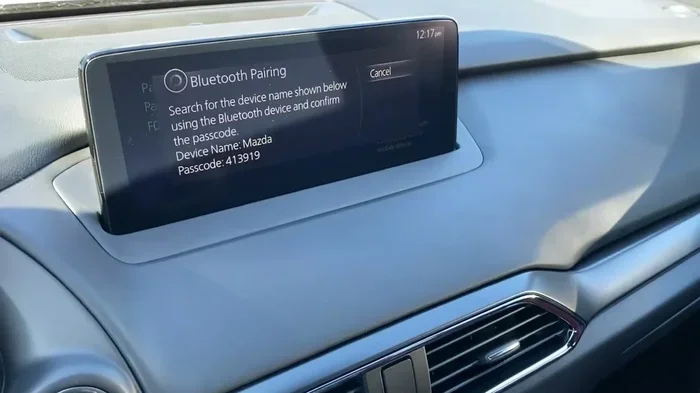
Step 5: Select Your Phone and Confirm the Pairing Code
Tap on your phone when it appears. Both your Mazda and your phone will display a pairing code. Make sure the codes match, then confirm on both devices. This security step prevents unauthorized devices from connecting.
Step 6: Grant Permissions
Your phone will ask you to allow certain permissions. You will typically see options for Contacts, Call Audio, and Media Audio. Tap Allow on all of these so you can make hands-free calls and stream music.
Once you see a confirmation on both screens, your Mazda Bluetooth is connected. You are ready to go.
How to Pair Your Phone with Mazda Bluetooth
Pairing is the process of linking your phone to your car. Different phones handle this slightly differently, but the core steps are the same. Here is a closer look at pairing for both iPhone and Android users.
Pairing an iPhone to Mazda Bluetooth
iPhone users have a slightly streamlined experience. After you complete the general pairing steps above, your iPhone may show a prompt asking if you trust the Mazda device. Tap Trust on your iPhone screen. This allows your phone to share contacts and call history with the car.
One thing to note: if you have an iPhone with iOS 13 or later, Apple may ask for additional permissions for Background App Refresh and Location Services. Allowing these ensures that Apple CarPlay and Bluetooth work smoothly while driving.
Pairing an Android Phone to Mazda Bluetooth
Android phones give you more control during the pairing process. After selecting your phone on the Mazda screen, your Android device will ask which profiles you want to connect. Choose Audio/Call and Media for the full experience.
Some Android phones also support Android Auto, which can work through Bluetooth or a USB cable. If you want to learn more about using Android Auto with Bluetooth, check out our article on Android Auto Through Bluetooth for helpful tips that also apply to Mazda systems.
Connecting Multiple Phones
Mazda Bluetooth supports multiple paired devices. This is great for families or couples who share a car. The system remembers up to six phones at a time. When you get in the car, the system automatically connects to the last paired device that was in range.
To add a second phone, simply repeat the pairing steps while the first phone is connected. Both phones will remain paired and can take turns connecting automatically.
Troubleshooting Mazda Bluetooth Connection Issues
Even with the best setup, Bluetooth problems can happen. The good news is that most issues have simple fixes. Here are the most common problems and how to solve them.
Mazda Bluetooth Not Finding My Phone
If your Mazda does not detect your phone, the first thing to check is that Bluetooth is turned on for both devices. Make sure your phone is set to visible or discoverable mode. Sometimes restarting both your phone and the Mazda infotainment system clears up detection issues.
On the Mazda side, you can usually restart the system by holding the power button for 10 seconds. This soft reset clears temporary glitches without erasing your settings.
Bluetooth Connected But No Sound
This is one of the most common Bluetooth complaints. If your phone shows as connected but you hear nothing from the speakers, check the audio source on your Mazda. Press the Audio or Media button on the dashboard and make sure it is set to Bluetooth Audio, not radio or USB.
Also check your phone’s volume. The media volume on your phone controls the Bluetooth audio output. If your phone volume is at zero, the car speakers will be silent too.
Bluetooth Keeps Disconnecting
Intermittent disconnections usually happen because of interference or distance. Bluetooth works best within about 30 feet of the source. If your phone is buried under a jacket or in the back seat, the signal may weaken.
Another common cause is having too many Bluetooth devices connected at once. If you have a smartwatch, earbuds, and your phone all trying to connect through the Mazda system, it can cause conflicts. Disconnect devices you are not actively using.
Clearing Old Bluetooth Pairings
Sometimes the simplest fix is to remove old pairings and start fresh. Go to the Mazda Bluetooth settings, find the device list, and delete any old or unused connections. Do the same on your phone. Then try pairing again from scratch. This clears any corrupted data that may be causing the problem.
Mazda Bluetooth Features You Should Know About
Once your Bluetooth is connected, you unlock a range of convenient features. Many drivers only use the basics, but Mazda’s system offers more than you might expect.
Hands-Free Calling
With Bluetooth connected, you can make and receive calls without touching your phone. The system uses the microphone in your Mazda to pick up your voice. When a call comes in, the audio automatically switches from music to the call. You can answer using the steering wheel controls or the infotainment screen.
This feature is not just convenient. It is also safer. Studies show that hands-free calling reduces distracted driving compared to holding your phone.
Music Streaming and Audio Sharing
Bluetooth lets you stream music from apps like Spotify, Apple Music, and YouTube Music directly through your Mazda speakers. The audio quality is surprisingly good, especially in newer Mazda models with premium sound systems.
You can also use Bluetooth to share audio from your phone to the car. This works for podcasts, audiobooks, and even navigation voice directions from Google Maps or Waze.
Contact Syncing
When you grant contact permissions during pairing, your Mazda displays your phone contacts on the screen. You can scroll through and select contacts to call them hands-free. This is especially useful when you need to call a number you do not have memorized.
Text Message Alerts
Many Mazda models can read incoming text messages aloud through the Bluetooth connection. You hear the message and can choose a quick reply without ever looking at your phone. This feature is available on both iPhone and Android with the right settings enabled.
Tips for Better Bluetooth Performance in Your Mazda
Getting your Mazda Bluetooth connected is only half the battle. Keeping it running smoothly takes a little maintenance. Here are some tips that make a big difference.
Keep Your Mazda Software Updated
Mazda releases software updates for the infotainment system that improve Bluetooth stability and add new features. Check with your dealer or visit the Mazda website to see if an update is available for your model. Some updates can even be installed via USB drive at home.
Restart Your Phone Regularly
A quick restart of your phone once a week clears out temporary glitches that can interfere with Bluetooth. It takes less than a minute and keeps things running smoothly.
Place Your Phone in a Good Location
For the strongest Bluetooth signal, place your phone in the center console or the cup holder area. These spots are closest to the car’s Bluetooth antenna. Avoid putting your phone in the glove box or under a seat, as the signal has to travel through more material.
Delete and Re-Pair Once a Year
Even if everything works fine, it is a good habit to delete your Bluetooth pairing once a year and reconnect fresh. This clears out any cached data that might slow things down over time.
Use the Right Cable When Bluetooth Is Not Enough
Bluetooth is wireless, but it has limits. If you want the best audio quality or need to use Apple CarPlay or Android Auto, a USB cable connection is often better. For tips on connectivity options, you can also explore our guide on Toyota Connect Without A Subscription which covers similar connectivity concepts for other brands.
Common Mistakes to Avoid When Connecting Mazda Bluetooth
Avoiding these mistakes will save you time and frustration the first time you try to connect.
- Skipping the permissions step. If you deny contacts or media access, you will not get full functionality. Always allow all permissions when prompted.
- Not making your phone discoverable. If your phone is not set to visible, the Mazda cannot find it during the search.
- Pairing in a crowded area. If you are in a parking lot with dozens of other cars, Bluetooth interference is more likely. Try pairing at home or in a quieter location.
- Ignoring the pairing code confirmation. Always make sure the codes match on both devices. This prevents accidental connections to wrong phones.
- Forgetting to turn off Bluetooth on old devices. If you have an old tablet or wearable still paired, it can create conflicts. Remove unused devices from both the car and your phone.
Final Thoughts
Connecting Mazda Bluetooth is one of the simplest upgrades you can make to your driving experience. It takes just a few minutes, and once it is set up, you barely have to think about it. Hands-free calls, streaming music, and text alerts all become second nature once Bluetooth is active.
Remember that every Mazda model is slightly different, so the exact menu names may vary. But the core process remains the same across the lineup. If you run into issues, the troubleshooting tips in this guide should help you resolve them quickly.
Take a few minutes today to get your phone paired. You will wonder how you ever drove without it. Mazda Bluetooth makes every trip more connected, more convenient, and safer. Once you set it up, you will not want to go back to wires and cables ever again.
Frequently Asked Questions
How long does it take to connect Mazda Bluetooth?
Most drivers can connect Mazda Bluetooth in under five minutes. The process is straightforward and does not require any special tools or technical knowledge. Once you have done it once, future pairings take even less time.
Why is my Mazda Bluetooth not connecting to my phone?
The most common reasons are that Bluetooth is turned off on one of the devices, the phone is not set to discoverable, or there is a software glitch. Try restarting both your phone and the Mazda infotainment system. If that does not work, delete the old pairing and try again.
Can I connect more than one phone to my Mazda Bluetooth?
Yes, Mazda Bluetooth supports multiple paired devices. Most Mazda models can remember up to six phones. The system automatically connects to the last device that was in range when you started the car.
Do I need a USB cable if I use Mazda Bluetooth?
No, Bluetooth is wireless and does not require a cable. However, if you want to use Apple CarPlay or Android Auto with the best performance, a USB cable connection may be preferable. Bluetooth works perfectly for calls and music streaming on its own.
How do I disconnect a phone from Mazda Bluetooth?
Go to the Bluetooth settings on your Mazda infotainment screen, find the paired device, and select delete or unpair. You can also turn off Bluetooth on your phone, which will disconnect it from the car automatically.
Why does my Mazda Bluetooth keep disconnecting while driving?
Frequent disconnections are usually caused by signal interference, a low phone battery, or having too many Bluetooth devices connected at once. Try moving your phone to the center console, closing unused Bluetooth connections, and restarting both devices.