How to Change Time in Your BMW 5 Series Step by Step
Changing the time in your BMW 5 Series is simple once you know where to look. Whether you drive a 2017 model or a brand-new 2024 version, the process works through the iDrive infotainment system or the instrument cluster. This guide walks you through every method, including adjusting the time format, setting the correct time zone, and fixing common clock issues.
Your BMW 5 Series is a machine built for precision. From the engine to the infotainment system, everything is designed to work flawlessly. But there is one small thing that can catch you off guard: the clock. You get in your car, glance at the dashboard, and realize the time is wrong. Maybe you just moved to a new time zone. Or maybe the battery died over the weekend. Whatever the reason, fixing the clock is quick and easy once you know the steps.
In this guide, we will show you exactly how to change the time in your BMW 5 Series. We will cover every method available, from the iDrive infotainment system to the instrument cluster buttons. You will also learn how to switch between 12-hour and 24-hour formats, adjust time zones, and troubleshoot common clock problems. By the end, you will have full control over your BMW’s clock settings.
Do not worry if you are not a tech expert. The steps are straightforward and do not require any special tools. Whether you drive a sedan or a wagon, the process is nearly identical across the 5 Series lineup. Let us get started.
Key Takeaways
- Two Easy Methods: You can change the time through the iDrive menu or the instrument cluster controls, depending on your model year.
- Time Format Matters: Switch between 12-hour and 24-hour formats to match your preference or local standards.
- Time Zone Sync: Your BMW can automatically update the time based on GPS and time zone data.
- Common Issues Are Fixable: Dead battery, incorrect settings, or a loose connection often cause clock problems.
- Regular Maintenance Helps: Keeping your BMW’s systems updated prevents time-related glitches.
- No Special Tools Needed: You can adjust the clock yourself in minutes without a dealer visit.
📑 Table of Contents
- Why Getting the Time Right in Your BMW 5 Series Matters
- How to Change the Time Using the iDrive System
- Changing the Time Format: 12-Hour vs. 24-Hour
- Adjusting the Time Zone on Your BMW 5 Series
- Common Issues When Changing the Time on Your BMW 5 Series
- BMW 5 Series Time Settings: Quick Tips and Maintenance
- Final Thoughts
Why Getting the Time Right in Your BMW 5 Series Matters
The clock in your BMW is more than just a convenience feature. It connects to several systems that rely on accurate timekeeping. For example, your navigation system uses time data to calculate arrival times. Your Bluetooth phone log tracks calls by timestamp. Even your service reminders are time-based. When the clock is off, all of these features lose accuracy.
Beyond functionality, there is a safety angle too. If you rely on your BMW’s navigation for directions, an incorrect clock can throw off time-of-day routing. Some traffic data systems adjust based on the local time. A wrong clock means wrong information. That is why keeping your time accurate is a small task with big benefits.
Here are a few reasons why maintaining the correct time matters:
- Navigation Accuracy: Your BMW’s GPS uses the correct time to calculate routes and arrival times precisely.
- Bluetooth Call Logs: Phone records are timestamped, and incorrect times make it hard to find specific calls.
- Service Reminders: Maintenance alerts are based on time intervals, so a wrong clock can trigger early or late notifications.
- Automatic Time Updates: Your BMW can sync with atomic clocks and GPS satellites, but only if the time zone is set correctly.
- Daily Routine: A quick glance at the dashboard clock helps you stay on schedule during your drive.
How to Change the Time Using the iDrive System
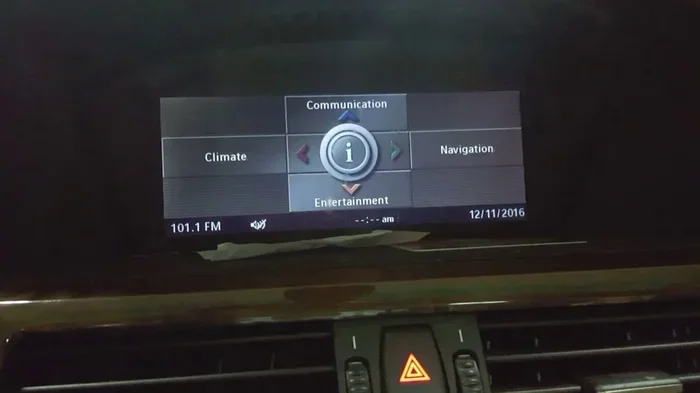
The iDrive system is the brain of your BMW’s infotainment. Most modern 5 Series models, including the G38 (2017 and newer), use iDrive to manage the clock. The process is simple and takes less than a minute once you know the steps.
Step-by-Step: Changing the Time via iDrive
Follow these steps to adjust the clock on your BMW 5 Series using the iDrive controller:
- Press the Menu Button: Press the Menu button on your iDrive controller or touchscreen to open the main settings panel.
- Navigate to Settings: Use the rotary controller or your finger to scroll to the Settings icon. It looks like a gear wheel. Press it to open the menu.
- Select Vehicle Settings: In the Settings menu, look for the Vehicle Settings option. This is where you control clocks, mirrors, and other vehicle functions.
- Choose Clock Settings: Scroll down to find the Clock or Time & Date option. Tap on it to enter the time adjustment screen.
- Adjust the Time: Use the up and down arrows or the rotary controller to change the hours and minutes. Press the confirm button when the time is correct.
- Save Your Changes: The system usually saves automatically. Exit the menu and check the dashboard clock to confirm the update.
That is it. You have successfully changed the time on your BMW 5 Series. The new time will appear on both the instrument cluster and the infotainment display.
Tips for Navigating iDrive Efficiently
If you are new to the iDrive system, the menus can feel a bit overwhelming at first. Here are a few tips to make the process smoother:
- Use the Rotary Controller: The iDrive knob in the center console is the fastest way to navigate menus. Scroll with a gentle turn and press to select.
- Use Voice Commands: If your BMW has the voice control feature, you can say “Set time” or “Change clock” to skip the menu entirely.
- Touchscreen Models: Newer BMW models with a touchscreen let you tap directly on the clock on the home screen to jump to the settings.
- Remember Your Path: Menu > Settings > Vehicle Settings > Clock. Once you do it once, you will remember the path easily.
Changing the Time Format: 12-Hour vs. 24-Hour
Some drivers prefer the 12-hour clock with AM and PM. Others like the cleaner look of the 24-hour military-style format. Your BMW 5 Series lets you switch between both formats easily. This is a quick setting change that makes the clock display feel more natural to you.
How to Switch the Time Format
To change the time format on your BMW 5 Series, follow these steps:
- Go to the Clock Settings: Follow the same path as before: Menu > Settings > Vehicle Settings > Clock.
- Look for Time Format: In the clock settings menu, find the Time Format option. It may be labeled as “12h/24h” or “Format.”
- Select Your Preference: Toggle between 12-hour and 24-hour format. The display will update immediately so you can see the difference.
- Confirm and Exit: Press the confirm or back button to save your choice. The new format will now appear on your dashboard.
Keep in mind that the time zone setting does not change when you switch formats. You are only changing how the time looks, not what the time actually is. This is a great option if you travel frequently between the US and countries that use the 24-hour format.
Which Format Should You Choose?
Here is a quick comparison to help you decide:
- 12-Hour Format: Best for drivers in the United States and countries that use AM/PM. It feels familiar and easy to read at a glance.
- 24-Hour Format: Popular in Europe, Asia, and many other regions. It removes any confusion about AM and PM, which is helpful for international drivers.
- Personal Preference: If you have lived in both systems, pick whichever feels more natural to your daily routine.
Adjusting the Time Zone on Your BMW 5 Series
If you have recently moved or are traveling across time zones, your BMW 5 Series clock may be off by a few hours. The good news is that your BMW has a built-in time zone setting. When set correctly, your car can automatically adjust for daylight saving time and even sync with GPS satellites for the most accurate time possible.
How to Set the Time Zone Manually
To manually set the time zone on your BMW 5 Series, follow these steps:
- Open the Clock Settings: Go to Menu > Settings > Vehicle Settings > Clock as you did before.
- Find the Time Zone Option: Look for a Time Zone or Time Zone Selection setting. It may show your current city or UTC offset.
- Select Your Time Zone: Scroll through the list or use the map view to pick your current time zone. For example, select “Eastern Time (ET)” if you are on the US East Coast.
- Enable Automatic Updates: If your BMW has GPS, turn on the automatic time zone feature. This lets the car update the clock when you cross into a different time zone.
- Save and Check: Exit the menu and verify that the clock now shows the correct time for your location.
Automatic Time Zone Updates
Many BMW 5 Series models from 2018 onward come with GPS-based time synchronization. This means your car can detect your location and update the clock automatically. You do not need to do anything. The system pulls the correct time from GPS satellites and adjusts for your time zone without any input from you.
If your BMW has this feature, make sure it is turned on. Here is how to check:
- Go to Settings > Vehicle Settings > Clock.
- Look for “Auto Time Zone” or “GPS Time Sync.”
- Toggle it on if it is off.
Once enabled, your BMW will always display the correct time, even when you drive across state lines or international borders. It is a great feature for road trips and frequent travelers.
Common Issues When Changing the Time on Your BMW 5 Series
Sometimes, changing the time does not go as smoothly as it should. You might find that the clock resets after you turn off the car, or the settings menu does not respond. These issues are usually easy to fix. Let us look at the most common problems and their solutions.
The Clock Resets After Turning Off the Car
If your BMW 5 Series clock keeps resetting to a default time every time you start the car, the most likely cause is a weak or dead battery. The clock in your BMW relies on a small backup battery to remember its settings when the engine is off. If that battery is dying, the clock loses its memory.
Here is what you can do:
- Check the Main Battery: A low car battery often causes clock resets. If your BMW has trouble starting or the lights are dim, the battery may need replacement.
- Replace the Backup Battery: Inside the BMW, there is a small CMOS-style battery that keeps the clock running when the car is off. A mechanic can replace this for you.
- Check for Electrical Issues: If the battery is fine, a loose wire or faulty fuse in the instrument cluster could be the culprit.
For more on how car batteries affect your vehicle’s electronics, check out our article on can a bad battery cause the wrench light to come on. Understanding battery issues helps you catch problems early.
The Clock Display Is Blank or Frozen
A blank or frozen clock display can be unsettling, but it is usually not a serious problem. Try these steps before visiting a dealer:
- Restart the iDrive System: Press and hold the power button on the infotainment screen for about 10 seconds. The system will reboot, and the clock should come back to life.
- Check the Dimmer Setting: Sometimes the clock display is turned down too low, making it invisible. Go to the display settings and adjust the brightness.
- Reset the System: If a restart does not work, a full system reset can clear temporary glitches. Go to Settings > System > Reset.
The Time Won’t Save After You Adjust It
If you change the time but it reverts to the old time after you turn off the car, the problem is usually a settings sync issue. Try this:
- Make Sure You Confirm the Change: Some BMW models require you to press a specific confirm button after adjusting the time. Without confirmation, the change does not save.
- Check for Software Updates: Outdated iDrive software can cause settings to not save properly. Visit your dealer or check for updates through the BMW app.
- Factory Reset as a Last Resort: If nothing else works, a factory reset of the iDrive system can restore proper clock function. Be aware that this will reset all your custom settings.
Remember that regular car maintenance goes a long way in preventing these issues. Keeping your electrical system healthy, updating software, and replacing old batteries are all part of keeping your BMW running at its best. For tips on other maintenance tasks, you might want to read our guide on whether you need to change all 4 brake pads at once to understand how BMW systems work as a whole.
BMW 5 Series Time Settings: Quick Tips and Maintenance
Now that you know how to change the time and fix common issues, let us cover some quick tips that will make managing your BMW 5 Series clock even easier. These small habits can save you time and frustration in the long run.
Quick Tips for Managing Your BMW Clock
- Check the Time After Battery Replacement: Whenever you replace your BMW’s battery, the clock will likely reset. Make it a habit to check and adjust the time afterward.
- Use Voice Commands for Quick Adjustments: If you are driving and realize the clock is wrong, use the voice control feature to adjust it hands-free.
- Keep Your iDrive Software Updated: BMW releases software updates that improve clock accuracy and fix bugs. Check for updates at least twice a year.
- Set Your Time Zone Before Traveling: If you are planning a road trip, set your time zone in advance so the clock adjusts smoothly as you cross borders.
- Use the Instrument Cluster as a Backup: If the infotainment screen is glitching, the instrument cluster clock should still display the correct time independently.
When to Visit a BMW Dealer
Most clock issues can be resolved at home with the steps in this guide. However, there are times when a visit to the dealer makes sense. If your clock keeps resetting despite a new battery, if the display remains blank after a system reset, or if the iDrive system is unresponsive, it is time to seek professional help. A certified BMW technician can run diagnostics and identify deeper electrical or software problems.
Regular service visits are also a great opportunity to have the clock and time settings checked. During an oil change or routine inspection, ask the technician to verify that all time-related features are working correctly. This is especially important for older BMW 5 Series models where electrical components can wear over time.
For general maintenance questions, you can also explore our article on whether you can just drive up to Jiffy Lube for an oil change to learn more about keeping your BMW in top shape between dealer visits.
Final Thoughts
Changing the time in your BMW 5 Series is one of those small tasks that makes a big difference in your daily driving experience. A correct clock means accurate navigation, reliable call logs, and a dashboard that feels exactly the way you want it. Whether you use the iDrive system, the instrument cluster buttons, or voice commands, the process is quick and easy once you know the steps.
Remember to check your time zone settings, especially if you travel often. Enable automatic updates if your BMW supports GPS-based time sync. And if you run into any issues, the troubleshooting tips in this guide should help you get things back on track.
Your BMW 5 Series is a precision machine. Taking a few minutes to keep the clock accurate is just one small part of owning and enjoying this incredible vehicle. Take control of your dashboard today, and drive with confidence knowing that every detail of your BMW is set just right.
Frequently Asked Questions
Can I change the BMW 5 Series clock without using the iDrive system?
Yes, you can. On some BMW 5 Series models, the instrument cluster has buttons or a scroll wheel that let you adjust the time directly. Check your owner’s manual for the specific controls on your model. The iDrive system is the primary method for most newer models, but older versions may offer an alternative.
Why does my BMW 5 Series clock keep resetting after I turn off the car?
The most common reason is a weak or dead battery. Your BMW uses a backup battery to keep the clock running when the engine is off. If that battery is failing, the clock will reset. Replacing the car battery or the backup battery usually fixes this problem completely.
Can my BMW 5 Series automatically change the time for daylight saving time?
Yes, if your BMW has GPS and the automatic time zone feature is enabled, it can adjust for daylight saving time on its own. Make sure the auto time zone setting is turned on in the Clock menu under Vehicle Settings. This feature works best on models from 2018 and newer.
How long does it take to change the time on a BMW 5 Series?
It takes less than two minutes. Once you know the menu path, you can adjust the clock in under a minute. The steps are Menu > Settings > Vehicle Settings > Clock, then use the controller to change the time and confirm.
Is there a difference in how I change the time on different BMW 5 Series model years?
The basic process is the same across most model years. Newer models with touchscreen iDrive let you tap the clock directly on the home screen. Older models may require navigating through the rotary controller menus. The time zone and format settings work the same way regardless of the model year.
What should I do if the clock settings menu is not responding on my BMW 5 Series?
First, try restarting the iDrive system by holding the power button for 10 seconds. If that does not work, check for software updates through the BMW app or visit a dealer. A frozen or unresponsive menu is usually caused by a temporary software glitch that a restart can fix.
=== CONCLUSION ===
Changing the time in your BMW 5 Series is a simple task that anyone can do in just a few minutes. Whether you prefer the iDrive menu, the instrument cluster, or voice commands, your BMW gives you multiple ways to keep the clock accurate. Remember to check your time zone settings, switch between 12-hour and 24-hour formats if needed, and enable automatic updates for the smoothest experience.
By following the steps in this guide, you have taken control of one of the most overlooked settings in your car. A correct clock means better navigation, more reliable call logs, and a dashboard that works exactly the way you expect it to. Keep this guide bookmarked for future reference, and share it with fellow BMW owners who might need a quick reminder.
Your BMW 5 Series is built to perform, and now your clock is too. Drive confidently, stay on time, and enjoy every mile.